Why Your Wireless CarPlay Adapter Lags (and Fixes)
The real reasons a wireless adapter feels sluggish, plus the settings and habits that make it snappy again.

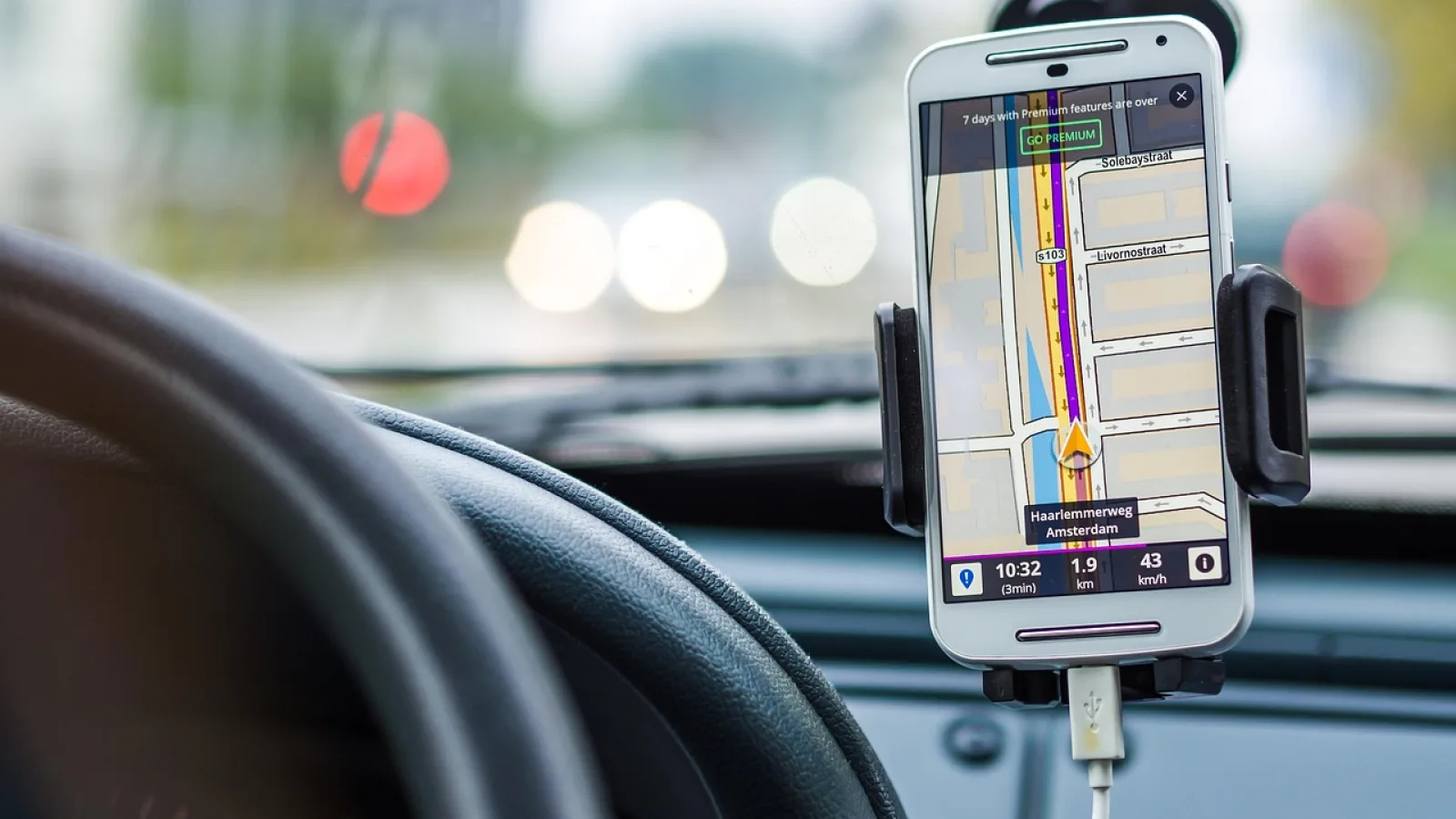
Key takeaways
- Most lag traces back to a crowded 2.4GHz Bluetooth handshake or a 5GHz Wi-Fi channel fighting other devices.
- Heat is a quiet killer: a hot dongle throttles itself and the whole screen goes slow.
- Placement, firmware updates, and clearing old device pairings fix a surprising amount of stutter.
- A short reboot ritual (phone Bluetooth off, adapter unplugged) clears most one-off freezes.
You tap the map to zoom, and nothing happens for a beat. Then the screen catches up all at once, jumping two zoom levels past where you wanted. Or a song ends and the next one hangs for three full seconds while the little spinner mocks you.
That gap between what you do and what the screen does is latency, and on a wireless CarPlay setup it can feel worse than a wired connection ever did. The good news is that almost none of it is random. There is usually one specific bottleneck, and once you know where to look you can fix it in an afternoon.
I have installed and tested a lot of these little dongles, from the $60 no-name boxes to the pricier branded ones. The pattern is always the same. Wireless carplay adapter lag comes from a short list of causes, and I will walk you through each one with the fix that actually worked on real cars.
How the wireless handshake actually creates lag
A wired connection is boring and reliable: your phone plugs in, data flows down copper, done. A wireless adapter has to do a two-part dance instead.
First it uses Bluetooth to wake your phone and agree on a connection. Then it hands the heavy lifting (video, touch, audio) over to a private Wi-Fi link on the 5GHz band. Both halves have to stay healthy or you feel it.
Bluetooth runs on the crowded 2.4GHz band, the same one your key fob, tire sensors, and every other driver’s phone are shouting across. When that handshake is slow or drops, your taps get queued up and released in a clump. That is the classic “screen ignores me, then does everything at once” symptom.
Good to know
The 5GHz Wi-Fi link carries the picture and touch data, while 2.4GHz Bluetooth just handles the initial pairing and some control signals. If your video is smooth but your buttons feel mushy, suspect Bluetooth. If the whole picture stutters, suspect the Wi-Fi side.
The heat problem nobody warns you about

Here is the one that catches everyone. These adapters are tiny computers running a full wireless stack, and they get hot. Really hot.
When a chip crosses its thermal limit it slows itself down on purpose to avoid damage. That is called throttling, and on a cheap dongle sitting on a black dashboard in July, it can happen within 15 minutes of a sunny drive.
The symptom is sneaky: everything works fine when you start the car, then twenty minutes in the maps start chugging and audio skips. If your lag gets worse the longer you drive, heat is your prime suspect.
Move the adapter out of direct sun. A spot in the center console cubby or clipped low near the shifter runs far cooler than one baking on top of the dash. If your car has a ventilated phone tray, that airflow helps the dongle too.
Watch out
Do not bury the adapter under a thick rubber mat or inside a sealed glovebox with the cable pinched. It needs a little air. A dongle that runs cool will hold its speed for the whole trip.
Wi-Fi crowding and channel conflicts
Your adapter creates its own private 5GHz network between itself and your phone. In an empty parking lot that link is clean. In a packed downtown garage, dozens of other cars and phones are broadcasting on nearby channels, and the interference shows up as micro-stutters.
You cannot control other people’s gear, but you can help your own. Keep your phone close to the adapter. Line of sight matters more than people expect: a metal center console or a thick phone case with a card holder can weaken the signal enough to cause dropouts.
Some adapters let you pick the Wi-Fi channel in their companion app. If yours does and you drive in congested areas, try switching to a higher 5GHz channel (the 149 to 165 range is often quieter than the low channels).
A quick diagnostic: match your symptom to the cause
Before you start changing settings, figure out which bucket your problem falls into. This table maps the feel of the lag to the most likely culprit.
| What you feel | Most likely cause | First thing to try |
|---|---|---|
| Taps queue up, then fire all at once | Weak Bluetooth handshake | Re-pair, remove old devices from the list |
| Whole picture stutters or tears | 5GHz Wi-Fi interference | Move phone closer, change Wi-Fi channel |
| Fine at first, worsens after 15-20 minutes | Thermal throttling (heat) | Relocate adapter out of sun, add airflow |
| Random freezes then recovers | Firmware bug or old pairing | Update firmware, clear the device cache |
| Slow only on one specific phone | Phone-side Bluetooth clutter | Reset network settings on that phone |
Firmware and old pairings: the free speed boost
Most people plug in the adapter once and never touch it again. That is a mistake, because the early firmware on these boxes is often rough, and makers push updates that genuinely cut latency.
Check the manufacturer’s app or website for a firmware update. I have seen a single update take a stuttery unit and make it feel almost wired. It is the highest-value ten minutes you can spend.
The other quiet troublemaker is a long list of old paired devices. If you, your partner, and three friends have all connected over the months, the adapter wastes time at startup deciding who to talk to. Clear the pairing list down to just the phones you use daily.
Pro tip
After a firmware update, do a full reset and pair your phone fresh. Updates sometimes leave the old connection profile in a weird state, and a clean pairing avoids that. It takes two minutes and saves a lot of head-scratching.
The reboot ritual that clears most freezes
When an adapter freezes mid-drive, you do not need to rip it out and buy a new one. A specific reset sequence clears the vast majority of one-off glitches.
- Turn Bluetooth off on your phone, then back on after five seconds.
- Unplug the adapter from the USB port, wait ten seconds, plug it back in.
- Lock and unlock your phone so it re-offers the connection.
- If it still hangs, restart the car’s head unit (turn the ignition fully off, open the door, wait a minute).
- Forget the CarPlay connection on the phone and pair once more from scratch.
Nine times out of ten you never get past the first two steps. Keeping this sequence in your head means a freeze is a thirty-second annoyance instead of a ruined commute.
When the lag is your car, not the adapter
Sometimes the dongle is innocent. Older factory head units have slow processors, and they render CarPlay sluggishly no matter how clean your wireless link is. A 2016 infotainment system was never built for wireless projection, and it shows.
You can test this. Plug your phone in with a good USB cable for wired CarPlay. If the wired connection is just as laggy, the head unit is your bottleneck and no adapter change will fix it. If wired is snappy and wireless is not, the adapter or the link is where to focus.
The fastest wireless setup in the world still runs through your car’s screen. A slow head unit caps how good the whole experience can feel, and that is worth knowing before you spend money chasing a fix.
Cable quality matters for that test, by the way. A cheap or damaged USB cable can make wired CarPlay look bad and lead you to the wrong conclusion. Use one you trust.
Your next move
Start with the two changes that cost nothing and fix the most cases: relocate the adapter somewhere cooler and shaded, then update its firmware. Those two alone clear up a real chunk of complaints I hear.
If lag remains, run the symptom table above and match your feeling to a cause instead of guessing. A queued-tap problem and a heat problem look similar from the driver’s seat but need opposite fixes.
And if a wired cable is just as slow, make peace with the fact that your head unit is the limit, and put your energy into a phone mount and a solid cable instead. For the deeper technical background on how projection works, Apple’s own CarPlay overview and the community-maintained CarPlay article are both worth a read.
Frequently asked questions
There is a tiny bit of added latency by nature, since the data travels over Wi-Fi instead of a cable. On a good adapter with a healthy connection and a modern head unit, the difference is small enough that most people stop noticing it after a day. Big, obvious lag is almost always a fixable problem, not something you have to accept.
Often yes. Budget dongles tend to use slower chips, run hotter, and ship with buggier firmware that never gets updated. Spending $80 to $120 instead of $40 usually buys a cooler-running unit with better software support, which shows up as smoother taps and maps.
That is thermal throttling. The chip inside slows itself down when it overheats to protect itself, and a dongle sitting in direct sun crosses that limit fast. Moving it into a shaded, ventilated spot usually solves it completely.
Sometimes. If one phone lags and another connects smoothly to the same adapter, the issue is on the phone side, often a cluttered Bluetooth list or a network setting glitch. Resetting network settings on the problem phone frequently clears it up without touching the adapter at all.
Check every few months, or whenever the maker's app flags an update. Firmware fixes are the single most effective way to cut latency on these devices, and manufacturers keep improving them well after launch. A five-minute update can transform a stuttery unit.
Keep reading
Related guides
Wireless Adapter Connection Drops: How to Fix Them
A hands-on troubleshooting walkthrough for stopping your wireless CarPlay or Android Auto dongle from cutting out while you drive.
Read guide
2-in-1 CarPlay and Android Auto Adapters Explained
A plain-spoken look at how dual-platform wireless dongles work, who actually needs one, and where they trip people up.
Read guide
Will a Wireless CarPlay Adapter Work With My Car?
A plain-language checklist for figuring out if a wireless CarPlay dongle will actually work in your car before you spend a dime.
Read guide