CarPlay Black Screen: Causes and Simple Fixes
A blank or dark CarPlay display is almost always a small glitch, and here is how to bring the screen back in a few minutes.

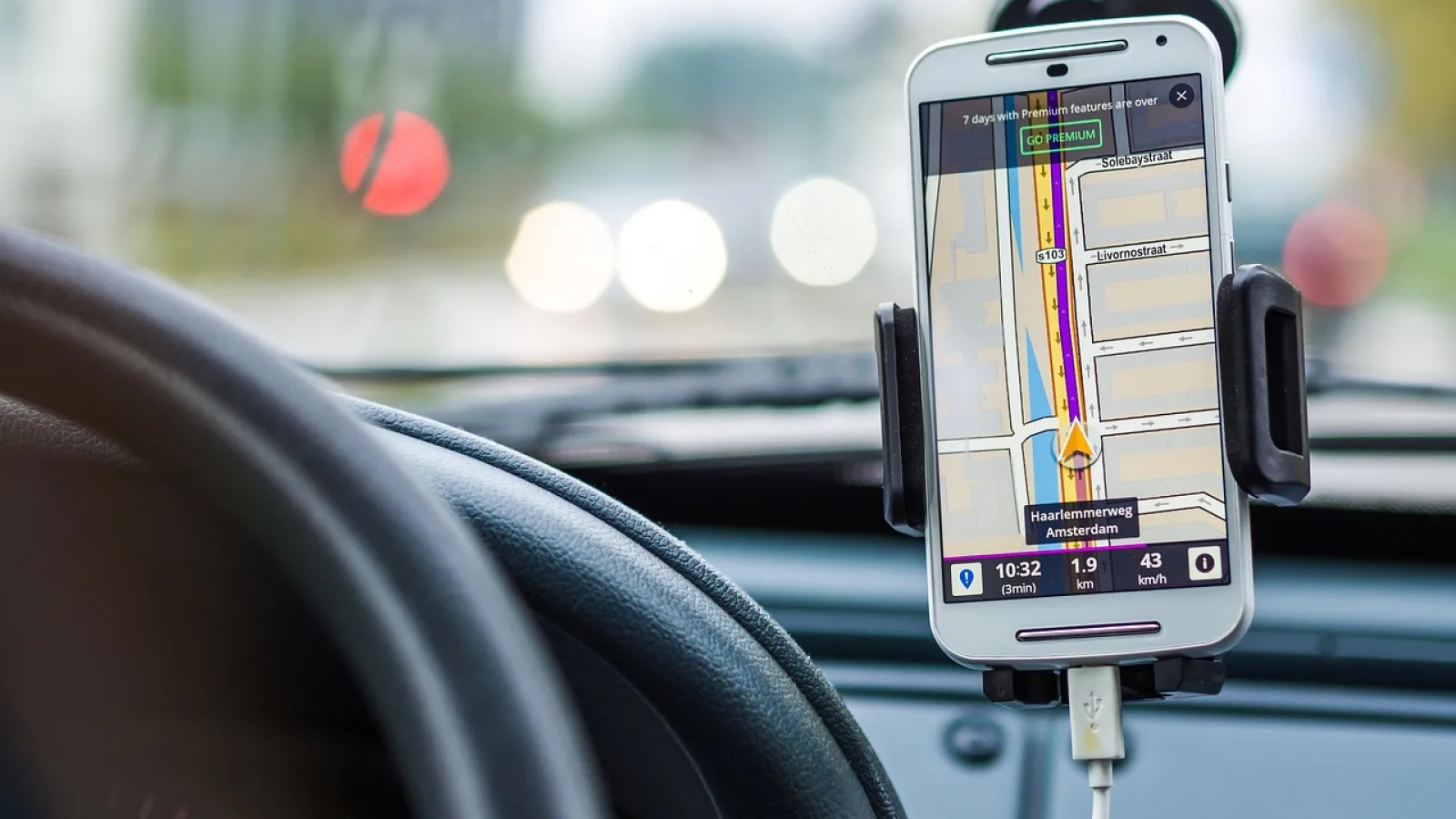
Key takeaways
- Most black screens come from a loose or worn USB cable, so swap it first before anything else.
- A hard restart of your phone plus a head unit reboot clears the majority of one-off glitches.
- If audio plays but the screen stays dark, the display feed or brightness setting is the likely culprit.
- Wireless setups can show a black screen when the handshake half-connects, and toggling Bluetooth fixes it.
- A stubborn black screen after an update usually means resetting the CarPlay pairing on both ends.
You plug in, your phone buzzes to say it charging, the stereo chimes like it recognizes something, and then the screen just sits there black. No apps, no map, nothing. Just a dark rectangle staring back while you idle in the driveway.
I have chased this across dozens of cars, from an older Honda Civic to a loaded Toyota Highlander, and the fixes are almost always simple. The screen going dark rarely means your head unit is dead. It usually means one small link in the chain hiccuped.
So let me walk you through what causes a carplay black screen and the order I work through fixes in real driveways, fastest first.
Why the screen goes dark in the first place
A black screen is different from CarPlay not connecting at all. When it will not connect, you get an error or no response. With a black screen, something did connect, but the display feed never made it through.
That distinction points you at a shorter list of suspects. The handshake succeeded far enough to charge your phone and sometimes push audio. What broke was the video signal or the app that draws it.
Here are the usual troublemakers, in order of how often they turn out to be the problem.
| Cause | Tell-tale sign | Rough fix time |
|---|---|---|
| Worn or cheap USB cable | Phone charges but nothing draws on screen | 2 minutes |
| One-off software glitch | Worked yesterday, dark today, no other changes | 3 minutes |
| Wireless half-handshake | Bluetooth shows connected, screen stays black | 5 minutes |
| Head unit needs a reboot | Other head unit menus feel sluggish too | 5 minutes |
| Brightness or dark theme quirk | Faint image if you tilt your head in sunlight | 1 minute |
| Recent iOS or firmware update | Started right after an update installed | 10 minutes |
Start with the cable, every single time

For wired CarPlay, the USB cable is the number one killer of a working display. I cannot count how many black screens I have fixed by simply swapping a $12 cable for a known good one.
Here is the trap. A cheap cable can carry enough power to charge your phone while failing to move data. You see the charging light, assume the cable is fine, and spend twenty minutes blaming your car. The cable was lying to you.
Use a quality cable, ideally the one that came with your phone. Cheap gas-station cables are often power-only and will never show a screen.
Pro tip
Keep one cable you know works for data tucked in the glovebox as your test cable. When a black screen shows up, plug that in first. If the screen wakes up, you just found your problem in ten seconds.
Also check the port. Lint and pocket fuzz pack into a phone charging port and the car USB jack, pushing the connector just far enough to break the data pins. A wooden toothpick and thirty seconds of gentle scraping has saved me more than once.
The two-part restart that clears most glitches
If the cable checks out, the next move is a proper restart of both devices. Not a quick lock and unlock. A real one.
Restart your phone fully. Power it all the way off, wait ten seconds, then power it back on. On an iPhone, hold the side button and a volume button until the slider appears, then slide to power off.
Then reboot the car. Turn it fully off, open and close the driver door, and let it sit a minute so the head unit actually powers down instead of napping. On some cars you can hold the power or volume knob for 10-15 seconds to force a restart.
- Unplug the phone from the car
- Fully power off the phone and wait 10 seconds
- Power the phone back on
- Turn the car off, open the door, wait a minute
- Start the car and plug back in
Doing both in that order matters. A stale head unit hanging onto a dead session is what keeps the screen black even after the phone comes back fresh.
Good to know
If your audio still plays through CarPlay but the screen stays dark, that is a strong hint the head unit itself is stuck. Audio and video run on slightly different paths, so sound working while video does not points you straight at a head unit reboot rather than the phone.
When wireless CarPlay shows a black screen
Wireless setups add a twist. They lean on both Bluetooth and Wi-Fi, and a black screen often means the two half-connected. Bluetooth paired, but the Wi-Fi link that carries the actual display never locked in.
The fastest reset is to toggle Bluetooth off and back on in your phone settings, then wait for the car to re-offer CarPlay. If that does nothing, forget the car in your Bluetooth list and re-pair from scratch. It usually takes about three minutes.
One mistake I see constantly: people leave Wi-Fi off to save battery. Wireless CarPlay needs Wi-Fi enabled even if you never join a network with it. Flip it on and the black screen often clears on its own.
Watch out
If you have a wireless CarPlay adapter dongle in the USB port, that box has its own firmware and can freeze on its own. Unplug it for 20 seconds and plug it back in before you tear apart your phone settings. A frozen adapter looks exactly like a car problem.
Check brightness, dark mode, and the obvious stuff
Sometimes the screen is not truly black. It is just very, very dim.
Many cars tie the CarPlay brightness to the headlight setting. If your lights are on or set to auto in daylight, the screen can drop to a night dimming level that looks nearly off. Flip your headlights to off or manual and watch the screen jump back to life.
Dark mode plays tricks too. A CarPlay screen with a black wallpaper, viewed at a bad angle in bright sun, reads as blank until you shade it with your hand. Worth ruling out before you go further.
While you are in there, make sure CarPlay is allowed. Open Settings, General, CarPlay, and confirm your car is listed and not restricted under Screen Time.
Fixing a black screen after a software update
This one has a specific flavor. Everything worked fine, an update installed on your phone or car, and now the screen is dark.
Updates occasionally scramble the stored pairing between your phone and the head unit. The old handshake data no longer matches, so the connection completes partway and the display never draws. The fix is to wipe that pairing and rebuild it.
On your iPhone, go to Settings, General, CarPlay, tap your car, and choose Forget This Car. Then reconnect, plugging in or re-pairing wirelessly, and let it set up like new. Apple has a plain walkthrough on the CarPlay support page if you want to follow along.
Nine times out of ten, a black screen that appeared right after an update is a stale pairing, not a broken car. Forget the car, reconnect, and it comes back.
If your car maker pushed a head unit firmware update, check whether a newer one is waiting. A half-applied update can leave the display logic in a bad state, and finishing it often resolves the problem.
What to do if nothing above worked
Say you swapped cables, restarted both devices, and cleared the pairing, yet the screen is still black. Test your phone in a friend car, or a friend phone in your car. If your phone lights up someone else screen, the trouble lives in your car. If their phone stays dark in your car too, your head unit is the suspect.
Quick note
A screen that is cracked or has a bad backlight shows a black CarPlay display but also a glitchy image everywhere else in the car menu. If your regular radio screen looks wrong too, this is a hardware repair, not a CarPlay setting.
For the background on how the system talks to your car, the CarPlay overview on Wikipedia lays out the moving parts, handy when you explain the problem to a dealer.
Your next move
Start simple and work down. Swap to a known good data cable, do the two-part restart of phone and head unit, then clear the pairing if an update is involved. That order catches most black screens before you touch a settings menu.
If you get the screen back but it keeps dropping out or the audio cuts, those are separate problems with their own fixes.
Keep that spare data cable in the glovebox and you will solve most future dark-screen moments right in the parking lot.
Frequently asked questions
This almost always points to a cable that carries power but not data. Cheap or worn USB cables can push a charge while the data pins fail, so your phone looks connected but no display ever draws. Swap in a certified cable to confirm.
Audio and video travel on slightly separate paths, so sound playing while the screen stays dark usually means the head unit is stuck rather than your phone. A full head unit reboot, done by turning the car off and letting it sit a minute, clears this most of the time.
Yes. Updates can scramble the stored pairing between your phone and the car, so the connection completes partway and the display never appears. Go to Settings, General, CarPlay, forget the car, then reconnect from scratch to rebuild a clean pairing.
Many cars tie the CarPlay brightness to your headlight setting. If your lights are on or set to auto during the day, the screen drops to a night dimming level that can look almost off. Switch your headlights off or to manual and the screen usually brightens right up.
It does. Wireless CarPlay uses Wi-Fi to carry the display even though you never join a network with it. If you keep Wi-Fi off to save battery, the connection can half-complete and leave the screen black, so turn Wi-Fi on and the display often returns.
Keep reading
Related guides
CarPlay Won’t Start Automatically: How to Fix Autostart
Make CarPlay launch on its own every time you get in the car, without tapping a single button on the screen.
Read guide
CarPlay Is Laggy and Slow: How to Speed It Up
Sticky maps, slow taps and stuttering audio usually trace back to a few fixable causes. Here is how to find yours.
Read guide
Phone Overheats With CarPlay: Why and How to Stop It
Your phone gets hot and drains fast on long CarPlay drives. Here is what causes it and the fixes that actually keep it cool.
Read guide