First-Time Wired CarPlay Setup, Made Simple
A plain, hands-on walkthrough for connecting your iPhone to CarPlay with a cable the very first time, with the small snags nobody warns you about.

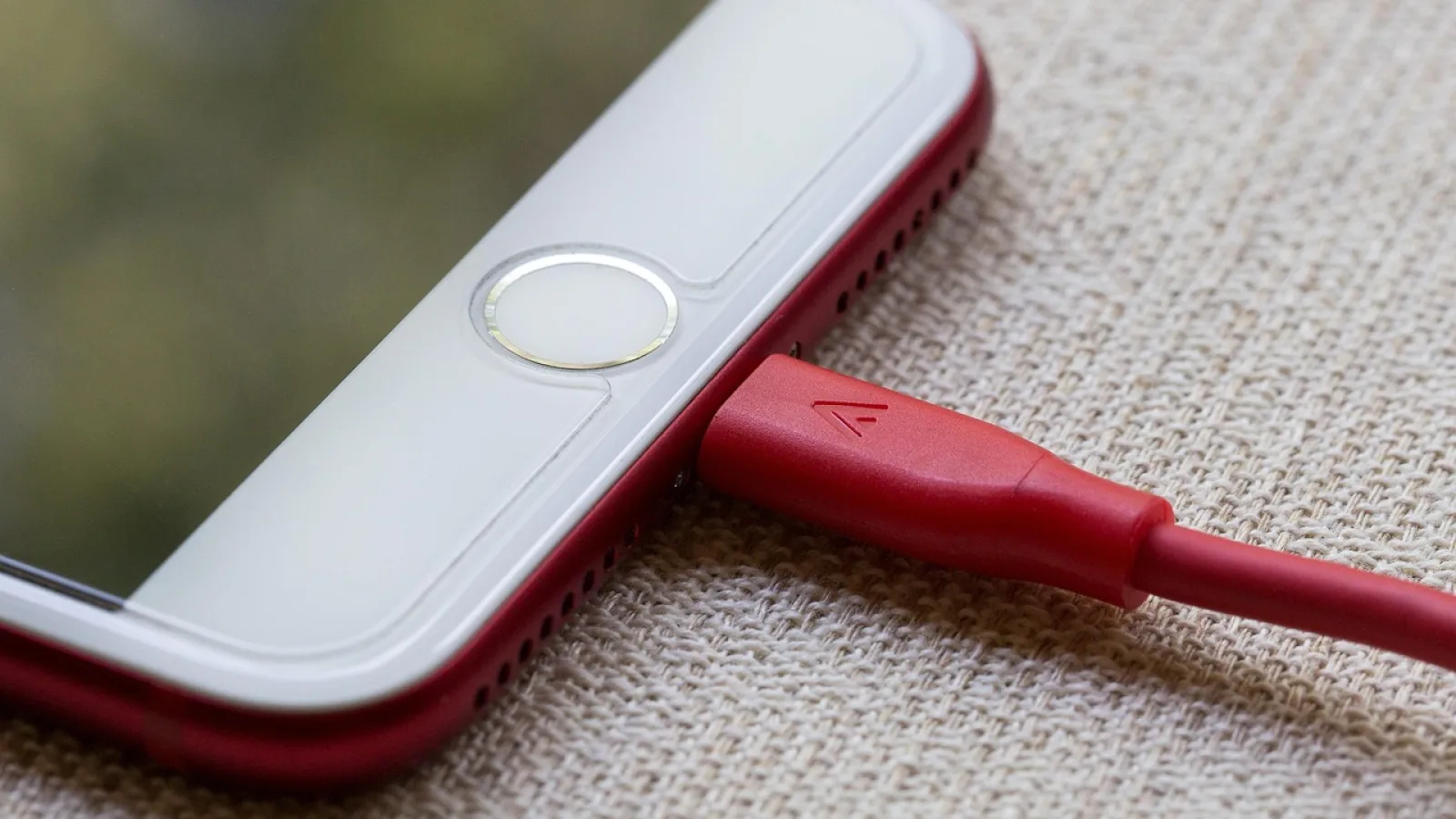
Key takeaways
- Plug into the USB port marked with a phone or CarPlay icon, not just any port you find.
- Use a genuine or MFi-certified cable; a cheap charge-only cord is the most common reason it fails.
- The first connection asks for permission on your phone, so unlock it and tap Allow when prompted.
- If nothing shows up, check that CarPlay is enabled under Screen Time and try a different cable before blaming the car.
You just picked up the car, or maybe you finally splurged on a head unit that supports CarPlay. You grab your iPhone, plug it in with the cable that was charging it last night, and stare at a screen that stubbornly shows nothing. No apps, no map, just the same radio you had before.
I have been on both ends of this. As an installer I watched customers do everything right and still get a blank screen because of one tiny detail. And I have sat in my own driveway swearing at a dashboard because I grabbed the wrong cord.
The good news: a wired carplay setup is genuinely simple once you know the three or four things that actually matter. Let me walk you through it the way I would if I were sitting in the passenger seat.
Find the port that actually talks to CarPlay
Not every USB port in your car does the same job. Many cars have two or more, and often only one of them carries data. The others are there just to charge a phone or run a dash cam.
Look for a small icon near the port. A phone outline, the letters CarPlay, or a little chain-link data symbol usually marks the right one. On a lot of Toyota and Honda models it sits right in the center console, while some Fords tuck it inside the armrest bin.
If your car has a USB-C port and a USB-A port side by side, try the one your manual lists for smartphone connection first. Guessing is fine, but the manual saves you five minutes of frustration.
Watch out
A port labeled only with a lightning-bolt or battery icon is usually charge-only. It will power your phone all day and never once bring up CarPlay. This trips up more first-timers than anything else.
The cable matters more than you think
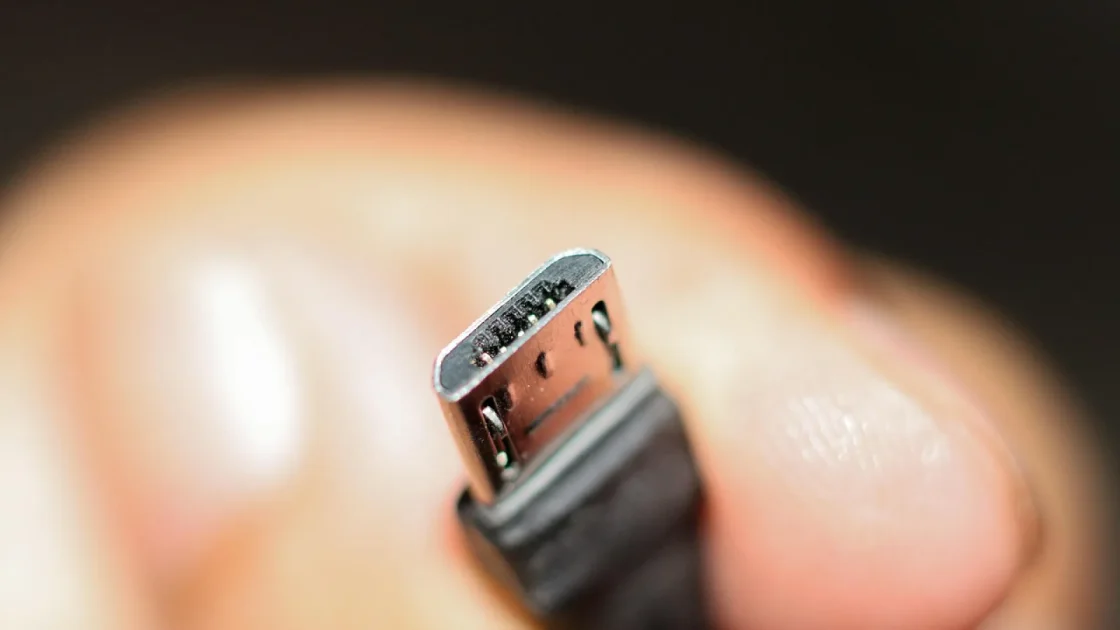
This is where most failures happen. That flimsy $4 cable from a gas station might charge your phone, but plenty of them skip the data wires entirely to save a few cents. No data wires means no CarPlay, full stop.
For an iPhone, you want an Apple cable or one that carries the MFi badge (Made for iPhone). A quality third-party cable runs about $12 to $20 and will outlast the freebies by years. If your phone uses Lightning, grab a Lightning-to-USB cable that matches your car port. Newer iPhones with USB-C need a USB-C cable, and the port question still applies.
I keep one good cable permanently in the car and never let it wander into the house. The day it becomes the family charging cable is the day it goes missing right before a road trip.
Pro tip
Keep the cable length short, around 3 feet. A long cable snaking across the console picks up interference and gets yanked loose every time someone shifts in their seat. Short and tidy connects more reliably.
Turn CarPlay on before you plug in
CarPlay is on by default for most iPhones, but Screen Time or a previous setting can quietly switch it off. Worth a 20-second check before you start troubleshooting the car.
On your iPhone, open Settings, then General, then CarPlay. If your car appears in the list, you are set. If you want to be sure CarPlay is allowed at all, go to Settings, Screen Time, Content and Privacy Restrictions, Allowed Apps, and confirm CarPlay is switched on.
Apple keeps the official rundown on the CarPlay page if you want to see which apps and features your iOS version supports.
Make the first connection
Here is the actual sequence, start to finish. Do it with the engine running or at least the ignition in accessory mode so the screen is awake.
- Unlock your iPhone and leave it unlocked for the first pairing.
- Plug the cable into the data USB port and into your phone.
- Watch your phone for a prompt asking to allow CarPlay. Tap Allow or Use CarPlay.
- Glance at the car screen. It should switch to the CarPlay home layout within 5 to 15 seconds.
- If a CarPlay button appears on the dash instead, tap it once to launch.
That first Allow prompt is the step people miss. If your phone is locked or in your pocket, the car never gets permission and you get a blank screen. Keep it unlocked and in view for that one connection. After that, the car remembers your phone and connects on its own every time.
Good to know
The very first setup on a brand-new car may also ask whether to use CarPlay while the phone is locked. Say yes. Otherwise you have to unlock the phone every single drive, which defeats the whole point.
When the screen stays blank
Nine times out of ten it is the cable or the port. Before you assume the car is broken, run through the usual suspects. I have fixed dozens of “broken CarPlay” complaints that were nothing more than a tired cable.
| Symptom | Most likely cause | Quick fix |
|---|---|---|
| Phone charges, no CarPlay | Charge-only cable or port | Swap to an MFi data cable and the data port |
| CarPlay flickers then drops | Worn or loose cable | Replace the cable; check the phone connector for lint |
| No prompt on phone | Phone locked, or CarPlay off | Unlock phone; enable CarPlay in Settings |
| Works for others, not you | Software or a stuck pairing | Forget the car in Settings, restart phone, reconnect |
One overlooked culprit: lint. The charging port on a phone that lives in a pocket packs full of pocket fuzz. A wooden toothpick, gently, clears it out and restores a solid connection. I have brought “dead” ports back to life this way more times than I can count.
Quick note
If your phone keeps connecting and disconnecting, try a different cable first. A failing cable mimics almost every other problem, and it is the cheapest thing to rule out.
Wired versus the wireless temptation
You may be wondering why bother with a cable at all when wireless CarPlay exists. Fair question, and the honest answer is that wired still has real advantages.
A cable connection is rock steady. It never drops when you drive under a bridge or past a strong signal, and it charges your phone the whole time. Wireless is tidier but leans on Bluetooth and Wi-Fi, and it drains your battery faster on a long trip.
For a first car, or any car where you want zero fuss, wired is the connection I still recommend. It just works, and it keeps your phone topped up.
If you later decide to go cable-free, that is its own short process and worth reading up on separately. For now, a good cord and the right port get you a screen that lights up every time.
Get comfortable, then make it yours
Once CarPlay loads, take a minute before you drive off. Tap through the home screen so you know where Maps, Music, and Phone sit. Try a voice command by holding the steering wheel voice button and asking for directions home.
The default app layout is rarely the one you want. You can rearrange icons, set a preferred navigation app, and trim the clutter down to what you actually use. Those tweaks are quick and they turn a generic screen into your screen.
Your clear next step: buy one good MFi cable, leave it in the car, and do the unlocked first-connection once. After that, plugging in becomes second nature and the screen greets you before you have your seatbelt on. If you ever hit a snag, start with the cable, then the port, then the phone settings, in that order. Nine times out of ten the fix is that simple.
Frequently asked questions
That combination almost always points to a charge-only cable or a charge-only USB port. Many cheap cables leave out the data wires, and some car ports only supply power. Switch to a certified data cable and plug into the port marked with a phone or CarPlay icon.
You need a cable that carries data, and for iPhone that means an Apple cable or an MFi-certified third-party one. A good cable costs around $12 to $20 and lasts for years. Match the connector to your phone, Lightning or USB-C, and to the car port.
Open Settings, then Screen Time, then Content and Privacy Restrictions, then Allowed Apps, and make sure CarPlay is switched on. You can also check Settings, General, CarPlay to see paired cars. If it was off, turn it on and reconnect the cable.
Yes. After the first successful connection where you tap Allow, the car remembers your iPhone. From then on it launches CarPlay within a few seconds of plugging in, even with the phone locked, as long as you allowed that during setup.
Start with the cable, since a worn or loose one causes most drop-outs. Also check the phone's charging port for pocket lint and clear it gently with a toothpick. If it continues, forget the car in Settings, restart your phone, and pair again.
Keep reading
Related guides

Can You Use CarPlay With Two Phones?
Yes, one car can work with two phones on CarPlay. Here is how switching between them actually behaves day to day.
Read guide
Bluetooth vs USB for CarPlay and Android Auto
A clear look at when a cable beats a wireless link, and when you can happily leave the cord in the glovebox.
Read guide
How to Set Up Wireless CarPlay the First Time
Pair your iPhone to your car over Bluetooth and Wi-Fi in a few minutes, with the fixes for the moments it stalls.
Read guide