CarPlay Won’t Start Automatically: How to Fix Autostart
Make CarPlay launch on its own every time you get in the car, without tapping a single button on the screen.

Key takeaways
- Autostart usually breaks because of a car setting, not your phone.
- For wireless, Bluetooth pairing has to complete before CarPlay can wake up.
- A stale or duplicate pairing on either side is the most common culprit.
- Wired setups need a data cable and a working USB port to trigger on plug-in.
- Once the pairing is clean, CarPlay should launch within 20-30 seconds of starting the car.
You slide into the driver seat, start the engine, and wait. The head unit sits on the radio screen or the backup camera, and CarPlay is nowhere. So you reach over, poke through two menus, tap the little car icon, and finally your maps and music show up. Every single trip.
It gets old fast. CarPlay is supposed to be the thing you never think about, the screen that just appears while you are still buckling your seatbelt.
The good news is that autostart almost always breaks for a small, fixable reason. I have chased this down on dozens of cars, and the fix is rarely dramatic. Let me walk you through what causes it and how to get your dash lighting up on its own again.
Why CarPlay stops launching on its own
When everything works right, your car sees your phone connect and treats CarPlay as the default screen. That handoff depends on a few things lining up: a completed connection, a setting that tells the car to prefer CarPlay, and no competing pairing getting in the way.
Wired and wireless setups fail for different reasons. A wired connection triggers on the USB signal when you plug in. A wireless connection leans on Bluetooth to wake CarPlay first, then hands video and audio over to Wi-Fi. Break any link and the car falls back to the radio.
Here is the part people miss. If CarPlay keeps dropping mid-drive, that is a different problem than it never starting at all. This guide is about the launch, not the drop-outs.
Good to know
Autostart is a car feature, not an iPhone feature. Your phone is ready the second it is unlocked. Whether CarPlay grabs the screen is decided almost entirely by the head unit and its settings.
Start with the head unit’s own CarPlay setting
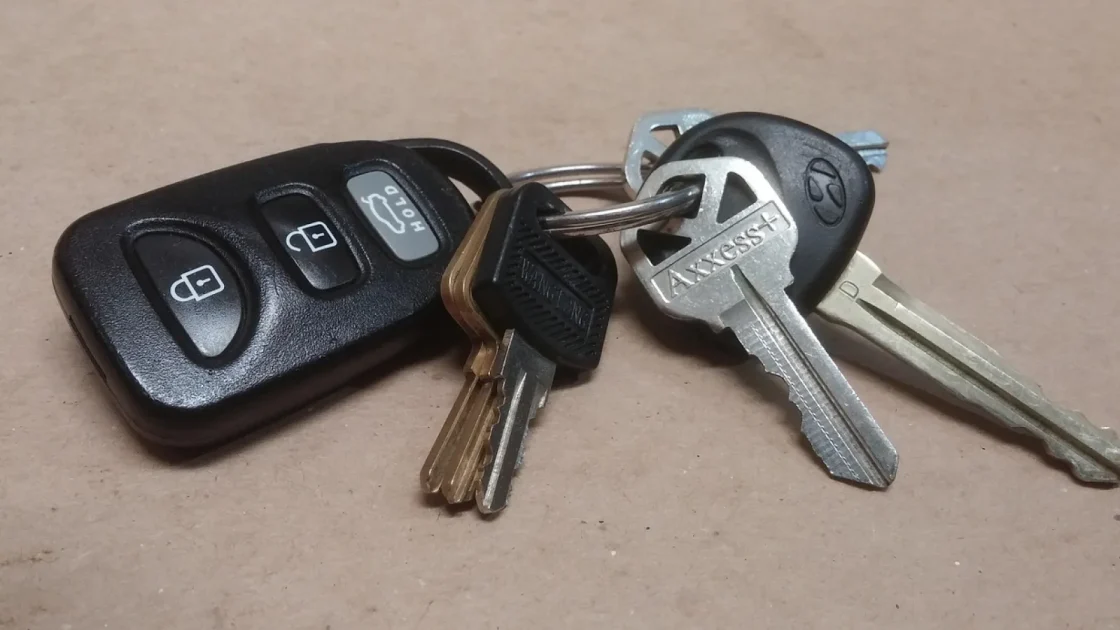
Most cars have a toggle buried in settings that controls whether CarPlay opens automatically. Manufacturers name it a dozen ways. Look for something like Auto Display, Startup Behavior, Default Source, or Preferred App on connection.
On a lot of Toyota and Subaru units it lives under Setup, then Vehicle Settings. On many VW and Audi cars it is inside the App Connect menu. If you cannot find it, search the owner’s manual PDF for CarPlay.
Set the display source or startup mode to CarPlay rather than Radio or Home. That one change fixes a surprising number of cars where the phone was connecting all along, it just never got told to take over the screen.
Pro tip
Some head units only show the autostart toggle while a phone is actively connected. Plug in or pair first, then go digging through settings. The option can be invisible until CarPlay sees a device.
Clean up a stale or duplicate pairing
This is the number one fix I reach for, and it clears the problem more often than anything else. Over months of use, phones and cars build up junk pairings. A half-finished connection, an old profile from when you had a different phone, or two entries for the same device can all stop the handshake from completing cleanly.
The move is to fully forget each other on both sides, then pair fresh. Do it in this order:
- On the iPhone, open Settings, then General, then CarPlay, and remove your car with Forget This Car.
- In the same Settings app, go to Bluetooth and forget the car’s Bluetooth entry too.
- On the head unit, delete the phone from its Bluetooth or paired-devices list.
- Turn the car fully off, open and close the driver door, and let it sit 30 seconds so the system powers down.
- Start the car and pair from scratch, accepting every prompt on both screens.
That door-open step matters more than it sounds. Many cars keep the infotainment alive for a minute or two after you switch off, and a real power cycle clears the stuck state.
Wireless CarPlay: the Bluetooth link comes first
Wireless setups have a quirk that trips people up. CarPlay video runs over Wi-Fi, but the car uses Bluetooth to notice your phone and wake CarPlay in the first place. If Bluetooth does not connect, CarPlay never gets the signal to start, even though the Wi-Fi side is perfectly healthy.
So check that your phone’s Bluetooth is on and that it actually pairs to the car when you get in. On the iPhone, confirm the setup under Settings, General, CarPlay, then tap your car.
Wi-Fi has to stay on too. People toggle Wi-Fi off to save battery and then wireless CarPlay quietly stops launching. It needs both radios live.
Watch out
Low Power Mode on the iPhone can delay or block wireless CarPlay from starting on its own. If your phone drops into Low Power Mode overnight and you get in the next morning, autostart may skip. Charge above 20 percent or turn the mode off before a drive where you want CarPlay ready.
Wired CarPlay: cable and port do the triggering
With a cable, the plug-in itself is the trigger. Slot the phone in, the USB data line handshakes, and CarPlay opens. When it does not, the usual suspects are the cable and the port.
Charge-only cables are the silent killer here. A cheap gas-station cable often carries power but no data, so the car sees a charging phone and nothing more. Use a known data cable, ideally the one that came with the phone.
Ports matter as well. Many cars have several USB ports and only one is wired for CarPlay, often marked with a little phone or CarPlay icon.
| Symptom | Likely cause | First thing to try |
|---|---|---|
| Phone charges but CarPlay never opens | Charge-only cable or wrong USB port | Swap to a data cable and the marked port |
| Works sometimes, dead other times | Frayed cable or loose port connector | Wiggle test, then replace the cable |
| Nothing at all, no charge either | Dead port or blown fuse | Test a second port, then check the fuse |
| Wireless never wakes CarPlay | Bluetooth or Wi-Fi turned off | Confirm both radios are on |
A good data cable runs about $10 to $20. If swapping it fixes CarPlay, that is the cheapest car repair you will ever make.
Check Screen Time and restriction settings on the phone
Here is one that hides in plain sight. Screen Time restrictions can block CarPlay entirely, and the car will never launch it no matter how clean the pairing is.
Open Settings, tap Screen Time, then Content and Privacy Restrictions. If that is on, go into Allowed Apps and make sure CarPlay is switched on. Parents who set restrictions for a kid sometimes lock this by accident.
While you are in there, a quick software check helps too. An iPhone a few versions behind can get flaky with autostart. Apple keeps CarPlay tied to iOS updates, and the official CarPlay support page is the place to confirm your setup steps match your current version.
Nine times out of ten, the phone was ready the whole time. The car just needed a clean pairing and the right setting flipped.
When it still won’t autostart
If you have cleaned the pairing, checked the port, confirmed both radios, and set the head unit to prefer CarPlay, and it still will not launch, the problem may sit deeper in the car’s software.
Try a head unit reset. Most cars have a system reset in the infotainment settings that wipes preferences without touching your engine or safety systems. The reset menu is safer than pulling a fuse if you have one.
Dealers can push software updates to the head unit that fix CarPlay handoff bugs, and these are usually free under warranty. It is worth a call if a firmware issue is the last thing standing. You can check how CarPlay is meant to behave on Apple’s CarPlay page.
Quick note
After any reset or fresh pairing, give it two or three full drives before deciding it is fixed. The first launch after a reset is sometimes slow while the car rebuilds its device list.
Your next step
Do the pairing cleanup first. Forget the car on the phone, forget the phone on the car, power everything down with the door open, and pair fresh. That routine clears most autostart problems I see.
If it still sits on the radio, work down the list: head unit startup setting, the right USB port with a real data cable, both radios on for wireless, and Screen Time cleared. One of those is almost always the block.
Get it right once and you stop thinking about it. You start the car, buckle up, and your maps are already on the screen where they belong.
Frequently asked questions
Your car is connecting fine but is set to show the radio or home screen first instead of CarPlay. Look in the head unit settings for a startup or default-source option and set it to prefer CarPlay. That toggle is often hidden and only appears while a phone is connected.
A wired connection usually opens within 5 to 10 seconds of plugging in. Wireless takes a bit longer because Bluetooth has to connect first, so expect 20 to 30 seconds. If it takes longer than that every time, the pairing likely needs a clean reset.
It can, especially for wireless CarPlay. Low Power Mode throttles background radio activity, which can delay or block the handshake that wakes CarPlay. Charge the phone above 20 percent or turn the mode off before a drive where you want it ready.
No. It only removes the pairing profile between your phone and that car. Your apps, contacts, music, and saved places stay untouched. You simply pair again the next time you get in, which usually takes under a minute.
Yes, and it is one of the most common causes for wired setups. Many cheap cables carry power but no data, so the car charges the phone but never detects CarPlay. Swap to a proper data cable, ideally the one that came with your phone, and use the USB port marked with a phone or CarPlay icon.
Keep reading
Related guides
CarPlay Broke After an iOS Update: How to Fix It
Your phone updated overnight and now CarPlay refuses to load. Here is how to get it working again without losing your mind.
Read guide
CarPlay USB Not Recognized: How to Fix It
Your car ignores the USB cable and CarPlay never loads. Here is how to track down the real cause and get it talking again.
Read guide
Phone Overheats With CarPlay: Why and How to Stop It
Your phone gets hot and drains fast on long CarPlay drives. Here is what causes it and the fixes that actually keep it cool.
Read guide