Adding Third-Party Apps to CarPlay
A plain-spoken walkthrough for getting your favorite phone apps to show up on the CarPlay screen, and what to do when one refuses.

Key takeaways
- You do not download apps onto CarPlay; you install them on your iPhone and enable them in Settings.
- Only Apple-approved app categories like maps, audio, messaging and EV charging appear on the CarPlay screen.
- If an app is missing, check that it is updated, enabled under Settings, and that CarPlay is not in restricted mode.
- Games, video and full web browsers are blocked on purpose while the car is in drive.
You just plugged in your phone, the car screen lit up, and there sit Maps, Phone, Messages and Music in a tidy little grid. But your go-to podcast app? Nowhere. The navigation app you actually trust? Missing too. So where did it go, and how do you get it up on that dash?
Here is the part that trips up almost everyone the first time. There is no app store on the car screen itself. Nothing gets downloaded there. Every app that shows up on CarPlay already lives on your iPhone, and the car is just borrowing a slimmed-down version of it.
Once that clicks, the whole thing gets a lot less mysterious. Let me walk you through how it really works.
Why your car screen is not really the place apps live
Think of the head unit in your dash as a mirror, not a computer. The processing, the account logins, the actual app code, all of that stays on your phone. CarPlay just projects a compatible view onto the screen and passes your taps back to the phone.
That is why you will never find a download button on the car display. To add third party apps CarPlay can show, you install them the normal way on your iPhone, from the App Store, and the system handles the rest.
The catch is that not every app on your phone is allowed to appear. Apple keeps a tight list of app types that qualify, mostly for safety reasons. A racing game or a video streaming app would be a genuine hazard at 65 mph, so those simply do not get a CarPlay interface even if they are installed.
Good to know
Android Auto works almost the same way. Apps install on the phone, and Google decides which categories can appear on the car screen. If you drive an Android phone, the steps below map over cleanly.
The three-step way to add an app
Adding an app is genuinely quick once you know the path. I have done this on a dozen loaner cars and it never takes more than a minute.
- Open the App Store on your iPhone and install (or update) the app you want.
- Go to Settings, then General, then CarPlay, and tap your car.
- Under Customize, tap the green plus next to the app to add it, or drag it into the visible area.
That is it. Next time you connect, the app is sitting on the CarPlay home screen. If it was already installed and CarPlay-ready, it often appears without you touching a thing.
One small thing I learned the hard way: a freshly installed app sometimes needs the phone to fully finish downloading before it registers. If you plug in mid-download, give it a minute and reconnect.
Pro tip
If you cannot find the CarPlay menu under Settings, connect the car first. Some iPhones only reveal the specific vehicle in that list once it has paired at least once.
Which apps actually work on CarPlay
Apple sorts eligible apps into a handful of buckets. If your app falls into one of these, there is a good chance it has a CarPlay version. If it does not, no amount of fiddling will make it show up.
| Category | Works on CarPlay? | Real examples |
|---|---|---|
| Navigation and maps | Yes | Google Maps, Waze, Sygic |
| Audio and podcasts | Yes | Spotify, Audible, Pocket Casts |
| Messaging (voice-driven) | Yes | WhatsApp, Telegram, Signal |
| EV charging and parking | Yes | ChargePoint, SpotHero |
| Video streaming | No | Netflix, YouTube |
| Games and full browsers | No | Any game, Chrome, Safari |
The messaging apps are worth a note. They work, but in a stripped way. You can have messages read aloud and dictate replies, but you will not see a scrolling chat window with photos. That is deliberate, since reading a text thread while driving is exactly what CarPlay is built to prevent.
For a fuller picture of the platform and its history, Apple keeps a plain overview on its CarPlay page, and there is a decent rundown of supported app categories on Wikipedia too.
When an app just will not show up
This is where most people email me. The app is installed, it says it supports CarPlay, and the car screen still refuses to display it. Nine times out of ten it is one of a few things.
Start with the obvious checks
Make sure the app is fully updated. Developers add CarPlay support in updates all the time, and an old version from two years ago may predate it. A quick trip to the App Store update tab clears this up fast.
Next, open Settings, General, CarPlay, pick your car, and scroll down. If the app is sitting in the lower grayed-out section, it is installed but hidden. Tap the green plus and it moves up to the live screen.
Watch out
Screen Time restrictions can silently block CarPlay apps. If you have content limits set for a kid or for yourself, check Settings, Screen Time, Content and Privacy Restrictions, and confirm CarPlay is allowed.
Still nothing? Try a hard reconnect
Unplug the cable (or forget the wireless connection), restart the phone, and reconnect. It sounds like a cliche, but the CarPlay handshake is finicky and a clean restart resolves a surprising number of ghost apps.
If you are on a wireless setup and things feel flaky, a plain wired connection is a good diagnostic. Plug in with a known-good cable. If the app shows up wired but not wireless, the problem is the connection, not the app.
Most missing-app complaints I hear come down to a skipped update or a Screen Time toggle. Rarely is it the car’s fault.
What you can and cannot rearrange
Once your apps are on the screen, you get real control over the layout. In that same CarPlay settings menu you can drag icons into any order you like, so your navigation app can sit front and center and the ones you rarely touch can slide to a later page.
What you cannot do is force a blocked category to appear. No jailbreak-free trick puts Netflix on the drive-time screen. Some cars do allow video playback while parked through the manufacturer’s own system, but that is separate from CarPlay and lives in the car’s native menus.
Quick note
Deleting an app from your iPhone removes it from CarPlay automatically. There is no separate uninstall step on the car screen, since the app never truly lived there.
A quick word on wireless versus wired for new apps
New apps register the same way whether you connect wired or wireless. The connection type does not change which apps are eligible. It only affects how reliably they load.
That said, if you just installed something and want it to appear right now, wired tends to be the faster, more predictable route. Wireless sometimes waits until the next full pairing cycle to pick up a newly added app.
A cheap, quality cable matters more than people expect here. A flaky cord can make an app look broken when the real issue is a dropped data connection. If you find yourself troubleshooting the same app over and over, swap the cable before you blame the app.
Your next move
Here is the short version to act on today. Pick the one or two apps you actually use behind the wheel, usually a navigation app and an audio app, and install or update them on your phone first.
Then open Settings, General, CarPlay, tap your car, and add them under Customize. Plug in, confirm they show, and drag them into the order that suits how you drive.
If one refuses to cooperate, run the checklist: update the app, check the hidden lower section, look at Screen Time, and try a clean wired reconnect. That sequence catches almost every case I have ever seen. Once it is dialed in, you rarely have to think about it again, and your car screen finally has the apps you meant to bring along.
Frequently asked questions
No. There is no app store on the car display. Every app installs on your iPhone through the regular App Store, and CarPlay mirrors a compatible version onto the screen. The car is essentially borrowing the app from your phone.
The most common causes are an outdated app version, the app sitting in the hidden lower section of the CarPlay settings menu, or a Screen Time restriction blocking it. Update the app, add it under Settings, General, CarPlay, and check your content restrictions. A clean wired reconnect often finishes the job.
Not through CarPlay itself. Apple blocks video streaming and games while the car is set up to drive, for safety reasons. Some vehicles offer video playback while parked through the car's own built-in system, but that is separate from CarPlay entirely.
No, the process is identical. Apps install on your phone and get enabled in the same CarPlay settings menu regardless of connection type. Wireless can just be slower to pick up a newly added app, so a wired connection is handy when you want it to appear immediately.
You can either hide it by tapping the minus in Settings, General, CarPlay under your car, or delete the app from your iPhone entirely. Deleting it from the phone removes it from the car screen automatically, since the app was never stored on the car.
Keep reading
Related guides
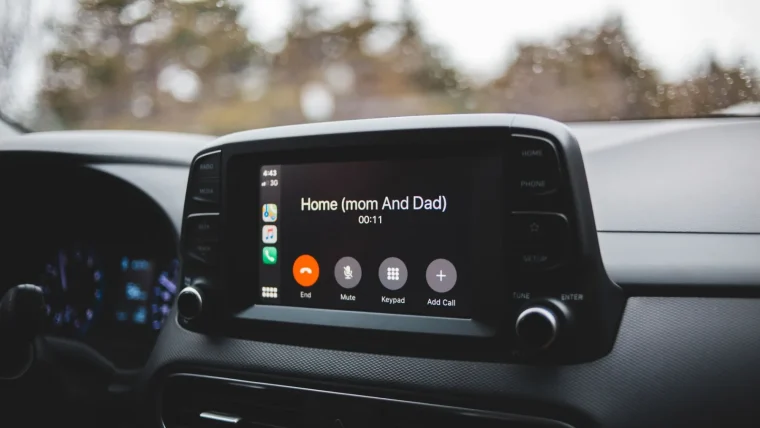
How to Set Up CarPlay: A Step-by-Step Guide
Everything a first-timer needs to get their iPhone talking to the car screen, from plugging in to fixing the setup that refuses to connect.
Read guide
Using the CarPlay Dashboard and Split View
The Dashboard screen puts your map, music and next turn side by side, and it changes how a drive feels once you set it up right.
Read guide
Bluetooth vs USB for CarPlay and Android Auto
A clear look at when a cable beats a wireless link, and when you can happily leave the cord in the glovebox.
Read guide