How to Set Up CarPlay: A Step-by-Step Guide
Everything a first-timer needs to get their iPhone talking to the car screen, from plugging in to fixing the setup that refuses to connect.

Key takeaways
- Most cars need one trip through the phone permissions screen, then CarPlay launches on its own after that.
- Wired setups only need a good data USB cable and the right port; wireless needs Bluetooth plus Wi-Fi both switched on.
- If the icon never appears, the fix is almost always a charge-only cable or a Screen Time restriction blocking CarPlay.
- You can rearrange apps, pick a default map, and add a second phone once the first connection is working.
You just picked up the car, or maybe you finally upgraded the phone, and there is this promise sitting on the dash: your maps, your music, your messages, all on the bigger screen. So why is the display still showing the factory radio?
Getting there is usually a five minute job. The trouble is that the five minutes only go smoothly when a few small things line up: the right cable, the right port, and a couple of taps you have to catch the first time you plug in. Miss one and you are left staring at a screen that does nothing.
I have set this up on everything from a base-model Corolla to a loaded Ram, and the pattern is nearly always the same. Let me walk you through it the way I would if I were sitting in the passenger seat.
Before you touch a cable, check three things
A quick pre-flight saves a lot of head-scratching later. None of this takes more than a minute.
First, your phone. CarPlay lives on the iPhone 5 and every model since, running iOS 7.1 or newer. If you have anything from the last decade you are fine. Android phone owners want Android Auto instead, which is a different setup entirely.
Second, your car. Not every head unit supports it, and some that do hide the feature behind a settings menu. Your owner’s manual or the automaker’s site will confirm it. Apple also keeps a running list of compatible vehicles and stereos if you want to double check.
Third, whether your car does wired, wireless, or both. This decides everything about the steps that follow. A 2018 Honda might be wired only. A 2022 BMW is often wireless out of the box. Some newer cars let you choose.
Good to know
Wired and wireless give you the exact same CarPlay experience once connected. The only real difference is the cable and, occasionally, a half-second longer to launch on wireless. Pick whichever your car supports without overthinking it.
Setting up a wired connection

This is the more common path, and honestly the more reliable one. Here is the order that works.
Make sure the car is on or at least in accessory mode so the screen is awake. Unlock your iPhone, because a locked phone will not hand over permission on the first go.
Now plug the phone into the USB port using a real data cable. On most cars there is one specific port that carries CarPlay, and it is often marked with a little phone or CarPlay icon. The other ports may only charge. If your dash has three USB slots and only one works, that is why.
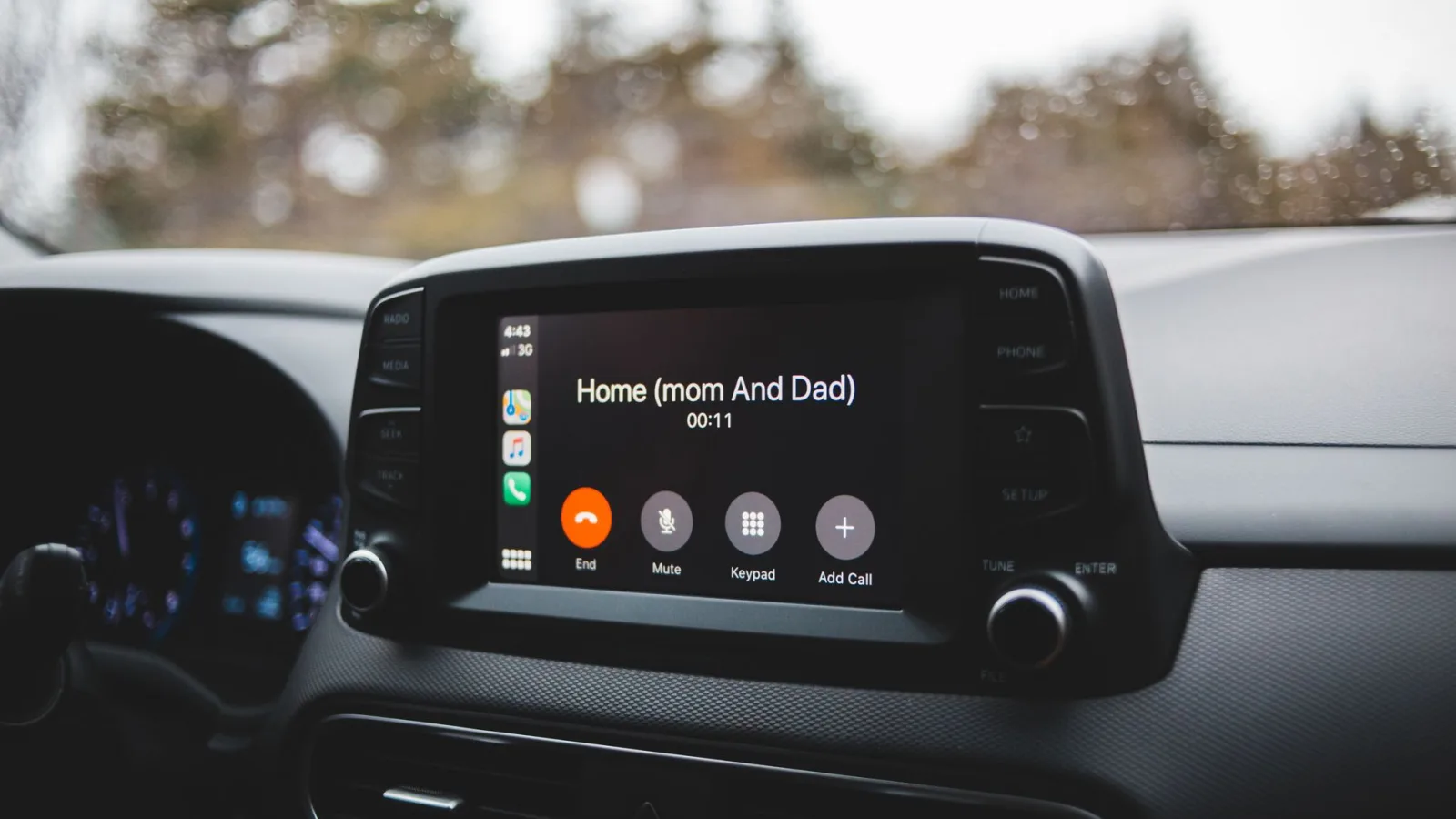
Within a few seconds a prompt appears on the phone asking whether to allow CarPlay. Tap Allow, or Use CarPlay. The car screen should switch over to the CarPlay home screen almost immediately. After this first handshake, your car remembers the phone and launches on its own every time you plug in.
Watch out
The cable that came in your phone box is fine, but a random $3 cable from a gas station often is not. Many cheap cables only carry power, not data, and CarPlay needs data. If nothing happens when you plug in, swap the cable before you blame the car.
Setting up wireless CarPlay
Wireless feels like magic once it works: get in, and a few seconds later your screen is live with no cable at all. The setup is a touch fussier the first time because two radios have to talk.
On your iPhone, open Settings and confirm both Bluetooth and Wi-Fi are turned on. Wireless CarPlay uses Bluetooth to make the introduction and Wi-Fi to carry the actual data, so both need to be live. Leaving Wi-Fi off is the number one reason wireless refuses to start.
Next, put the car into its pairing mode. This varies by brand. Some cars have a CarPlay or phone setup option right on the touchscreen. Others make you go through the Bluetooth menu and add a new device. Check your manual for the exact spot.
When your car appears in the phone’s Bluetooth list, or the phone appears on the car screen, accept the pairing on both. You will get the same Allow CarPlay prompt. Tap it, wait a beat, and the home screen loads. From then on it connects automatically the moment you start the car.
The first wireless pairing took me four tries on an older Audi until I realized Wi-Fi had been off the whole time. Two minutes of frustration for a setting I never think about.
A quick setup checklist
Run down this list if you want to get it right on the first attempt.
- Phone unlocked and awake before you plug in or pair
- A genuine data USB cable, not a charge-only one (for wired)
- Bluetooth and Wi-Fi both switched on (for wireless)
- The correct USB port, usually the one with the phone or CarPlay symbol
- Screen Time restrictions checked so CarPlay is not blocked
- Siri enabled, since CarPlay leans on it for voice control
Wired or wireless: which should you use?
If your car offers both, this quick comparison covers the tradeoffs I actually notice day to day.
| Factor | Wired | Wireless |
|---|---|---|
| Setup effort | Plug in, tap Allow once | Pair Bluetooth and Wi-Fi first |
| Connection speed | Instant | 5 to 15 seconds after start |
| Phone charging | Yes, while connected | No, needs a separate cable or pad |
| Reliability | Very steady | Occasional dropouts on older cars |
| Cable clutter | One cable always attached | None |
My honest take: wireless is lovely for short daily drives where charging does not matter. For long road trips I still reach for the cable so the phone stays topped up. Plenty of drivers keep a wireless charging pad in the console to get the best of both.
When the CarPlay icon just will not show up
Nine times out of ten, a failed setup comes down to one of a handful of causes. Work through them in order.
Try the obvious stuff first
Restart the phone. Restart the car (a full off, not just accessory mode). Try a different cable and a different port. This alone clears most first-time failures.
Check Screen Time
Go to Settings, then Screen Time, then Content and Privacy Restrictions, then Allowed Apps. If CarPlay is toggled off there, the car will never see your phone no matter how many cables you try. This one stumps a lot of people because they never knew the switch existed.
Forget and re-pair
For wireless, delete the car from your Bluetooth list, delete the phone from the car’s side too, then start the pairing over. Half-finished pairings from a previous owner or a test drive are a common culprit on used cars.
Pro tip
If your car has aftermarket software or a stereo you installed yourself, check for a firmware update before you spend an hour troubleshooting. A single update fixed a stubborn wireless dropout on a friend’s Pioneer unit that no amount of re-pairing would touch.
Making CarPlay yours after it connects
Once the home screen shows up, the fun part starts. You are not stuck with the default layout.
Press and hold any app icon to jiggle them, then drag to rearrange. Put your map and music where your thumb naturally lands. You can also set a default navigation app, so tapping an address opens Google Maps or Waze instead of Apple Maps if that is your preference.
Newer versions add a Dashboard view that splits the screen between your map and a music or calendar panel, which is genuinely useful in stop-and-go traffic. Dig into your phone’s CarPlay settings and you will find a few more toggles worth changing, like which apps appear and how notifications behave. Apple’s own CarPlay overview is a decent place to see what the current version can do.
Your next move
Grab your phone and a good cable, hop in the car, and give it a go right now while the steps are fresh. Wired folks plug into the marked port and tap Allow. Wireless folks switch on Bluetooth and Wi-Fi, then pair. Either way you should be looking at the home screen inside a couple of minutes.
If it does not fire up, do not sweat it. Walk back through the icon-won’t-show section, and I would bet the culprit is a charge-only cable or that hidden Screen Time switch. Get the connection solid first, then come back and spend ten minutes arranging apps and picking your default map. That small bit of setup is what turns CarPlay from a novelty into the thing you rely on every single drive.
Frequently asked questions
No. CarPlay is built into iOS on every iPhone since the iPhone 5, so there is nothing to install on the phone. Your car handles its half in the stereo's software. If you cannot find it, the issue is a settings toggle or compatibility, not a missing app.
This is the classic charge-only cable problem. A cable can carry power while carrying no data, and CarPlay needs data to work. Swap in the cable that came with your phone or a known data cable, and make sure you are using the port marked with the phone or CarPlay icon.
Only if your car's head unit supports wireless CarPlay in the first place. Many wired-only cars cannot do wireless at all. If yours is wired only, an aftermarket adapter that plugs into the USB port can add wireless, though results vary by car and adapter.
Just plug the new phone in or pair it the same way you did the first. The car can remember several phones. When two paired phones are in the car, most systems connect the last one used, and you can switch between them in the car's CarPlay or Bluetooth menu.
The driving experience is identical once connected. Wireless just takes a few extra seconds to launch after you start the car, and older systems can occasionally drop the connection. Wired is rock steady and charges the phone, which is why many drivers still use a cable on long trips.
Keep reading
Related guides
CarPlay and Mobile Data: What Uses Your Allowance
A plain look at where your phone plan actually gets spent while CarPlay is running, and what costs you nothing.
Read guide
How to Update Your Phone for Better CarPlay
A plain-spoken walkthrough for keeping iOS and Android current so your dashboard connection stays quick and reliable.
Read guide
How to Set Up Wireless CarPlay the First Time
Pair your iPhone to your car over Bluetooth and Wi-Fi in a few minutes, with the fixes for the moments it stalls.
Read guide