Wireless CarPlay Won’t Connect: How to Fix the Handshake
A step by step walkthrough for the pairing and Wi-Fi handshake failures that keep wireless CarPlay from ever loading.

Key takeaways
- Wireless CarPlay uses Bluetooth to start and Wi-Fi to run the screen, so both radios must be on and working.
- Deleting the old pairing on both the phone and the car fixes most stuck handshakes.
- A phone stuck on 2.4GHz or a saved Wi-Fi network can quietly block the connection.
- If nothing works wireless but a cable does, the adapter or the car module is the weak link.
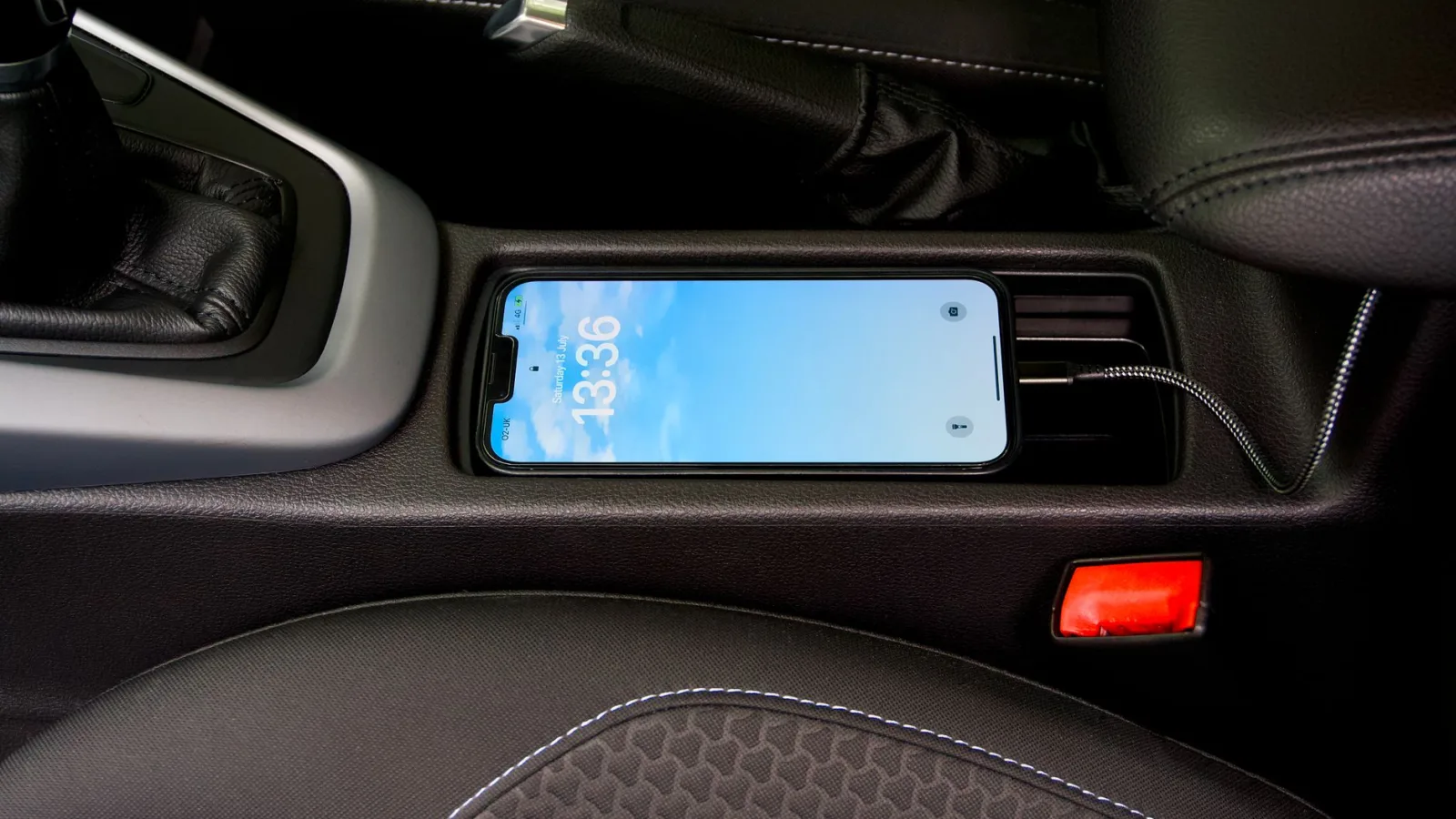
You drop into the driver seat, toss your phone in the cup holder, and wait for that familiar CarPlay screen. Ten seconds. Twenty. The head unit just sits on the radio, like your phone isn’t even in the car.
Wireless CarPlay feels like magic when it works and like a coin flip when it doesn’t. It worked yesterday, or it worked at the dealership, and now it flat out refuses. What most people miss is that wireless CarPlay isn’t one connection. It’s a two step dance between your phone and your car, and if either step trips, you get nothing.
I’ve set up this exact process on Toyotas, Fords, a friend’s BMW, and more aftermarket units than I can count. The fixes below run fastest to most involved. Start at the top and stop the moment your screen lights up.
Why the handshake matters more than the cable ever did
Here’s what trips everybody up. Wired CarPlay just needs a good USB connection and you’re done. Wireless does two jobs at once.
First, your phone and the car talk over Bluetooth. That’s the initial hello, slow but great at finding devices and agreeing to connect. Once they shake hands, the car tells your phone to hop onto a private Wi-Fi network that the head unit creates. That Wi-Fi link carries the map, the music, and everything you see on screen.
So when wireless CarPlay won’t connect, one of those two radios is the problem. Either the Bluetooth intro never lands, or the Wi-Fi handoff fails. Knowing which half is broken saves you a lot of guessing.
Good to know
If your phone connects for calls and music over Bluetooth but CarPlay never launches, that’s a big clue. The Bluetooth half is fine and the Wi-Fi handoff is where things fall apart.
Start with the two 30 second resets

Before you touch any settings, do the boring stuff. It fixes more cases than anything clever later.
Turn your phone all the way off and back on. Not lock, off. A phone that’s been awake for two weeks builds up networking gremlins, and a reboot clears the Bluetooth and Wi-Fi stacks CarPlay leans on.
Then turn the car off, open and close the driver door, and let it sit a minute so the head unit fully powers down. Some cars keep the infotainment system alive for several minutes after you shut the engine, so the door step matters.
Restart the phone first, then the car, then try connecting. A surprising number of dead handshakes come back to life right here.
Clear the old pairing on both ends
This is the single most effective fix I know, and almost nobody does it right. People delete the car from their phone but leave the phone saved in the car. A half deleted pairing is worse than none, because both devices hold mismatched records and neither starts fresh. You need to wipe it on both sides.
- On your iPhone, go to Settings, then General, then CarPlay, and remove your car from the list.
- In the same phone, open Settings, then Bluetooth, find the car, tap the info button, and choose Forget This Device.
- In the car’s Bluetooth or connection menu, delete your phone from its list of paired devices too.
- Reboot the phone one more time after both are cleared.
- Now pair again from scratch, usually by adding a new device in the car and confirming the code on your phone.
When you re pair, do it while parked with the engine running. A cold start pairing over a weak accessory power state is a common reason the new connection doesn’t stick.
Pro tip
After you forget the car, also toggle Wi-Fi off and back on in your phone’s settings. The head unit’s hidden Wi-Fi network needs a clean slate too, and cycling Wi-Fi flushes any stale entry your phone was clinging to.
The Wi-Fi settings that quietly block CarPlay
This catches the cases that survive the reset and re pair. Wireless CarPlay is picky about Wi-Fi, and a few settings sabotage it with no obvious error.
Wi-Fi has to be on, even though you never pick a network
You never manually connect to the car’s Wi-Fi, so people assume Wi-Fi can be off. It can’t. Switch it off and the handoff has nowhere to go. Leave it on.
Low Data Mode and VPNs get in the way
If you run a VPN full time, turn it off before you connect. Some VPN apps grab the network in a way that confuses the CarPlay handoff. Same with Low Data Mode, which throttles the background traffic CarPlay needs during setup.
The 2.4GHz versus 5GHz mismatch
Most car head units broadcast their CarPlay Wi-Fi on 5GHz. A handful of older or budget systems use 2.4GHz. If an adapter is locked to the wrong band, the handshake fails silently. You can’t change the phone’s band, but knowing your car’s band helps when troubleshooting an aftermarket adapter.
Watch out
Airplane mode does not always fully kill CarPlay’s radios on newer phones, but turning it on and off is still worth a shot. What you should never leave on is a manual Wi-Fi network you joined earlier, like a phone hotspot, since your phone can refuse to leave it for the car’s network.
Know whether it’s the phone, the car, or an adapter
Still stuck? Figure out where the fault lives before you spend money. Here’s a quick way to sort it.
| What you see | Likely cause | First move |
|---|---|---|
| Wired cable works, wireless never does | Adapter or car Wi-Fi module | Update or reset the adapter, or check for a car software update |
| Bluetooth calls work, CarPlay screen never loads | Wi-Fi handoff failing | Clear pairing, toggle phone Wi-Fi, disable VPN |
| Nothing pairs at all, not even Bluetooth | Bluetooth intro failing | Reboot both, forget device, re pair while parked |
| Works for one phone, not another | Phone side setting or iOS version | Update iOS, reset the other phone’s network settings |
That last row is the tell for an iOS problem. On the phone that won’t connect, go to Settings, General, Transfer or Reset iPhone, Reset, and choose Reset Network Settings. It wipes saved Wi-Fi passwords, so have those handy, but it clears the gunk that stops CarPlay.
When an aftermarket wireless adapter is the culprit
A lot of folks add a small dongle to get wireless CarPlay in a wired only car. Those little boxes are their own computer, with their own quirks.
Most have a companion app or a web page you reach through the adapter’s own Wi-Fi. Check for a firmware update. I’ve watched a $60 adapter go from dropping every drive to rock solid after one update.
Also make sure the adapter sits in the car’s true CarPlay USB port, not just any slot. Many cars have one data port that supports CarPlay and several that only charge. Plug into a charge only port and the adapter powers on, glows its light, and never connects. Ask me how I know.
If a wired cable gives you CarPlay but the adapter never does, the car is fine. The adapter is the part you need to reset, update, or replace.
Check the boring but critical basics
A few things sit outside the phone and car settings but stop everything cold.
Confirm CarPlay is allowed. On your iPhone, go to Settings, Screen Time, Content and Privacy Restrictions, Allowed Apps, and make sure CarPlay is toggled on. A restriction here blocks it completely with no warning.
Check that your car actually supports wireless CarPlay. Some models only do wired, and no amount of pairing changes that. Apple keeps a running list of supported vehicles, so check the official CarPlay support page if you’re unsure what your car offers. The plain CarPlay overview confirms the feature set too.
Quick note
Keep your iOS up to date. Wireless CarPlay bugs get patched fairly often, and running a version that’s a year behind can be the whole reason your handshake keeps failing.
Your next step from here
Work it in order and you’ll usually land the fix in the first three moves: reboot both devices, forget the pairing on both sides, then re pair while parked with the engine running. That trio clears most stuck handshakes I’ve dealt with.
If wireless still refuses and a cable works fine, you’ve narrowed it to the wireless hardware, either the adapter or the car’s Wi-Fi module. A firmware or dealer software update is your play then, not another round of settings toggling.
Grab your phone, park somewhere you won’t be rushed, and run the pairing reset first. Nine times out of ten, that’s the one that brings the screen back.
Frequently asked questions
That means the Bluetooth intro is working but the Wi-Fi handoff is failing. Wireless CarPlay runs the actual screen over a hidden Wi-Fi network the car creates. Make sure Wi-Fi is turned on in your phone settings and disable any VPN, then try again.
Yes, even though you never pick a network manually. The car's head unit broadcasts its own private Wi-Fi, and your phone joins it automatically after the Bluetooth pairing. If Wi-Fi is switched off, the connection has nowhere to complete and CarPlay never launches.
Remove the car under Settings, General, CarPlay, then also forget it under Settings, Bluetooth. Delete your phone from the car's own paired device list too. Reboot the phone and pair fresh while parked with the engine running.
It often does when one phone works and another doesn't. Reset Network Settings clears the saved Wi-Fi and Bluetooth data that can block the handoff. Just note it also erases your saved Wi-Fi passwords, so have those ready before you do it.
That points to the wireless hardware rather than your phone. If you use an aftermarket adapter, check for a firmware update and confirm it's in the true data USB port. If it's built into the car, look for a dealer software update for the infotainment system.
Keep reading
Related guides

CarPlay Drops During Phone Calls: How to Fix It
Your screen goes dark the second a call comes in. Here is why CarPlay bails on you mid-conversation and how to make it stay put.
Read guide
Android Auto Not Connecting? Here’s How to Fix It
A mechanic-friendly walk through the real reasons Android Auto refuses to start, plus the fixes that actually stick.
Read guide
Google Maps Not Working on Android Auto: Fixes
Maps freezing, showing a black screen, or stuck loading in Android Auto? Here is how to get turn-by-turn navigation back.
Read guide