Android Auto Not Connecting? Here’s How to Fix It
A mechanic-friendly walk through the real reasons Android Auto refuses to start, plus the fixes that actually stick.


Key takeaways
- Most wired failures trace back to a cheap or damaged USB cable, so swap it first.
- Wireless connection needs both Bluetooth and Wi-Fi enabled on the phone, not just one.
- A quick phone restart clears more Android Auto glitches than any settings change.
- Head unit firmware and the Android Auto app both need to be current for a clean handshake.
- One stubborn saved profile in the car can block every future connection until you delete it.
You back out of the driveway, plug in your phone like you have a hundred times, and the screen just sits there on the car’s home menu. No Google Maps, no music app, nothing. Meanwhile your phone acts like everything is fine.
I have watched this happen on a friend’s Honda Civic in a parking lot while we were already late for a game. Nine times out of ten the fix takes under five minutes once you know where to look. The trick is checking things in the right order instead of randomly unplugging cables and hoping.
Below is the exact sequence I run through, starting with the cheap and easy stuff before touching any settings you might regret.
Start with the cable, even if it looks fine
If you run Android Auto over a cable, that cable is the single most common culprit. Cables fail on the inside long before they show any damage on the outside.
A lot of people grab whatever cord came free with a gadget, or a $4 gas-station cable rated only for charging. Charge-only cables carry power but skip the data wires Android Auto needs. The phone lights up, the car sees a power draw, and nothing else happens.
Grab a known-good cable that came with your phone or a name-brand data cable, and plug directly into the correct port. On most cars only one USB port supports Android Auto, and it usually has a little phone or car icon next to it. The other ports are charge-only.
Pro tip
Wiggle the connector gently while it is plugged in. If the screen flickers to life or drops out as you move it, the cable or the port is worn and needs replacing. A quality 3-foot cable runs about $12 to $18.
Restart the phone before you touch anything else

This sounds too simple to matter. It fixes an embarrassing number of connection problems anyway.
Android Auto runs a background service that talks to your car. When that service hangs, the app looks dead and no amount of replugging wakes it up. A full power-off and power-on, not just a screen lock, clears the stuck service and rebuilds the connection from scratch.
While you are at it, force-stop the app. Open Settings, go to Apps, find Android Auto, and tap Force Stop. Then reconnect. On newer phones Android Auto is baked into the system, so you may need to search your app list to find it.
Good to know
Since Android 12, Android Auto no longer shows on the phone screen itself for most models. It only appears on the car display. So do not panic if you cannot find an app icon in your drawer, that is normal now.
Wireless not connecting? Check both radios
Wireless Android Auto trips people up because it leans on two things at once. Bluetooth does the initial pairing, then the phone and car switch over to a private Wi-Fi link for the actual data. If either radio is off, the whole thing stalls.
Open your phone’s quick settings and confirm Bluetooth and Wi-Fi are both on. You do not need to be connected to your home network. The Wi-Fi radio just has to be awake so the car can form its own direct link.
Battery saver mode is another quiet troublemaker. It throttles background radios to save juice, which is exactly the wrong thing when you are trying to hold a wireless handshake. Turn battery saver off before a drive where you need Android Auto.
Watch out
Some phones let you disable Wi-Fi scanning or set Wi-Fi to turn off automatically when the screen is dark. Both settings will kill a wireless connection mid-drive. Dig into your Wi-Fi advanced options and make sure neither is active.
Clear out an old paired profile
Here is a mistake I see constantly. Someone pairs their phone, it works for a while, then it stops, and they keep trying to pair the same phone again on top of the broken profile.
Cars store a Bluetooth profile for each phone. When that profile gets corrupted, it blocks new connections instead of allowing them. The fix is to delete the phone from the car and start fresh.
Go into your car’s Bluetooth or connection menu, find your phone in the paired devices list, and remove or forget it. Then delete the car from your phone’s Bluetooth list too. Both sides need to forget each other, or the stale data lingers and the problem comes right back.
- Forget the phone in the car’s Bluetooth settings
- Forget the car in the phone’s Bluetooth settings
- Restart the phone
- Turn the car fully off and open the door to let it sleep
- Pair again from scratch and approve every permission prompt
Update the app and the head unit
Software drift causes a lot of these headaches. An old Android Auto version and a newer phone OS do not always shake hands cleanly, and the reverse happens too.
Open the Google Play Store, search Android Auto, and update it if a button is offered. While you are there, update Google Play Services, since Android Auto depends on it heavily. Both being current knocks out a whole class of connection bugs.
Your car’s software matters just as much. Automakers push firmware updates that fix compatibility with newer phones, and a two-year-old head unit running its factory firmware may simply not recognize a brand-new device. Check your car’s settings menu for a software update option, or ask your dealer. Some updates need a USB stick and a quick trip to the service bay.
I once spent an hour blaming a customer’s phone for a dead connection. The real issue was a head unit two firmware versions behind. Ten minutes with a dealer update file and it connected on the first try.
Wired versus wireless: what to expect
If you are deciding which route to troubleshoot, or which to rely on, it helps to know how they differ in practice.
| Factor | Wired | Wireless |
|---|---|---|
| Reliability | Very steady once cable is good | More variable, sensitive to interference |
| Setup effort | Plug and go | One-time pairing, then automatic |
| Battery drain | Charges while connected | Drains faster from Wi-Fi use |
| Common failure | Bad or charge-only cable | Radios off or battery saver on |
| Cost to fix | New cable, around $15 | Free, just settings changes |
If your car only supports wired and you crave wireless, a plug-in adapter dongle exists for around $50 to $80. It plugs into your wired port and creates the wireless link. Just know that adding a middleman can introduce its own dropouts, which is a separate rabbit hole from a phone that will not connect at all.
When it still refuses to cooperate
If you have swapped the cable, restarted the phone, cleared the old profile, and updated everything, and Android Auto still will not launch, the problem is likely deeper than a quick fix. A failing USB port inside the dash, a fault in the car’s infotronic module, or a phone with a damaged charging port can all mimic a connection bug.
Test your phone in a friend’s car, or borrow their phone to try in yours. That one swap tells you instantly whether the fault lives in the phone or the car. It is the fastest way to stop guessing.
Quick note
Android Auto keeps a support page with device-specific quirks and a compatibility checker. If your car or phone is unusually old or brand new, that is worth a look before you spend money at a shop.
For the official rundown of supported cars and the latest requirements, the resources over at Android Auto’s own site and Google’s Android Auto help center stay current in a way third-party lists never do.
Your next step is simple: grab a good data cable, restart your phone, and try one clean connection before changing anything else. That single combination clears the majority of cases I have seen. If it still sits blank, work down the list above in order, and by the time you reach the phone-swap test you will know exactly where the fault lives.
Frequently asked questions
A brief connection that drops usually points to a marginal cable or a loose USB port on wired setups. On wireless, it often means battery saver or an aggressive Wi-Fi timeout is cutting the link. Swap the cable first, then disable battery saver and any auto Wi-Fi shutoff setting.
You need data for live features like traffic, search results, and streaming music, but not for the connection itself to form. The phone-to-car link works over the cable or a private Wi-Fi channel that does not touch your cell plan. If Maps loads a blank grid, that is a data issue, not a connection failure.
Wireless requires a specific Wi-Fi chip in the head unit that older or budget cars simply do not include. If your car is wired only, you can add a plug-in wireless adapter for roughly $50 to $80, though it may introduce its own occasional dropouts. Check that your head unit and phone are both current before spending on hardware.
It can, but it is almost never necessary and should be your last resort. Clearing the Android Auto app cache and force-stopping it delivers the same benefit without wiping your phone. Try updating the app, deleting the paired car profile, and restarting before you consider anything drastic.
A case will not block the connection since the radios are internal, but a thick case can strain a wired connector and cause intermittent contact. If your cable barely seats because of the case, that gap is enough to interrupt the data line. Try connecting with the case off to rule it out.
Keep reading
Related guides
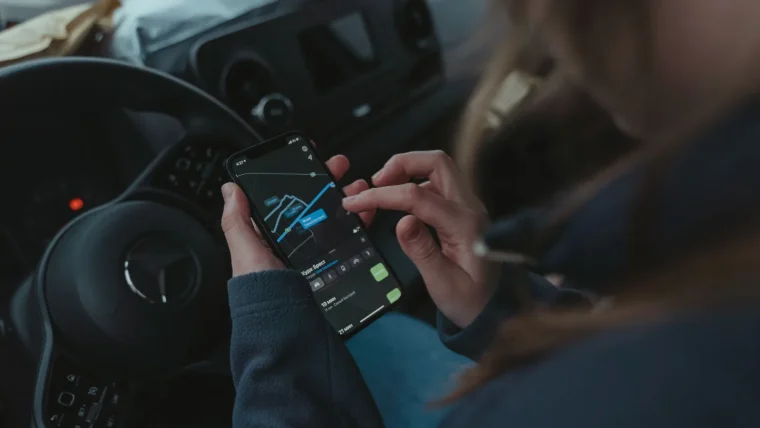
Siri Not Working in CarPlay? Try These Fixes
When the tap-and-hold does nothing or Siri can't hear you, these hands-on fixes get voice control back on the road.
Read guide
CarPlay Won’t Start Automatically: How to Fix Autostart
Make CarPlay launch on its own every time you get in the car, without tapping a single button on the screen.
Read guide
CarPlay USB Not Recognized: How to Fix It
Your car ignores the USB cable and CarPlay never loads. Here is how to track down the real cause and get it talking again.
Read guide