Google Maps Not Working on Android Auto: Fixes
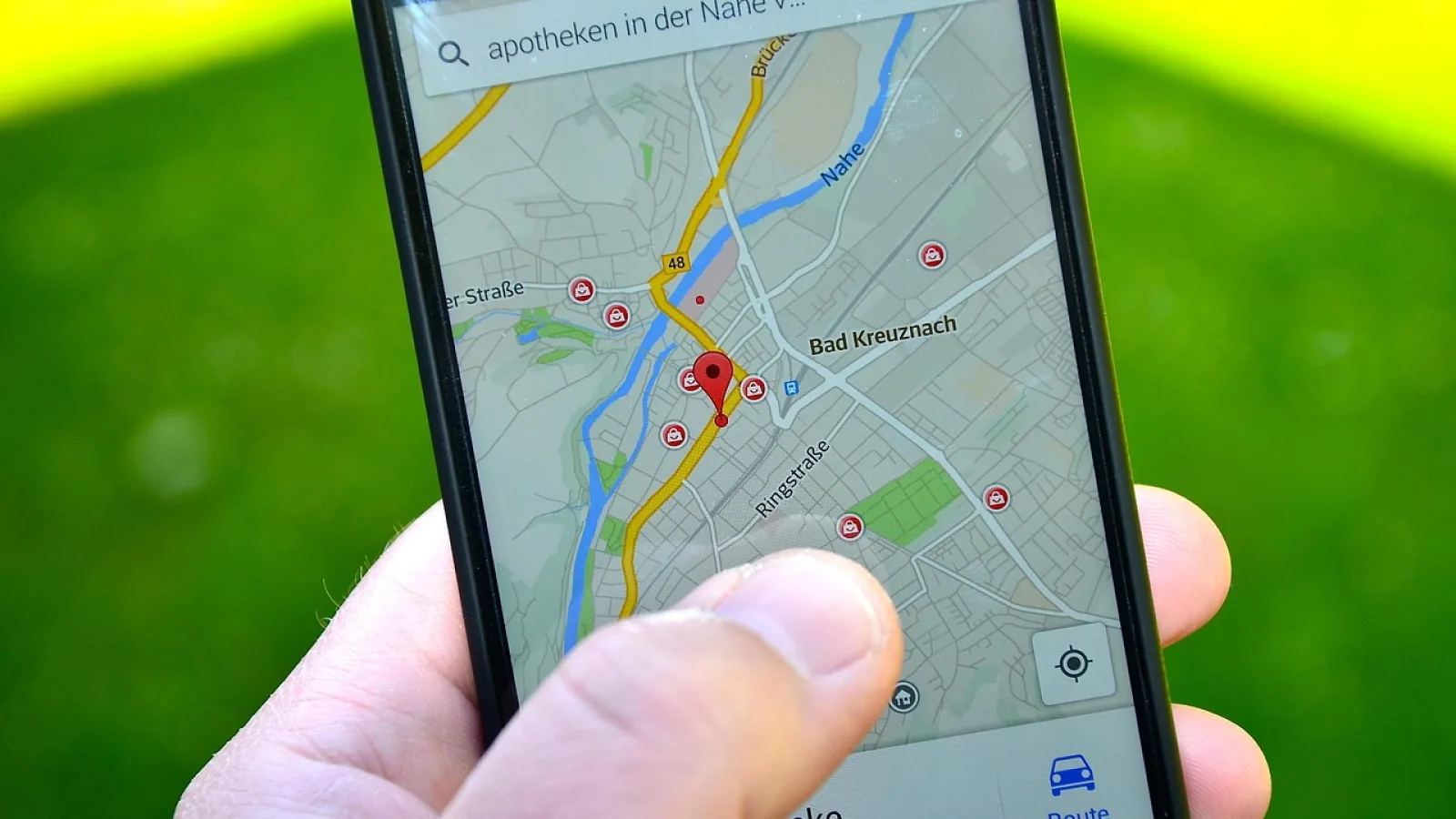
Maps freezing, showing a black screen, or stuck loading in Android Auto? Here is how to get turn-by-turn navigation back.

Key takeaways
- Most Google Maps failures in Android Auto come from a stale cache, a bad USB cable, or an outdated app version.
- Clearing the Maps and Android Auto cache fixes the majority of black screens and stuck loading spinners.
- A cheap or damaged USB cable causes more wired problems than any software bug.
- Location permission set to Approximate instead of Precise makes the map drift or show the wrong spot.
- If nothing else works, a clean reinstall of both apps almost always clears it.
You pull out of the driveway, plug in your phone, and Android Auto lights up on the dash. You tap Google Maps to punch in an address, and the screen goes black. Or the map loads but sits frozen while the little blue dot floats three streets over from where you actually are.
It is one of the most annoying things that can happen right when you are trying to get somewhere. The good news is that Maps failing on Android Auto is almost always fixable in your driveway with nothing more than your phone and a couple of minutes.
I have chased this across a dozen cars, from a 2019 Honda Civic to a fussy Volkswagen head unit, and the causes repeat. Let me walk you through what actually breaks and how to fix each one, roughly in the order I would try them.
Start by figuring out how it is failing
Not every Maps problem is the same, and the fix depends on the symptom. Before you change any settings, take ten seconds to notice exactly what you are seeing.
A black or gray screen usually points at a rendering or cache problem. A map that loads but shows you in the wrong place is a GPS or permission issue. A spinning loading circle that never resolves is often a connection or account problem. An app that opens then instantly kicks you back to the Android Auto home screen is usually a crash tied to an out-of-date version.
Good to know
If your music apps, phone, and messages all work in Android Auto but only Maps misbehaves, the problem is with Maps or its permissions, not the car connection. That narrows things down a lot.
Clear the cache on both apps first

If I could only try one fix, this would be it. A corrupted cache is behind more black screens and frozen maps than anything else, and clearing it costs you nothing but a fresh download of a few map tiles.
On your phone, open Settings, then Apps, then Google Maps. Tap Storage, then Clear cache. Do the exact same thing for the Android Auto app. Leave Clear data alone for now, since that logs you out and wipes your saved places.
Unplug, plug back in, and try again. On a Samsung Galaxy that was black-screening every single trip, this one step fixed it for good.
Pro tip
After clearing the cache, open Google Maps on your phone by itself first and let it fully load your location. Then plug into the car. Giving Maps a head start on the phone screen often clears a stubborn loading spinner on the dash.
Check the cable before you blame the software
For wired Android Auto, the USB cable is the single most common culprit and the one people ignore longest. A cable that charges your phone fine can still be too flaky to carry a steady data connection to the car.
Cheap cables and cables with a frayed or bent connector are the usual offenders. The map needs a constant data stream, so a marginal cable shows up as a map that loads halfway, freezes, or drops out on bumpy roads.
Swap in a short, good-quality cable rated for data, ideally the one that came with your phone or a known brand under $15. Plug directly into the car’s factory USB port, not a hub or a cheap 12V adapter.
Watch out
Many cars have two or more USB ports, and only one carries data. The others are charge-only. If Maps never loads on one port, try the other before you decide the cable is bad.
Fix the wrong-location and drifting-map problem
When Maps shows you a few blocks off, sitting in a lake, or jumping around, the issue is almost always location permission or GPS, not the connection.
Android lets an app use either your precise location or just an approximate one. Approximate is fine for weather, but it wrecks turn-by-turn navigation.
Go to Settings, Apps, Google Maps, Permissions, Location. Set it to Allow all the time with Use precise location turned on. While you are there, confirm that Location itself is enabled and set to High accuracy mode.
Give the GPS a moment to lock
Right after you start driving, the map may lag for the first block or two while the phone gets a satellite fix. That is normal, especially in a parking garage or between tall buildings. If it never catches up after a few minutes of open-sky driving, then it is a real problem worth chasing.
Update Android Auto and Google Maps
Crashes that dump you back to the home screen are often a version mismatch. Android Auto and Maps get updated on their own schedules, and once in a while an old version of one stops playing nicely with a newer car software build.
Open the Google Play Store, search for Google Maps, and hit Update if the button is there. Do the same for Android Auto. Then check for a system update under Settings, System, Software update.
Google publishes the official requirements on the Android Auto site, worth a glance if you are on an older phone near the edge of what is supported.
Work through this quick checklist
If you are short on time in the driveway, run down this list in order. Most people find their fix in the first three.
- Clear the cache on Google Maps and on Android Auto
- Swap the USB cable and use the car’s data USB port
- Set Location permission to Precise and Allow all the time
- Update Maps, Android Auto, and your phone’s system software
- Toggle Bluetooth and Wi-Fi off then on if you use wireless
- Restart the phone, then restart the car fully
- As a last resort, uninstall and reinstall both apps
Match the symptom to the fix
Here is a quick reference so you can jump straight to what matters for what you are seeing.
| What you see | Most likely cause | First thing to try |
|---|---|---|
| Black or gray map screen | Corrupted cache | Clear cache on both apps |
| Map loads but freezes | Flaky USB cable | Swap cable, use data port |
| Wrong or drifting location | Approximate location permission | Turn on Precise location |
| Endless loading spinner | Account or connection hiccup | Open Maps on phone first |
| Crashes to home screen | Outdated app version | Update Maps and Android Auto |
The wireless Android Auto twist
If your car does wireless Android Auto, there is no cable to blame, but the connection can still stumble in ways that hit Maps hardest. Wireless leans on both Bluetooth for pairing and Wi-Fi for the actual data stream.
When the map keeps buffering or dropping over wireless, toggle Bluetooth and Wi-Fi off and back on in your phone’s quick settings. If that does not do it, forget the car in your Bluetooth list and pair fresh. A clean pair clears out a stale handshake that a simple reconnect will not.
Wireless is lovely when it works, but a five-dollar cable in the glovebox has saved more of my trips than I care to admit.
When you should just reinstall
If you have cleared caches, swapped cables, fixed permissions, and updated everything, and Maps still will not behave, a clean reinstall is the reset that clears whatever is stuck.
Uninstall Google Maps, restart the phone, then reinstall it from the Play Store. Sign back in and let it rebuild. Do the same for Android Auto if the problem started there. This wipes the deep-down settings that Clear data does not always reach.
Quick note
On some phones Google Maps is a built-in system app and cannot be fully uninstalled. In that case, go to its app info, tap the three-dot menu, and choose Uninstall updates. That rolls it back to the factory version and clears the same gunk, then you update it fresh.
Your next move
Start with the cache clear and the cable swap, because between them they solve the large majority of Google Maps failures on Android Auto. Fix your location permission if the blue dot is wandering, and keep both apps updated so a version mismatch never sneaks up on you.
If Maps works on your phone but the whole Android Auto connection is unreliable, the trouble is one level up from Maps, and that is a connection issue worth sorting separately. For anything to do with the handshake or the connection dropping mid-drive, Google keeps a solid help section at its official support pages.
Run the checklist top to bottom and you will likely be back to clean turn-by-turn before you finish your coffee.
Frequently asked questions
A black screen on the dash while the phone works normally almost always means a corrupted app cache or a data-starved USB cable. Clear the cache on both Google Maps and Android Auto, then swap to a known-good cable plugged into the car's data USB port. If it is wireless, toggle Wi-Fi and Bluetooth off and back on.
This is a location permission problem in nearly every case. Open Settings, Apps, Google Maps, Permissions, Location, and set it to Allow all the time with Use precise location turned on. Also confirm your phone's overall location is enabled and set to high accuracy.
Start with Clear cache, since it fixes most problems and keeps you logged in with your saved places intact. Clear data is a heavier step that signs you out and wipes settings, so save it for when cache clearing does not help. A full reinstall is the final option beyond that.
Freezing that lines up with rough roads points straight at the USB cable or the connector working loose. A marginal cable holds a charge but drops the steady data stream Maps needs. Replace it with a short, good-quality data cable and make sure the connector seats firmly in both the phone and the car port.
Yes. Android Auto supports Waze and other navigation apps from the Play Store, and switching to one can get you moving while you sort out Maps later. That said, if every navigation app struggles the same way, the problem is the connection or GPS rather than Maps itself, so work through the connection fixes first.
Keep reading
Related guides

Phone Overheats With CarPlay: Why and How to Stop It
Your phone gets hot and drains fast on long CarPlay drives. Here is what causes it and the fixes that actually keep it cool.
Read guide
CarPlay Drops During Phone Calls: How to Fix It
Your screen goes dark the second a call comes in. Here is why CarPlay bails on you mid-conversation and how to make it stay put.
Read guide
Android Auto Has No Sound: Fix the Audio
Your maps show and messages pop up, but the speakers stay quiet. Here is how to get Android Auto talking again.
Read guide