Enabling and Fixing Siri for CarPlay
Get hands-free Siri talking to your car the right way, and sort out the times she goes quiet or mishears you.


Key takeaways
- Siri rides along with CarPlay automatically, but Hey Siri and the mic settings on your phone decide how well it actually works.
- Most no-response problems trace back to a muted mic permission, a bad cable, or Siri being switched off in Screen Time.
- Long-press the voice button on your steering wheel or the CarPlay screen if Hey Siri isn't triggering.
- A cheap USB cable is behind more Siri audio dropouts than people expect on wired setups.
You pull out of the driveway, tap the wheel, and say “call Mom.” Nothing. You say it again, louder, and now you feel a little silly talking to a dashboard that’s ignoring you. Been there.
Siri is the whole reason hands-free works in the car. She reads your texts, starts your navigation, skips a song, and dials a number without you ever touching the phone. When she’s dialed in, driving with your phone connected feels effortless. When she’s not, it’s genuinely annoying.
The good news is that getting voice control working usually takes about five minutes, and the fixes for when it breaks are almost always small. Let me walk you through both sides of it.
Does Siri need turning on for the car at all?
Here’s the part that trips people up. There is no separate switch labeled “Siri for the car.” When your iPhone connects and CarPlay loads on the screen, Siri comes along automatically. The car is just borrowing the same assistant that already lives on your phone.
So the real question isn’t how to enable Siri CarPlay as its own feature. It’s whether Siri is turned on and set up properly on the iPhone itself. If she works when you hold the side button at home, she’ll work in the car too, assuming the connection is clean.
To check the foundation, open Settings on your iPhone and go to Siri (older versions call it Siri & Search, newer ones tuck it under Apple Intelligence & Siri). Make sure Siri is switched on and that a language is set. That’s the whole starting point.
Good to know
CarPlay uses your phone’s Siri, not anything built into the car. That means a software update to iOS can change how voice control behaves even if you never touched the car. Apple keeps the current feature list on the official CarPlay page.
Setting up Hey Siri so you never touch the phone

Tapping a button works, but the real magic is saying “Hey Siri” and having her wake up on her own. On most steering wheels the voice button and the phone’s wake phrase both trigger the same thing, so it’s worth setting up the voice option.
On your iPhone, go to Settings, then Siri, and look for “Listen for.” Set it to “Hey Siri” or “Siri” depending on your iOS version. The phone will run you through a short training sequence where you say a few phrases so it learns your voice. Do this in a quiet room, not a running car. It takes maybe 30 seconds.
Once that’s done, the phone listens for your voice even while it’s plugged in and the screen is on the car display. You just talk.
Pro tip
Turn on “Allow Siri When Locked” in the same settings menu. If your phone locks itself while sitting in a cupholder, a locked phone with this off will stay silent no matter how many times you say the wake phrase.
The three ways to summon Siri while driving
Once everything’s on, you’ve got a few ways to get her attention. Different cars favor different methods, so it helps to know all three.
| Method | How to use it | Best when |
|---|---|---|
| Steering wheel voice button | Press and hold the button marked with a talk or voice icon | Your hands are already on the wheel |
| Hey Siri wake phrase | Just say “Hey Siri” out loud | You want fully touch-free control |
| CarPlay screen | Long-press the home button on the display, or tap the Siri waveform icon | The wheel button is broken or your car lacks one |
A common mistake I see: people quick-tap the steering wheel button instead of holding it. A short press often triggers the car’s own built-in assistant, not Siri. Hold it for a full second and you’ll get the right one.
When Siri won’t respond at all
This is the big one. You ask, and you get silence or a spinning wait that never resolves. Work through these in order, because the fixes go from most common to least.
Start with the mute. If your phone’s ringer switch is flipped to silent, or the car volume is turned all the way down during a Siri request, she may be responding and you just can’t hear her. Nudge the volume up while she’s active, since Siri has her own volume level separate from music.
Next, check the cable if you’re wired. A flaky or charge-only USB cable causes CarPlay to drop and reconnect, and Siri dies right along with it. Swap in a known-good data cable and see if the problem disappears.
- Ringer not on silent, and Siri volume turned up mid-request
- A real data USB cable, not a charge-only one, on wired setups
- Siri toggled on in Settings, not blocked by Screen Time
- Microphone access allowed for Siri (see below)
- iPhone and car software both reasonably up to date
If none of that lands, look at Screen Time. Go to Settings, Screen Time, Content & Privacy Restrictions, then Allowed Apps. If Siri & Dictation is switched off there, she’s blocked system-wide and the car has no chance. Kids’ phones and hand-me-down devices are famous for this one.
Watch out
A forced restart fixes a surprising number of these. Unplug the phone, restart it fully, then reconnect. I’ve watched a stubborn no-Siri car spring back to life with nothing more than a reboot on both ends.
When Siri mishears you or picks the wrong microphone
Sometimes she answers but gets everything wrong, hearing “call Dan” as “call Anne.” That’s almost always a microphone problem, not a Siri problem.
Wired CarPlay uses your phone’s microphone. Wireless CarPlay usually uses the car’s built-in cabin mic. So if wireless sounds garbled but wired is fine, the car’s mic placement or a dirty mic grille is your suspect. A quick vacuum near the headliner mic can genuinely help.
Road noise matters more than people admit. Cracking a window at 70 mph floods the mic with wind, and Siri starts guessing. Roll it up before you talk and accuracy jumps.
Retrain the voice if names keep failing
If Siri consistently mangles the same contact names, go back to Settings, Siri, and toggle “Listen for” off and then on to redo the voice training. A fresh pass in a quiet car often clears up recognition that drifted over time.
Audio comes out of the wrong place
Now and then Siri responds through the phone’s own speaker instead of the car, or plays only through one door speaker. This is a routing hiccup.
For wireless setups, toggle Bluetooth off and back on in the phone, since CarPlay leans on Bluetooth for the initial handshake even when audio runs over Wi-Fi. For wired, reseat the cable at both ends. A cable that’s half-seated can pass a charge while dropping audio.
Nine times out of ten, weird Siri audio in a car is a connection that looks fine but isn’t fully locked in. Physically unplug and replug before you assume the phone is broken.
If audio still routes wrong, forget the car in your phone’s Bluetooth list, forget CarPlay under General settings, then pair fresh. It clears out a stale profile that’s been quietly misrouting sound. Apple’s CarPlay support hub has the exact tap-through for your iOS version if you want to follow along.
Getting the most out of hands-free from here
Once Siri is answering cleanly, spend a week actually leaning on her. Ask her to text people, start directions, add reminders, and change songs without ever glancing down. That habit is the entire safety payoff, and it only sticks if voice control is reliable enough that you trust it.
If you set up everything here and Siri still fights you, the odds are strong it’s a hardware link, not the software. Try a different quality USB cable first, since a $12 certified cable solves more “broken Siri” complaints than any settings change I know of. After that, a full phone restart and a fresh CarPlay pairing cover almost everything left.
Get the connection solid and Siri turns into the co-pilot she’s meant to be. Then you can keep both hands on the wheel and your eyes on the road, which was the point all along.
Frequently asked questions
The connection between phone and car is almost always the culprit. A charge-only USB cable, a half-seated plug, or a stale Bluetooth pairing will let CarPlay load visually while voice control drops out. Swap to a certified data cable and re-pair the car to rule those out first.
No. There's no car-specific Siri switch. CarPlay borrows the Siri that's already on your iPhone, so if she works when you hold the side button at home, she'll work in the car once the connection is clean.
That's a microphone issue more than a Siri issue. Wired CarPlay uses the phone mic while wireless uses the car's cabin mic, so a dirty mic grille or an open window at speed can garble names. Roll the window up, clean the mic, and redo the Hey Siri voice training in a quiet car.
Siri has her own volume level, separate from music, so turn the volume up while she is actively speaking. Also check that your ringer switch isn't flipped to silent. If audio comes from the phone instead of the car, reseat the cable or toggle Bluetooth off and on.
You can use either. Holding the voice button on the steering wheel or long-pressing the CarPlay home button triggers Siri without the wake phrase. Setting up Hey Siri just adds a fully touch-free option on top, which is worth doing for safer driving.
Keep reading
Related guides

Can You Use CarPlay With Two Phones?
Yes, one car can work with two phones on CarPlay. Here is how switching between them actually behaves day to day.
Read guide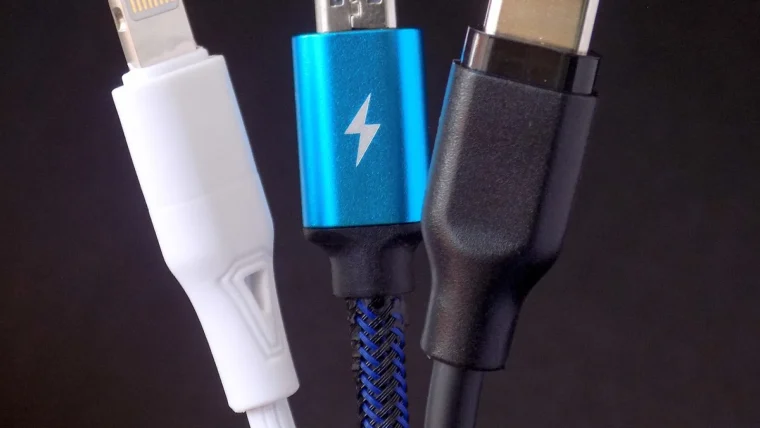
USB-C vs Lightning for CarPlay: Does It Matter?
Your iPhone connector changed, but does that actually affect how CarPlay behaves in the car? Here is the honest answer.
Read guide
Using the CarPlay Dashboard and Split View
The Dashboard screen puts your map, music and next turn side by side, and it changes how a drive feels once you set it up right.
Read guide