Android Auto Has No Sound: Fix the Audio
Your maps show and messages pop up, but the speakers stay quiet. Here is how to get Android Auto talking again.

Key takeaways
- A silent app usually traces back to volume routing, not a broken phone.
- Wireless setups often play call audio over Bluetooth while media goes nowhere.
- A cheap or damaged USB cable is the single most common culprit on wired setups.
- Clearing the Android Auto cache fixes a surprising number of dead-audio cases.
- Test with a second app before you blame the head unit.
You back out of the driveway, Google Maps lights up the screen, the little turn arrow is ready to go. Then the navigation voice says nothing. Your playlist shows it is playing, the timer is counting up, but the speakers sit there dead quiet.
I have chased this exact problem across a dozen cars, from a base-model Honda Civic to a loaded Kia Telluride. The frustrating part is that the phone looks fine. The screen works, touch works, everything says it is working. The sound is just gone.
Good news: this is almost never a hardware failure. It is usually a volume routing hiccup or a cable that has quietly given up. Let me walk you through the checks in the order I actually do them in a driveway.
Start with the dumb volume check (yes, really)
Before you touch a single setting, turn the volume up while audio is actively playing. This sounds too obvious to mention, but Android keeps separate volume levels for different jobs.
Here is the trick most people miss. The volume you set for a phone call is not the same slider as the volume for media or navigation. If you only ever nudge the dial during a call, your media volume can sit at zero without you knowing.
So do this: start a song in Spotify or YouTube Music, then press the volume up button on your steering wheel or head unit. If a media volume bar appears on screen and the sound comes alive, you just solved it in ten seconds.
Pro tip
Adjust the volume while the audio type you want is playing. Turn it up during navigation to fix the voice, during music to fix media, and during a call to fix calls. Each one is a separate channel.
Check where the sound is actually going
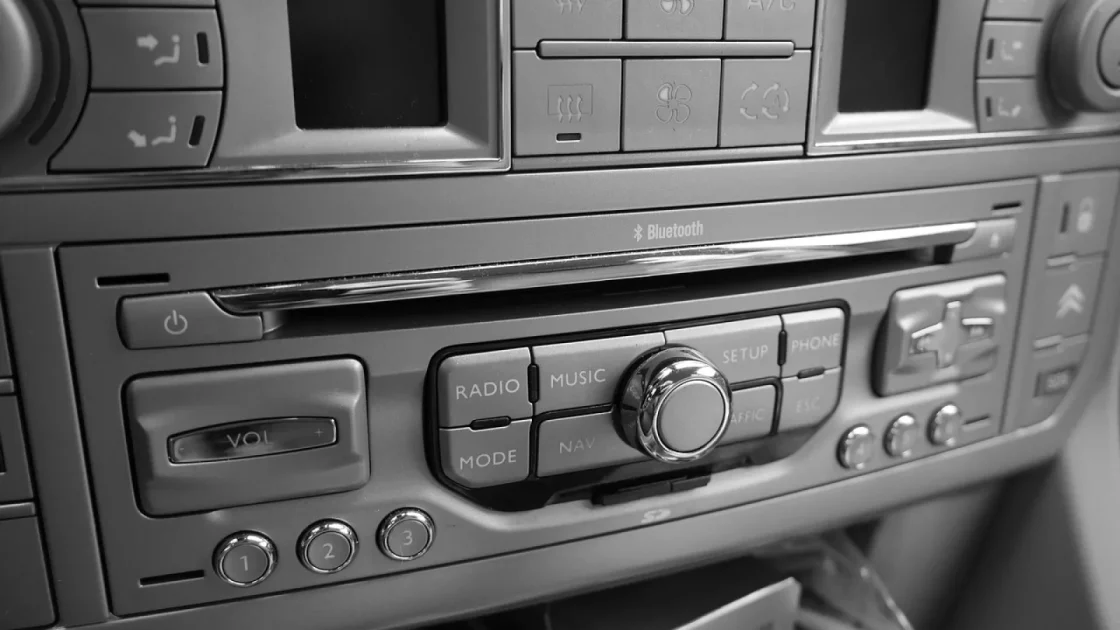
This is the big one for wireless Android Auto users. On a lot of cars, especially older ones running Bluetooth alongside a USB connection, the audio can split in confusing ways.
Picture this. Your phone connects to the car over Bluetooth for phone calls, but Android Auto runs media over its own channel. If those two get crossed, your calls come through fine while your music and maps stay silent, or the reverse.
On your phone, open the Bluetooth settings and tap the gear icon next to your car. You will usually see separate toggles for Phone audio and Media audio. Make sure both are turned on. I have seen Media audio switch itself off after a software update more than once.
The A2DP trap on wireless setups
Some cars route Android Auto media through the Bluetooth A2DP profile. If the car and phone disagree about who owns that stream, you get a screen that plays visually but never hits the speakers. Toggling Bluetooth off and back on inside the Android Auto session often re-negotiates it cleanly.
The cable is guilty until proven innocent
If you are plugged in with a USB cable, this is where I would put my money. A worn or low-quality cable is the number one cause of wired audio problems I run into.
Data cables are not all equal. The cable that came in the box with a $10 charger is often a charge-only or a flaky data cable. It might carry enough to power the phone and even mirror the screen, then drop the audio stream when the car is bouncing over bumps.
Swap in a known-good cable, ideally the one that shipped with your phone or a certified data cable under $15. Plug it straight into the factory USB port, not a hub or a cheap splitter.
Watch out
Wiggle the USB connector while music plays. If the sound cuts in and out as you move it, the cable or the port is your problem. Replace the cable first since it is the cheap fix.
Restart the right things in the right order
A stale connection loves to eat audio. Restarting clears it, but the order matters so you do not waste time.
- Unplug the phone or disconnect wireless, then close Android Auto fully.
- Restart the phone with a genuine power-off, not just a screen lock.
- Turn the car fully off and open a door so the system powers down instead of napping.
- Reconnect and start audio before you start driving.
- Test one media app and one navigation voice prompt separately.
That car power-down step trips people up. Many head units stay in a low-power state when you just press the engine stop button. Opening the driver door usually forces a real shutdown so the infotainment reboots on the next start.
Clear the Android Auto cache
When restarting does not stick, a corrupted cache is often hiding underneath. This fix has rescued more dead-audio cars for me than almost anything else on the list.
On your phone, go to Settings, then Apps, find Android Auto, and open its storage screen. Tap Clear cache first and test. If audio is still gone, come back and tap Clear storage, which resets Android Auto to a fresh state.
Good to know
Clearing storage forgets your paired cars and preferences, so you will re-do the trust prompt on your next connection. It does not delete anything else on your phone. Two minutes of re-pairing is a fair trade for working sound.
Match the problem to the fix
Different symptoms point at different causes. This table is the shortcut I use to skip straight to the likely fix instead of trying everything blindly.
| What you hear | Most likely cause | First thing to try |
|---|---|---|
| Calls work, music silent | Media audio disabled or A2DP conflict | Enable Media audio in Bluetooth settings |
| Music works, no nav voice | Navigation volume at zero | Raise volume during a spoken prompt |
| Everything silent, wired | Bad USB cable or port | Swap to a certified data cable |
| Cuts in and out | Loose cable or failing port | Replace cable, avoid splitters |
| Silent after an update | Corrupted app cache | Clear Android Auto cache |
When the car, not the phone, is the problem
If you have swapped cables, cleared the cache, and checked every volume slider, it is time to look at the head unit itself.
Test with a second phone if you can borrow one. If a friend’s phone also plays silent on your car, the issue lives in the vehicle. Check whether the head unit has a firmware update waiting, since carmakers push audio fixes through those more often than you would expect.
Also confirm the source is set correctly. Some systems will show the Android Auto screen while the audio source is still stuck on FM radio or an aux input. Cycle the source button until it lands on the Android Auto or phone input.
Nine times out of ten the phone is innocent. The sound is going somewhere, just not to the speakers you are listening to.
For a deeper reference on how the platform routes audio, Google keeps a plain-language Android Auto help center that is worth a bookmark.
What to do next
Work the list top to bottom and you will almost always find the silent channel before you reach the head unit. Start with the volume-while-playing check, confirm Media audio is on, then swap the cable if you are wired.
If you get sound back, take thirty seconds to note which step fixed it. When it happens again in a month, and with a flaky cable it often does, you will skip straight to the answer instead of starting over in a cold driveway.
And if none of this lands, borrow a second phone before you spend a dime. Proving the car is at fault turns a mystery into a warranty conversation with your dealer.
Frequently asked questions
The app is streaming, but the audio is being routed somewhere other than your speakers. This is usually a media volume set to zero or a Bluetooth media channel that is switched off. Raise the volume while the track is actively playing and confirm Media audio is enabled in your phone's Bluetooth settings for that car.
Yes, and it is one of the most common causes on wired setups. A cheap or worn cable can carry enough signal to charge the phone and mirror the screen while dropping the audio data stream, especially over bumps. Swap in a certified data cable under $15 and plug straight into the factory port.
Clearing the cache removes only temporary files and keeps your settings intact. Clearing storage goes further and resets the app, so you will need to re-approve the connection to your car on the next start. Neither option touches your photos, messages, or other apps.
Phone calls and media travel on separate audio channels. If Media audio is turned off in your Bluetooth settings, or the A2DP profile is in conflict, calls route through fine while music and navigation go nowhere. Turn on Media audio and cycle Bluetooth to re-negotiate the media stream.
Borrow a second phone and connect it to the same car. If that phone also plays silent, the fault is in the head unit or its settings. Check for a firmware update from the carmaker and make sure the audio source is set to the Android Auto input rather than radio or aux.
Keep reading
Related guides
CarPlay Is Laggy and Slow: How to Speed It Up
Sticky maps, slow taps and stuttering audio usually trace back to a few fixable causes. Here is how to find yours.
Read guide
Android Auto Not Connecting? Here’s How to Fix It
A mechanic-friendly walk through the real reasons Android Auto refuses to start, plus the fixes that actually stick.
Read guide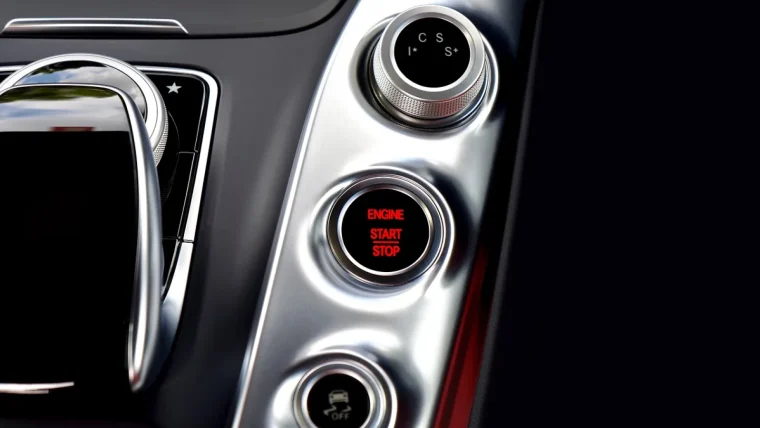
CarPlay Won’t Start Automatically: How to Fix Autostart
Make CarPlay launch on its own every time you get in the car, without tapping a single button on the screen.
Read guide