CarPlay Features Explained for Beginners
A plain-spoken tour of what CarPlay actually does once you plug your iPhone into the car, minus the sales pitch.

Key takeaways
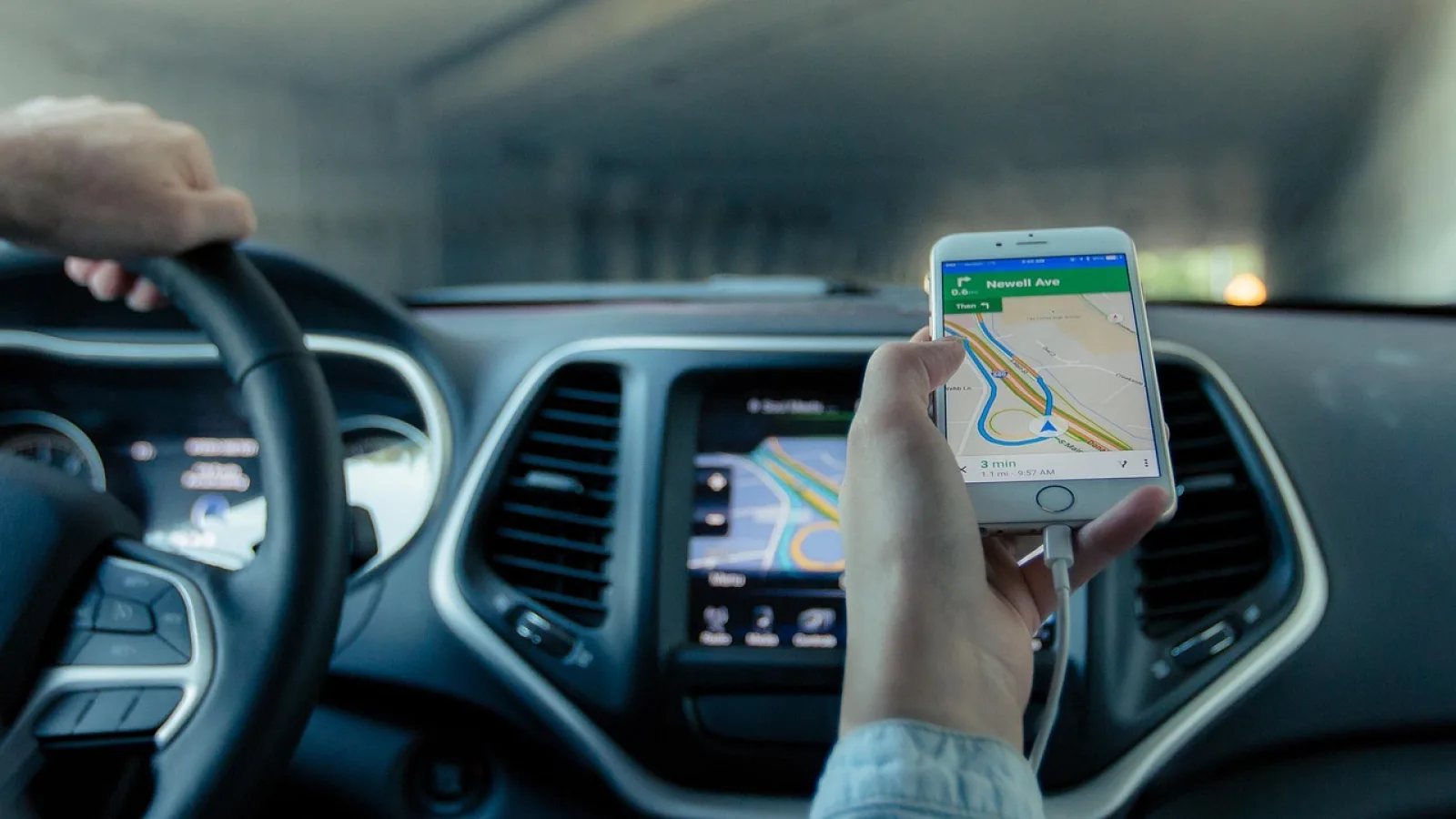
- CarPlay mirrors a simplified version of your iPhone onto the car screen so you can use maps, calls, music and messages without touching the phone.
- Siri does the heavy lifting for texts and navigation, which keeps your eyes on the road.
- Wireless CarPlay is the same feature as wired, just without the cable, and both need a compatible car or adapter.
- It runs a curated set of apps, not your whole phone, so games and video stay off the screen while driving.
Picture your first drive after plugging your iPhone into a car that supports this. The radio screen blinks, and suddenly there are big, friendly icons: Maps, Phone, Music, Messages. Your phone is now in your pocket and the car is doing the talking.
That moment trips up a lot of people. They expect their entire phone on the dash, and instead they get a stripped-down layout with a handful of apps. So what is actually happening here, and what can you really do with it?
I have installed and set this up on everything from a 2016 Honda Civic to a friend’s old Ford with an aftermarket screen. Let me walk you through the features the way I would if you were sitting in my passenger seat.
What CarPlay really is under the hood
Think of it as a projection, not a copy. Your iPhone does all the thinking, and the car screen just shows a simplified, driving-safe version of a few apps. Tap Maps on the dash and you are really tapping Maps on your phone.
That design choice explains almost everything about how it behaves. The apps look chunky and simple on purpose, because you are supposed to glance, not stare. Text is bigger. Buttons are fatter. Video and most games are blocked while you drive.
Apple keeps a short, official rundown on its own CarPlay page if you want the marketing version. What follows is the honest one from someone who has wired it in.
Good to know
Your phone stays locked and in your pocket the whole time. CarPlay does not unlock it or expose your photos, banking apps or anything you did not put on the car screen.
Navigation that talks you through the turns
Maps is the feature most people fall in love with first. You get full-screen turn-by-turn directions with lane guidance, live traffic and rerouting when the road ahead jams up.
You are not stuck with Apple Maps either. Google Maps and Waze both work here, and you pick your favorite. On a road trip from Denver to Salt Lake City last summer, Waze on the dash rerouted me around a closed exit before I even knew there was a problem.
The spoken directions come through your car speakers and duck the music down when a turn is coming. No squinting at a phone propped on the vent. No missing an exit because your passenger was reading the tiny screen out loud.
Asking for directions without typing
Hold the voice button on your steering wheel and say “take me home” or “find a gas station.” Siri sets the route. This is the single biggest safety win, since your hands never leave the wheel and your eyes never leave the road.
Calls and texts handled by voice
The Phone app puts your recent calls, favorites and contacts on screen as big tap targets. But the real trick is letting Siri do it. Say “call Mom” and it dials.
Messages is where it gets genuinely useful. New texts get read aloud, and you reply by talking. You never see a keyboard, which is the point. Apple deliberately does not show message text on screen while you are moving.
It handles regular texts, iMessages, and reads notifications from WhatsApp and a few other apps too. Your passenger can still hand-type on their own phone if patience runs thin.
Watch out
Voice replies are only as good as the cabin noise lets them be. On the highway with windows down, Siri mishears “running late” as all sorts of nonsense. Roll the window up before you dictate anything important.
Music, podcasts and audio the easy way
Every audio app you actually use tends to show up: Apple Music, Spotify, Podcasts, Audible, plus radio apps. The layout is a simple list of playlists, stations and recently played.
Album art fills the screen, playback controls are large, and your steering wheel buttons keep working for skip and volume. If you subscribe to Spotify, you see Spotify. Nothing gets forced on you.
Podcast fans get resume-where-you-left-off across the phone and car. Start an episode on the couch, walk to the car, and it picks up mid-sentence.
The apps you get, and the ones you do not
This is where beginners get surprised. CarPlay runs a curated set of app categories, not your entire home screen. Apple approves what shows up, and it leans heavily toward audio, navigation, messaging and communication.
Here is a rough map of what is on the table.
| Category | Examples that work | What stays off |
|---|---|---|
| Navigation | Apple Maps, Google Maps, Waze | Nothing major missing |
| Audio | Spotify, Apple Music, Audible, Podcasts | Any app not built for it |
| Messaging | Messages, WhatsApp (voice only) | Full typing, group chat browsing |
| Other | Calendar, some parking and EV apps | Games, video, social feeds, browsers |
You will not watch YouTube, scroll Instagram, or play a mobile game on the dash. That is a deliberate safety wall, not a bug. If a passenger wants video, that happens on their own phone.
Quick note
App makers have to build a CarPlay version of their app. If your favorite niche app is missing, it usually means the developer never made one, not that your setup is broken.
Siri, the part that ties it together
Siri is the quiet hero. Almost every feature works better when you stop tapping and start talking. Directions, texts, calls, music, reminders and even opening the garage door through a smart-home app all respond to voice.
A few commands worth memorizing:
- “Take me to the nearest coffee shop” for quick navigation
- “Play my road trip playlist” to start music hands-free
- “Read my messages” and “reply, I am five minutes away”
- “Add milk to my grocery list” so you do not forget
- “What is the traffic like on the way home”
The first week feels awkward. You keep reaching for the screen. By week two, talking becomes second nature and you wonder how you drove without it.
The whole point is that the safest control in the car is the one you never have to look at.
Wired, wireless, and getting it into your car
Two flavors exist, and they do the exact same things. Wired means a USB cable from phone to port. Wireless means it connects over Bluetooth and Wi-Fi the moment you sit down, cable-free.
Wireless is lovely for daily driving, since the phone stays in your bag. It does drain your battery faster, so a charging pad or a cheap cable in the console still earns its spot.
If your car did not come with this, you have options: a plug-in adapter, a portable screen that sits on the dash, or a full aftermarket head unit. Cost ranges from about 60 dollars for a basic adapter to several hundred for a proper screen install. Which route fits depends on your car and budget, and that is a whole topic on its own.
Pro tip
If your car has factory CarPlay but only wired, a small wireless adapter (around 60 to 100 dollars) plugs into the USB port and converts it. I did this on a 2018 model and it worked in under five minutes.
Try these first when you plug in
Do not try to learn everything at once. Pick one feature and use it for a few days before adding the next. Here is the order I suggest to friends.
Start with navigation, since it is the most visual and the biggest payoff. Then add voice texting, because that is the habit that actually keeps your eyes up. Music comes naturally after that.
If you want to compare how the other side lives, the Android world has its own version with a similar spirit; you can read about it on the Android Auto page. For an iPhone owner, though, this is the feature that makes an old car feel a decade newer. Plug in on your next drive, ask Siri for directions somewhere new, and let it show you what it can do.
Frequently asked questions
The interface itself runs off your phone, but the useful parts like live maps, traffic and streaming music need mobile data. Basic calls and texts work on your normal phone signal. If you download maps and playlists ahead of time, you can get by with very little data on a trip.
Wired CarPlay charges your phone while you drive, so battery is not an issue. Wireless uses more power because it runs Bluetooth and Wi-Fi at once, which can slowly drain the phone. A cheap cable or a charging pad in the console solves that on longer drives.
No, and that is on purpose. Apple blocks video and most games from the car screen for safety reasons, even for the passenger. Anyone who wants to watch something can do it on their own phone instead.
Any iPhone from the 5 onward running a modern version of iOS supports it. Practically every phone in use today qualifies. The bigger question is usually whether your car or adapter supports it, not your phone.
The call takes over the screen with big answer and decline buttons, and audio routes through your car speakers automatically. Your music or podcast pauses and resumes when you hang up. You can answer with the steering wheel button without touching anything.
Keep reading
Related guides

How Much Data Does CarPlay Use?
A plain-spoken breakdown of what maps, music and calls actually pull through your phone when CarPlay is running.
Read guide
Android Auto Coolwalk Dashboard, Explained
What the Coolwalk redesign changed on your car screen, why it looks different, and how to set it up so it actually works for you.
Read guide
Is CarPlay Worth It? An Honest Look
A straight answer on who gets real value from CarPlay, who barely notices it, and how to decide before you spend a dime.
Read guide