Wired CarPlay Won’t Connect: 9 Fixes That Work
Plug in and nothing happens? Here are nine practical fixes to get wired CarPlay running again, from the cable to the phone settings.

Key takeaways
- A cheap or damaged cable is the number one reason wired CarPlay fails to start.
- Use the correct USB port; many cars have one data port and several charge-only ports.
- Toggling CarPlay off and back on in your iPhone settings clears most software hiccups.
- Restarting both the phone and the head unit fixes glitches a single reboot misses.
- If nothing works, a forgotten car in Settings or a head unit software update usually does.
You slide into the driver’s seat, plug in your phone like you have a hundred times before, and the screen just sits there. No app icons, no little chime, nothing. Maybe the phone charges but the display never switches over. Maybe you get a message telling you the accessory isn’t supported.
It is one of the more maddening car problems because it usually worked yesterday. Nothing obvious changed, yet the connection refuses to start.
I spent years pulling dashboards apart as an installer, and wired connection failures almost always trace back to one of a handful of causes. Work through these nine fixes in order and you will land on the culprit.
Start with the cable, because it is usually the cable
If I had a dollar for every “broken” head unit that turned out to be a $6 cable, I could buy a nice set of speakers. The cable is the first thing to suspect and the easiest to rule out.
Two things go wrong here. The cable is physically worn, or it was never a proper data cable to begin with.
Grab a different cable and try it. Ideally use the one that came in your phone box, or a known-good Apple certified one. That charge-only cable you bought at a gas station for three bucks? It moves power but not data, and CarPlay needs data.
Pro tip
Look for the letters MFi or the words “Made for iPhone” on the cable packaging. Cables without that certification are the single most common reason a wired connection quietly fails to hand off to the car.
While you have the cable in hand, check both ends for bent pins, lint packed into the connector, or a frayed jacket near the plug. Cables fail right where they bend most, usually within an inch of either end.
Make sure you are using the right USB port
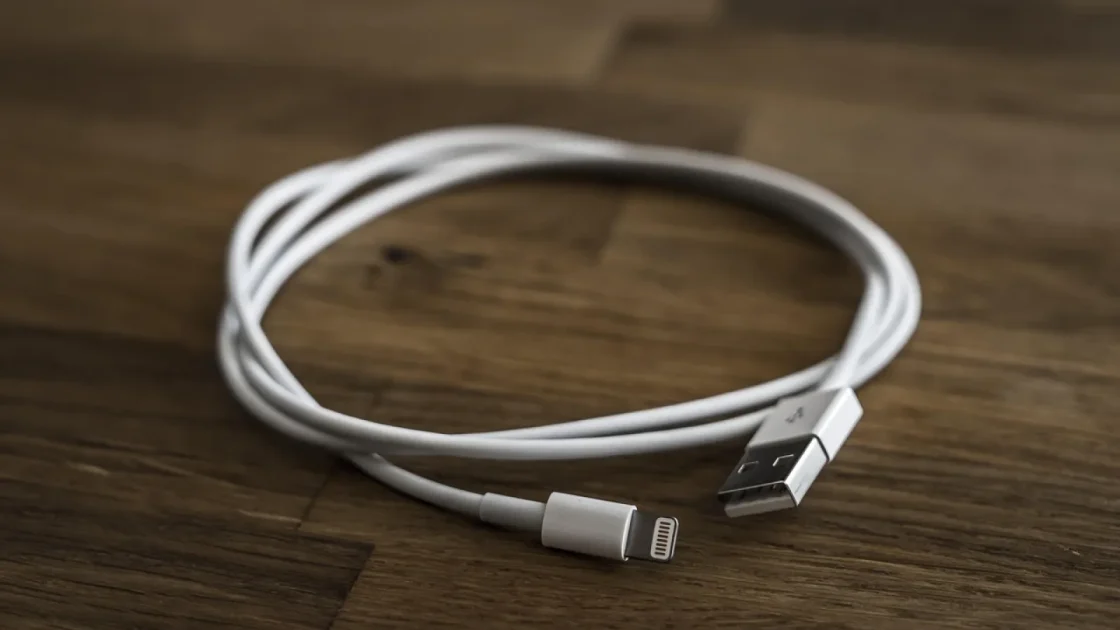
This one trips up a lot of people, and it is not their fault. Car makers love to scatter USB ports around the cabin, and they do not all do the same job.
Many vehicles have exactly one port wired for data and CarPlay. The rest are charge-only, meant for a rear passenger’s phone or a dash cam. Plug into the wrong one and your phone charges happily while the screen stays blank.
Look for a port with a small phone or CarPlay icon next to it. On a lot of Toyotas and Hondas, the correct port sits in the center console or just below the screen, while the ones in the armrest are power only.
Good to know
Newer cars sometimes switched to USB-C ports. If your car has both USB-A and USB-C, the data port is not always the newer one. Check your owner’s manual or just test each port with a good cable.
Toggle CarPlay off and on in your iPhone settings
Software gets stuck. A quick toggle clears it more often than you would expect.
On your iPhone, open Settings, tap General, then CarPlay. Select your car from the list, then choose Forget This Car. Now unplug, wait ten seconds, plug back in, and set it up fresh when prompted.
This forces the phone and head unit to reintroduce themselves instead of relying on a saved connection that may have gone bad.
- Open Settings then General then CarPlay
- Tap your vehicle, then Forget This Car
- Unplug the cable and wait ten seconds
- Plug back in and follow the setup prompt
- Confirm the car appears in the CarPlay list again
Restart the phone and the head unit both
People restart the phone and skip the car. Do both, because the glitch lives on whichever side you didn’t reset.
Power your iPhone all the way off, wait a moment, then turn it back on. For the head unit, some cars let you hold the power knob for 10-15 seconds to force a reboot. Others reset only when you turn the ignition fully off, open and close the door, and let the car sleep for a couple of minutes.
A common mistake is doing a quick restart on the phone that doesn’t actually clear memory. Fully power down, don’t just lock the screen.
Check that CarPlay isn’t blocked by Screen Time or restrictions
This is the sneaky one. If CarPlay was recently turned off in your restrictions, the phone will never connect no matter how perfect your cable is.
Go to Settings, then Screen Time, then Content and Privacy Restrictions. If that is switched on, tap Allowed Apps and make sure CarPlay is enabled. A kid borrowing the phone or a mis-tap during setup can flip this without you noticing.
Watch out
If your iPhone is set to “Allow CarPlay While Locked” being off, the connection can stall until you unlock the phone every single time. Toggle that setting back on under Settings, General, CarPlay for a smoother handoff.
Update your iPhone and your car’s software
A wired connection that broke after a phone update, or a car that never worked with a newer iPhone, often just needs the other side to catch up.
On the phone, check Settings, General, Software Update. On the car side, software updates usually come through the dealer or an over-the-air process depending on the brand. Some head units also accept a USB drive with the update file loaded from the maker’s website.
Apple keeps a plain list of what CarPlay needs and how it behaves on their CarPlay support page, which is worth a glance if you suspect a compatibility gap.
| Symptom | Most likely cause | First fix to try |
|---|---|---|
| Phone charges, screen stays blank | Charge-only cable or wrong port | Swap cable, find the data port |
| “Accessory not supported” message | Non-certified cable | Use an MFi cable |
| Worked yesterday, dead today | Software glitch | Forget car, restart both |
| Never connects on this phone | Restrictions or old software | Check Screen Time, update |
Clean the ports and reseat the connection
Pocket lint is real, and it kills more connections than most people realize. The charging port on your phone is a magnet for it.
Look into your iPhone’s port with a flashlight. If you see gray fuzz packed at the bottom, gently clear it with a wooden toothpick or a plastic pick. Never use metal, and never dig hard.
Do the same for the car’s USB port. A blast of compressed air often clears out crumbs and dust that were quietly blocking the data pins.
Nine times out of ten, when a customer swore their system was dead, it was lint, a bad cable, or the wrong port. Rarely was the actual hardware to blame.
Try a different phone to isolate the problem
Borrow a friend’s iPhone and plug it into the same port with a good cable. This one test tells you a lot.
If their phone connects fine, the issue lives on your phone: a setting, a software version, or a port full of lint. If their phone also fails, the trouble is in the car: the cable, the port wiring, or the head unit itself.
Splitting the problem this way saves you from chasing the wrong side for an hour.
Reset the head unit to factory settings
When everything else comes up empty, a full head unit reset clears out corrupted pairing data and stubborn glitches. Save this for last, since it wipes your presets and paired devices.
The exact steps live in your owner’s manual, usually under a Settings, General, or Factory Reset menu on the screen. After the reset, plug in with a good cable and set CarPlay up as if the car were new.
Quick note
Write down your radio presets and any saved settings before you reset. A factory wipe takes them all, and rebuilding the list is annoying if you forget which stations you had.
What to do if wired still won’t budge
If you have worked through all nine and the connection still refuses to start, you have narrowed it down to real hardware. That usually means a failing USB port in the dash or a head unit fault, both jobs for a shop.
Before you book that appointment, it is worth trying a wireless adapter if your phone and car support it, since that sidesteps the physical port entirely. And if your connection drops after it connects rather than never starting, that is a different problem with its own fixes worth reading up on separately.
Start at the top of this list next time too. The cable and the port catch the vast majority of these, and now you know exactly where to look first.
Frequently asked questions
Charging and data run on separate wires inside a USB cable, so a charge-only cable will power your phone while never passing the data CarPlay needs. This also happens when you plug into a charge-only USB port instead of the one wired for data. Swap to a certified cable and find the port marked with a phone or CarPlay icon.
Yes, more than almost anything else. A non-certified or worn cable is the leading cause of a wired connection that fails to hand off to the car. Use an MFi certified cable, ideally the one that shipped with your phone, and check both ends for lint or bent pins.
Open Settings, tap General, then CarPlay, select your vehicle and choose Forget This Car. Unplug the cable, wait about ten seconds, then plug back in and follow the setup prompt. This clears a saved connection that may have gone bad and forces a fresh pairing.
It can. Under Settings, Screen Time, Content and Privacy Restrictions, CarPlay can be switched off in Allowed Apps, which stops it from ever connecting. Turn restrictions off or re-enable CarPlay there, and while you are in settings, allow CarPlay while the phone is locked for a smoother start.
If a known-good cable, the correct data port, a phone restart, a head unit reset, and a second test phone all fail, the fault is likely a bad USB port or head unit hardware. At that point a shop can test the wiring properly. Trying a wireless adapter first can confirm whether the physical port is the problem.
Keep reading
Related guides
Phone Overheats With CarPlay: Why and How to Stop It
Your phone gets hot and drains fast on long CarPlay drives. Here is what causes it and the fixes that actually keep it cool.
Read guide
CarPlay Drops During Phone Calls: How to Fix It
Your screen goes dark the second a call comes in. Here is why CarPlay bails on you mid-conversation and how to make it stay put.
Read guide
Siri Not Working in CarPlay? Try These Fixes
When the tap-and-hold does nothing or Siri can't hear you, these hands-on fixes get voice control back on the road.
Read guide