How to Reset a CarPlay Connection Cleanly
When CarPlay gets stuck, glitchy, or refuses to load, a clean forget-and-repair usually fixes it in about five minutes.

Key takeaways
- A clean reset means forgetting the car on your phone and clearing it on the head unit, not just unplugging and hoping.
- Wireless problems almost always trace back to a stale Bluetooth pairing, so delete that first.
- Restart both the phone and the car before you try to re-pair for the best success rate.
- Keep only your current phone paired if you share the car, since a crowded pairing list causes fights over who connects.
You slide into the driver’s seat, plug in like you have a thousand times, and the screen just sits there. Black. Or worse, it shows the CarPlay logo, spins for twenty seconds, then drops you back to the car’s own menu like nothing happened.
I have watched this exact thing happen on a friend’s Honda while we were already late for a barbecue. We tried plugging the cable in harder, which of course did nothing. What actually fixed it was tearing the connection down to zero and building it back up fresh.
That is what a real reset is. Not a hopeful unplug and replug, but a deliberate forget-and-repair that clears out the stale handshake between your phone and the car. Here is how I do it, step by step, on both wired and wireless setups.
Why a stuck connection usually needs a full reset
Your phone and your car remember each other. They store a little profile: Bluetooth keys, a device name, a saved preference for which apps show up. That memory is great when it works and a headache when it goes stale.
Most CarPlay trouble comes from that saved profile getting corrupted or out of sync. Maybe an iOS update changed something. Maybe you paired a second phone and now the car keeps grabbing the wrong one. Maybe the Bluetooth link half-connected and locked up.
Restarting alone rarely clears it because the bad profile survives the reboot. You have to actually delete the pairing on both ends so the two devices meet as strangers again.
Good to know
Wired and wireless CarPlay both rely on Bluetooth to start the conversation, even the wired kind. So a bad Bluetooth pairing can break a plugged-in connection too, which surprises a lot of people.
Do these quick checks before you reset anything

A reset takes five minutes, but sometimes the fix is thirty seconds. Rule these out first so you are not deleting pairings for no reason.
- Try a different USB port if your car has more than one, since some ports only carry power and not data.
- Swap to a known-good cable, ideally the one that came with your phone, because a frayed or cheap cable is the number one culprit for dropouts.
- Check that CarPlay is actually enabled and not restricted under Settings, then General, then CarPlay on your iPhone.
- Make sure Screen Time is not blocking CarPlay under content and privacy restrictions.
- Confirm Siri is turned on, because CarPlay leans on it and will refuse to start if Siri is fully disabled.
If all of that looks fine and it still stalls, now a reset earns its keep.
How to reset a wired CarPlay connection
Wired is the simpler of the two because there is no wireless pairing to untangle. Work through it in this order.
Step one: forget the car on your iPhone
Open Settings, tap General, then tap CarPlay. You will see a list of cars your phone has connected to. Tap your car, then choose Forget This Car. Confirm it.
That single step wipes the saved profile on the phone side. Even for a wired setup this matters, because your iPhone still stores a CarPlay identity for the vehicle.
Step two: clear it on the head unit
Head units vary, but almost every one keeps its own device list under Bluetooth or connections settings. Find your phone in that list and delete or unpair it. On many Toyota and Kia systems this lives under Setup, then Bluetooth, then paired devices.
Step three: power cycle both
Turn the car fully off. Not accessory mode, all the way off, then open and close the driver door so it knows you left. Restart your iPhone at the same time. Give it a solid thirty seconds.
Step four: plug in fresh
Now connect the cable and unlock your phone. You should get a prompt asking whether to allow CarPlay. Say yes, and it builds a brand new connection from scratch.
Pro tip
Unlock your phone and keep the screen awake while it first reconnects. A locked phone sometimes stalls that first handshake, and people blame the cable when the phone was just asleep.
How to reset a wireless CarPlay connection
Wireless has more moving parts, so the reset is a little longer. The extra step is that you also have to break the Bluetooth and Wi-Fi link, since wireless CarPlay uses both.
Start the same way. Go to Settings, General, CarPlay, tap the car, and choose Forget This Car. Then go to Settings, Bluetooth, find the car, tap the small info icon next to it, and choose Forget This Device.
That second part is the one folks skip, and it is usually the whole problem. The car and phone keep trying to reconnect over a broken Bluetooth key. Delete it and the loop stops.
Over on the car, delete your phone from the head unit’s Bluetooth list the same way you would for a wired reset. Then power cycle both devices, restart the phone, and start the pairing from a clean slate. On most systems you re-pair by choosing to add a new device on the car screen and picking the car from your phone’s Bluetooth or CarPlay menu.
Watch out
If you share the car with a partner, an overcrowded pairing list makes the two phones fight over who connects. Keep only the phones you actually use paired, and delete old rentals or a friend’s phone that snuck onto the list.
Wired reset versus wireless reset at a glance
Here is the short version of what changes between the two, so you know which steps apply to you.
| Step | Wired | Wireless |
|---|---|---|
| Forget car in CarPlay settings | Yes | Yes |
| Forget device in Bluetooth settings | Not needed | Yes, required |
| Remove phone from head unit | Yes | Yes |
| Power cycle car and phone | Yes | Yes |
| Reconnect method | Plug in cable | Pair over Bluetooth |
| Typical time | About 3 minutes | About 5 minutes |
If your car does wireless but you have a good cable handy, plugging in for that first reconnect can be faster and more reliable. Once it takes, you can unplug and go back to wireless on the next drive.
When a reset does not stick
Sometimes you forget everything, re-pair, and it works for a day, then breaks again. That pattern points to something deeper than a stale profile.
Check whether your iPhone software is current under Settings, General, Software Update. An out of date phone paired with a freshly updated car, or the reverse, can cause repeat dropouts. Many head units also get firmware updates through the dealer or a USB stick, and a stale head unit is a common cause of recurring failures.
If wireless keeps dropping specifically, the car’s Wi-Fi radio may be the weak link, and a wired cable becomes your reliable fallback. Apple keeps a plain-language troubleshooting page that is worth a look if you have exhausted the basics, over at Apple’s CarPlay support.
Nine times out of ten, a clean forget-and-repair beats any clever trick. Delete both sides, restart both devices, start fresh.
Quick note
A factory reset of the whole head unit is a last resort, not a first move. It wipes your radio presets and every saved setting, so try the targeted forget-and-repair first and save the nuclear option for when nothing else works.
Your next drive: a clean slate
Run the reset once, carefully, and you rarely have to do it again. The order is what matters: forget on the phone, clear on the car, restart both, then reconnect from zero.
Do it in your driveway with the engine off and a few free minutes, not in a parking lot when you are already running late. Keep your charging cable in the glovebox as a backup even if you normally go wireless, because it is the fastest way to force a clean reconnect when you need one.
Next time the screen goes dark, you will know exactly what to do, and you will have it working again before the car finishes warming up.
Frequently asked questions
No. Forgetting the car only removes the pairing profile between your phone and the vehicle. Your apps, contacts, messages, and settings all stay untouched on your iPhone. You are just clearing the connection, not the phone.
Both, ideally. Deleting the pairing on only one side often leaves a mismatched key on the other, which causes the connection to fail again. Clearing both the phone and the head unit is what makes the reset actually stick.
Almost never once it is working well. If you find yourself resetting every week, that points to a failing cable, an out of date phone or head unit, or a weak wireless radio. Fix the underlying cause rather than resetting on repeat.
Not usually. Many head units let you pick a default phone platform in settings, and the car may be favoring another paired device. Remove the other phone, set your iPhone as the active device, and it should default to CarPlay.
You can try, but it often fails to fix the problem. The head unit keeps its own record of your phone, and a corrupted entry there survives a phone-only reset. Clearing the car's device list is the step that catches stubborn cases.
Keep reading
Related guides
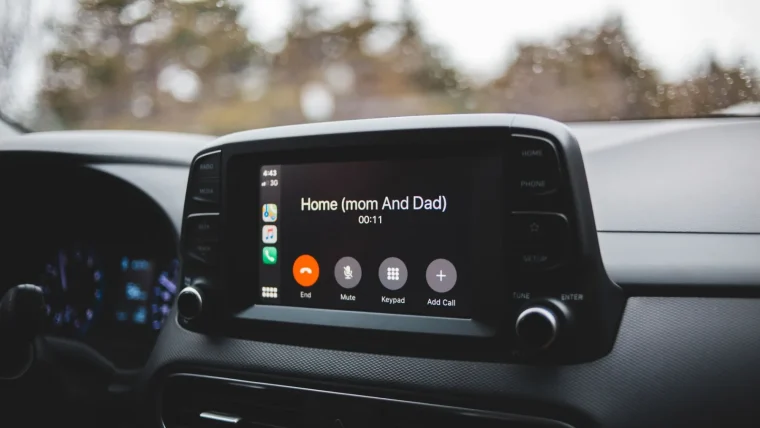
How to Set Up CarPlay: A Step-by-Step Guide
Everything a first-timer needs to get their iPhone talking to the car screen, from plugging in to fixing the setup that refuses to connect.
Read guide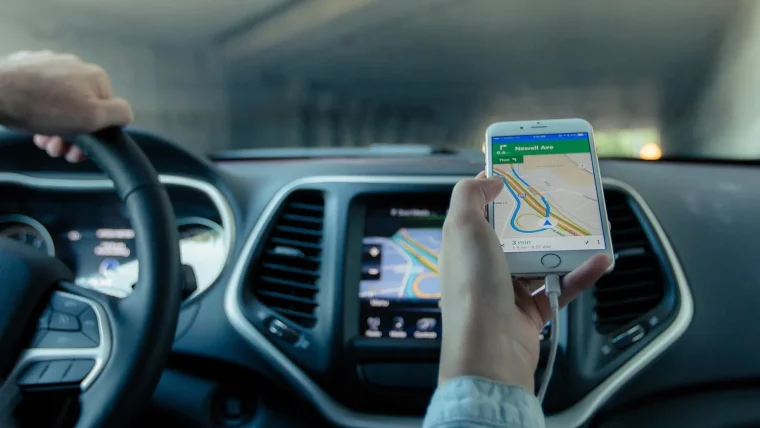
How to Set Your Default Navigation App in CarPlay
Apple never added a single default map switch, so here is the real way to make Google Maps or Waze your go-to on CarPlay.
Read guide
7 CarPlay Settings You Should Change Today
The seven small toggles that quietly fix the daily annoyances most drivers just learn to live with.
Read guide