How to Set Your Default Navigation App in CarPlay
Apple never added a single default map switch, so here is the real way to make Google Maps or Waze your go-to on CarPlay.

Key takeaways
- CarPlay has no single setting labeled default navigation app.
- You control which map opens by choosing the last one you used and where its icon sits on the home screen.
- Since iOS 14, Siri can route through Google Maps or Waze if you name the app in your request.
- Delete Apple Maps entirely if you want, but Siri will still respect your spoken app choice.
- Arranging your CarPlay layout and picking the right app takes about five minutes.
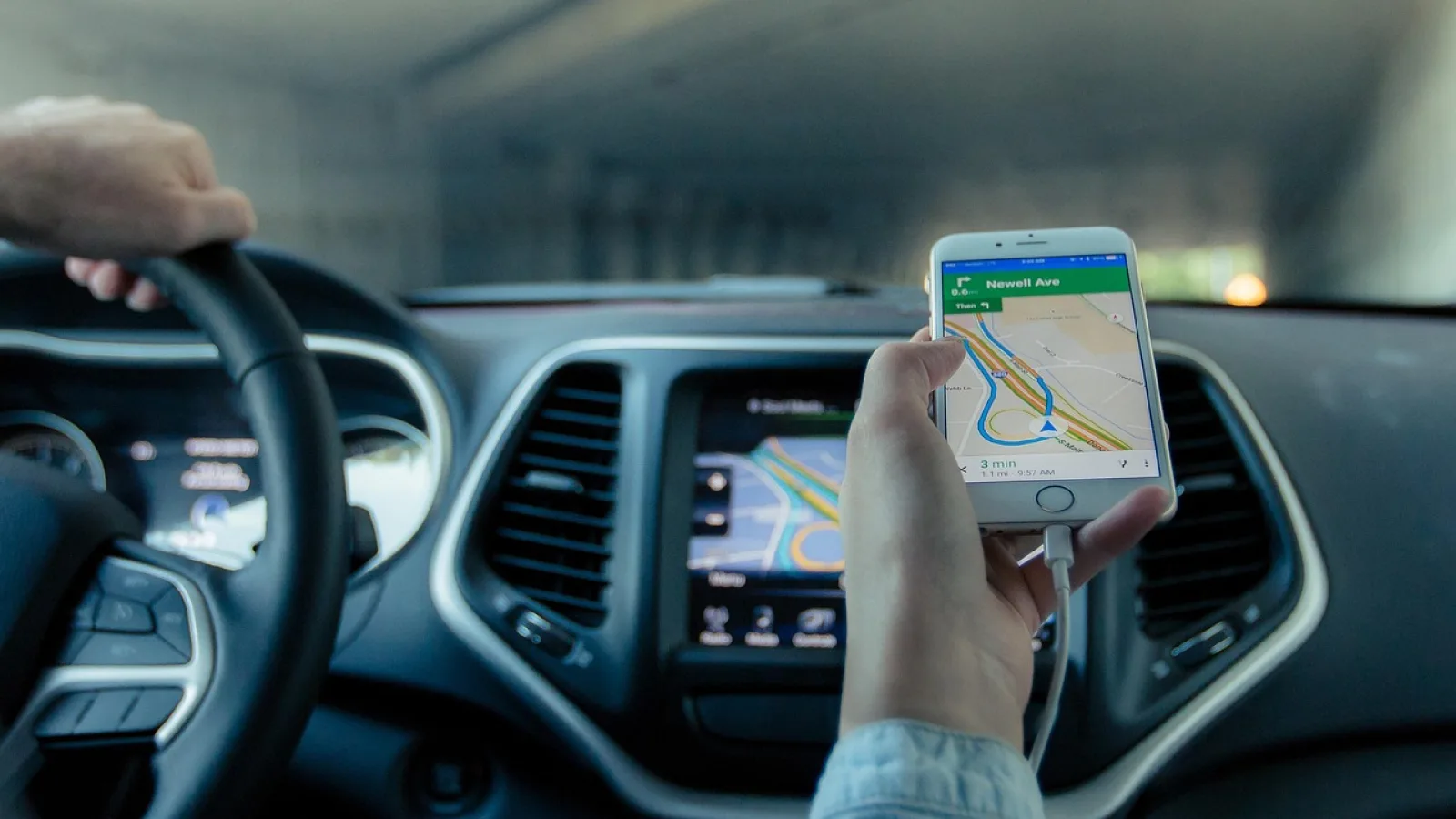
You plug in, the screen lights up, you tap the address you saved for that Saturday drive, and up pops Apple Maps. Again. You have Google Maps on your phone, you like Google Maps, and yet the car keeps handing you the one map you did not ask for.
Sound familiar? I heard this complaint from customers for years back when I was installing head units, and the honest answer surprised most of them.
There is no tidy switch in CarPlay that says pick your map here. Apple never built one. But you can absolutely get Google Maps or Waze to be the map that opens, and you can get Siri to route through them too. It just works through the side door instead of the front.
Why there is no simple default button
On your iPhone itself, you can set a default browser and a default email app. Apple added those toggles years ago. A default map app is not on that list.
So the CarPlay side inherits the same gap. When you tap a saved address, a business card, or a link from a text, iOS decides which map answers, and it leans toward Apple Maps unless you tell it otherwise in the moment.
That is the frustrating part. There is no permanent setting to change. What you get instead is a set of habits and small tricks that add up to the same result.
Good to know
This behavior is the same on a wired or wireless connection. The map that opens depends on iOS and your habits, not on your cable or your car brand.
The trick that actually decides which map opens

Here is the piece almost nobody knows. CarPlay tends to reopen whichever navigation app you used last.
Open Google Maps on the CarPlay screen once, punch in a destination, drive somewhere. The next time you get in and the car wants to show you navigation, it often brings Google Maps back up on its own. iOS remembers the last map in play.
So the single most reliable move is simple. Open the map you want, use it for one trip, and let the system learn your preference. I tested this on a friend’s 2021 Honda CR-V and my own older setup, and Google Maps stuck around trip after trip once it was the last one used.
Pro tip
If Apple Maps sneaks back in after a phone update, just open Google Maps or Waze once more and drive a short errand. That resets the last-used memory without any settings menu at all.
Get Siri to route through Google Maps or Waze
This is the change that made the biggest difference for me. Since iOS 14, Siri stopped forcing Apple Maps on every voice request.
The catch is you have to name the app. Say “Hey Siri, take me home with Google Maps” or “navigate to the airport using Waze,” and Siri hands the job to that app instead of Apple Maps.
Leave the app name out and Siri defaults back to Apple Maps. So the habit to build is short and specific: always tack on with Google Maps or using Waze at the end of your request.
The first week I forced myself to say “using Waze” every single time. By day five it was automatic, and I have not opened Apple Maps by accident since.
Apple documents the CarPlay basics on its CarPlay support pages if you want to confirm what your iOS version supports.
Put your map where your thumb lands
The other half of the fix is pure layout. CarPlay lets you rearrange app icons, and where the map sits changes how fast you can reach it.
Move Google Maps or Waze to the top-left slot of your CarPlay home screen. That corner is the easiest to hit while the car is stationary, and it means you barely have to look away to start a route.
You rearrange the icons from your phone. Open Settings, go to General, then CarPlay, choose your car, and drag the apps into the order you want. The change shows up on the car screen right away.
- Open iPhone Settings, then General, then CarPlay.
- Tap your car from the list of connected vehicles.
- Drag Google Maps or Waze to the top-left position.
- Move Apple Maps to a later page if you rarely use it.
- Reconnect and confirm the new order on the car display.
Google Maps versus Waze at a glance
People ask me which one to set as their go-to, and it honestly depends on the driving you do. Here is the quick version I give friends.
| Feature | Google Maps | Waze |
|---|---|---|
| Best for | Daily driving, lane guidance, business search | Commuting, dodging traffic and hazards |
| Traffic rerouting | Reliable and calm | Aggressive, driver-reported |
| Interface on CarPlay | Clean, familiar | Busier, more alerts |
| Offline maps | Yes, download by region | Limited |
| Cost | Free | Free |
Both are free, both run great on CarPlay, and both obey the Siri trick. If you drive the same congested route to work, Waze earns its keep. For everything else, Google Maps is the steadier pick.
Can you just delete Apple Maps?
Yes, and a lot of people do. Apple lets you remove Apple Maps from the iPhone like any other app, and that clears it off the CarPlay screen too.
Press and hold the Apple Maps icon on your phone, choose remove, and confirm. If you change your mind later, it reinstalls free from the App Store in a few seconds.
Watch out
Deleting Apple Maps does not force Siri to use Google Maps for unnamed requests. Siri may fall back to a web search or simply ask which app you mean. Naming the app in your request is still the dependable move.
One more thing to check. Some third-party map apps need to be opened once on the phone after install before they show up on the CarPlay screen. If Waze is missing from the car, launch it on your phone first, then reconnect.
A quick five-minute setup to lock it in
Put it together and the whole thing takes about five minutes, most of it while you are parked in the driveway.
Start by opening Google Maps or Waze on the CarPlay screen and running one short route so the system remembers it. Then rearrange your icons from the phone so your map sits top-left. Finish by training yourself to say the app name every time you ask Siri for directions.
Do those three things and the car stops surprising you. The map you want opens, the voice command routes where you expect, and Apple Maps quietly steps aside. Go plug in, drive one quick errand with your map of choice, and it will greet you the same way tomorrow.
Frequently asked questions
No. Apple has never added a toggle that sets a permanent default map for CarPlay. The map that opens is decided by which app you used last and by naming the app when you speak to Siri.
Sometimes an update nudges Apple Maps back to the front. The fix is quick: open Google Maps or Waze once and drive a short trip so the last-used memory resets to your preferred app.
No. You can delete Apple Maps entirely and CarPlay keeps working with Google Maps or Waze. If you ever want it back, it reinstalls free from the App Store in seconds.
Some map apps need to be launched once on the phone after installing before CarPlay lists them. Open Waze on your iPhone, then reconnect to the car and it should show up in the app grid.
Yes. Both can live on your CarPlay home screen at the same time. You pick which one to open per trip, and Siri will route through whichever you name in your voice request.
Keep reading
Related guides

Enabling and Fixing Siri for CarPlay
Get hands-free Siri talking to your car the right way, and sort out the times she goes quiet or mishears you.
Read guide
Can You Use CarPlay With Two Phones?
Yes, one car can work with two phones on CarPlay. Here is how switching between them actually behaves day to day.
Read guide
How to Reset a CarPlay Connection Cleanly
When CarPlay gets stuck, glitchy, or refuses to load, a clean forget-and-repair usually fixes it in about five minutes.
Read guide