CarPlay USB Not Recognized: How to Fix It
Your car ignores the USB cable and CarPlay never loads. Here is how to track down the real cause and get it talking again.

Key takeaways
- A bad or charge-only cable is the number one reason the car ignores your phone.
- Try a different USB port; many cars have only one data port that supports CarPlay.
- Toggle USB Accessories and restart both the phone and the head unit before assuming hardware failure.
- Lint packed inside the Lightning or USB-C port blocks data far more often than people expect.
You plug in like you do every morning, coffee in the cupholder, ready to roll. Nothing. The screen stays on the radio, your phone just charges, and the car acts like you handed it a toothpick instead of an iPhone.
I have chased this exact problem in dozens of cars, from a base-model Corolla to a loaded Ram, and the frustrating part is how quiet the failure is. No error, no popup, just silence. The good news is that a car ignoring the USB connection almost always comes down to a short list of causes, and most of them cost nothing to fix.
Let us work through it in the order that catches the most cases first.
Start With the Cable, Because It Is Usually the Cable
If I had a dollar for every CarPlay failure that turned out to be a $6 cable, I would have retired early. Cables are the weak link because they flex, get yanked, and live in a hot car.
The critical thing most people miss: many cables only carry power, not data. That cheap braided one from the gas station? It might charge your phone at full speed and never pass a single byte of data. CarPlay needs a real data cable.
Use the cable that came in your phone box if you still have it, or a known-good one from a name you recognize. Then check the physical shape of it. Look for frayed spots near either end, a plug that wiggles loose in the socket, or a connector that feels warm after a minute. Any of those and the cable is suspect.
Pro tip
Keep one dedicated CarPlay cable in the car and leave it there. Mixing your charging cables between the wall, the office, and the car is how a charge-only cable sneaks into rotation and drives you nuts for a week.
You Might Be Using the Wrong USB Port
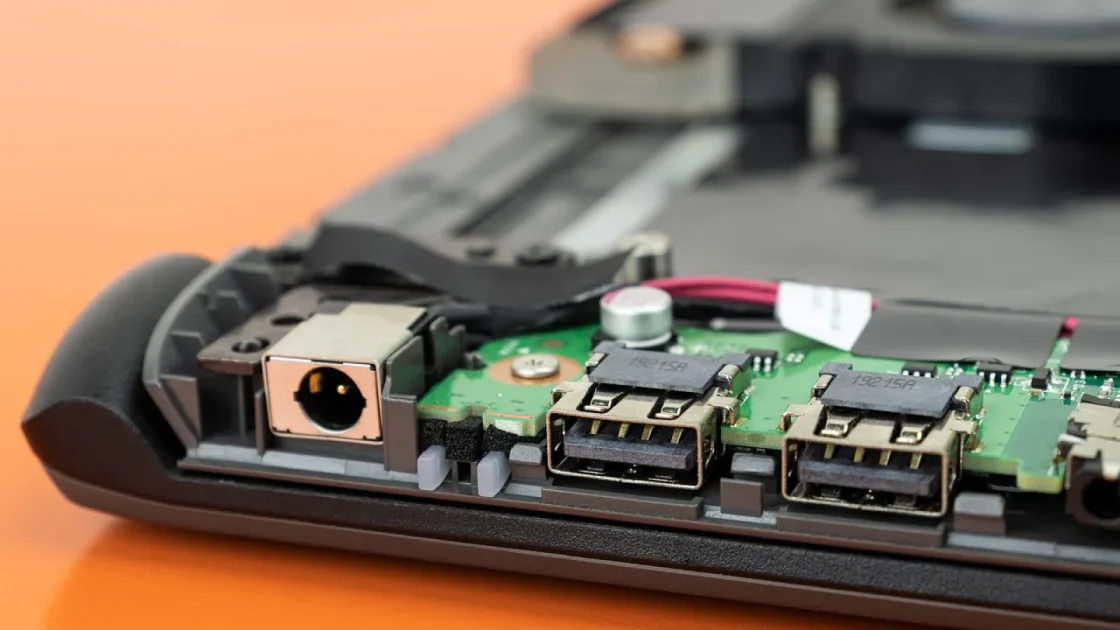
Here is a detail that trips up even careful people. A car can have three or four USB ports and only one of them does CarPlay.
The rest are power only, meant for charging a passenger’s phone or running a dash cam. On a lot of vehicles the CarPlay port is marked with a little phone icon or the letters SS next to the USB symbol. If yours has no marking, the owner’s manual will name the right one, or you can just test each port one at a time.
Newer cars muddy this further. Some ship with USB-C ports where only certain ones handle data, and a few have a single data port hidden in the center console while the visible dash ports are charge only.
Good to know
If your car switched you to a USB-C cable recently, make sure both ends are the data type. A USB-C to USB-C cable rated only for charging is a very common trap on 2022 and newer vehicles.
Clean the Port and Check the Connector
Phones live in pockets and bags, and pockets are full of lint. That lint packs into the bottom of a Lightning or USB-C port and stops the plug from seating all the way. When the plug cannot seat fully, you get power but no data, which looks exactly like a CarPlay failure.
Grab a wooden or plastic toothpick, power the phone off, and gently scrape the inside of the charge port. You will often pull out a surprising gray plug of compressed fuzz. I have fixed “dead” CarPlay in under a minute this way more times than I can count.
While you are at it, blow out the car’s USB port too. A can of compressed air does the job. Do not use anything metal in either port.
Restart Both Ends, Not Just the Phone
Software gets stuck. The phone thinks it is still connected to a session that ended, or the head unit‘s USB controller locked up and needs a reset.
Restart the phone first. Hold the power button, wait for it to fully shut down, then bring it back and try again. That alone clears a good share of these cases.
If the car still ignores it, restart the head unit. On many vehicles you hold the power or volume knob for 10 to 15 seconds until the screen goes black and reboots. Some cars only reset when you turn the ignition fully off, open and close the door, and let everything sleep for a couple of minutes.
The car’s infotainment system is a computer running in a hot metal box on a bumpy road. Treat a frozen USB connection the same way you would treat a frozen laptop: reboot it before you panic.
Check the Phone Settings That Silently Block CarPlay
A few iPhone settings can quietly stop CarPlay from ever handshaking. These are worth a careful look because nothing on screen tells you they are the problem.
On the phone, open Settings, then General, then find CarPlay. Confirm your car is listed there. If it is, tap it and make sure CarPlay is allowed for that vehicle. If your car was set up before and now refuses to connect, remove it here and set it up fresh.
Next, check USB Accessories. Go to Settings, then Face ID and Passcode (or Touch ID and Passcode), scroll down, and make sure USB Accessories is turned on. When that switch is off, the phone blocks data over USB if it has been locked for a while, which can kill CarPlay before it starts.
Watch out
If a “Trust This Computer” prompt ever pops up when you plug in, tap Trust. Tapping Don’t Trust, even by accident, tells the phone to refuse the data link, and CarPlay will stay dead until you plug in again and answer correctly.
Update the Software on the Phone and the Car
An outdated iOS version can break CarPlay after a car firmware change, and an outdated car firmware can break it after an iOS update. It cuts both ways.
Update the phone first since that is free and fast. Settings, General, Software Update. Then look into the car side. Some brands push infotainment updates over the air, others need a trip to the dealer or a USB stick with the update file from the manufacturer’s site.
If you want to confirm your setup should work at all, Apple keeps a plain list of supported behavior on the official CarPlay support page, and the CarPlay overview from Apple lists which vehicles and phones are covered.
Quick Diagnostic Checklist
Run through these in order the next time the car will not see your phone. Most people find their fix in the first four.
- Swap in a known-good data cable, not a charge-only one.
- Move to the USB port marked with a phone icon or SS.
- Clean lint out of the phone’s charge port with a toothpick.
- Restart the phone, then restart the head unit.
- Confirm USB Accessories is on and the car is trusted.
- Update iOS, then check for a car firmware update.
What the Symptom Is Telling You
The way it fails is a clue. Use this to point yourself at the likely cause instead of guessing.
| What you see | Most likely cause | First thing to try |
|---|---|---|
| Phone charges, no CarPlay at all | Charge-only cable or wrong port | Swap cable, try the data port |
| Connects then drops seconds later | Loose or damaged cable | Replace the cable |
| Nothing happens, no charge either | Dead port or packed lint | Clean port, test another port |
| Worked yesterday, dead today | Software glitch or recent update | Restart both, then update |
| “Trust” prompt keeps appearing | Trust was declined earlier | Replug and tap Trust |
If wired refuses to cooperate and your car supports it, wireless CarPlay is a decent fallback while you sort the cable out, though that has its own handshake quirks worth reading up on separately.
When It Is Actually the Car’s Hardware
Sometimes you do everything right and the port is just dead. USB ports fail, especially in cars a few years old that get daily plug-and-unplug wear.
Test with a second phone and a second known-good cable. If no phone works on that port but the port charges fine on a different car’s cable, you may be looking at a bad data line or a failing infotainment module. That is a dealer or a good independent shop conversation, and it can sometimes be covered under warranty on newer vehicles.
Before you spend money, do one honest pass through the checklist above. My rule after years of this: assume the cheap causes first, because nine times out of ten the car is fine and the cable, the port choice, or a pocketful of lint was the whole story. Grab a good cable, find the right port, clear the fuzz, and you are usually back on the road in a few minutes.
Frequently asked questions
Charging and data travel on different pins, so a cable can power your phone perfectly while carrying no data at all. This is the classic sign of a charge-only cable or a port that only supplies power. Swap to a known-good data cable and make sure you are in the USB port marked with a phone icon.
Yes. Physical damage near either connector often breaks the tiny data wires while leaving the power wires intact. The result is a phone that charges but never triggers CarPlay, or one that connects and drops within seconds. Replacing the cable is cheap and rules this out fast.
Look for a small phone icon or the letters SS printed next to the USB symbol; that usually marks the data port. If nothing is labeled, check the owner's manual or simply test each port one at a time with a good cable. Many cars have only one port that actually runs CarPlay.
Often, yes. Lint compresses into the bottom of the port and stops the plug from seating fully, which blocks the data connection while still allowing a charge. A gentle scrape with a wooden toothpick, phone powered off, frequently clears it in under a minute.
Test with a second phone and a second cable to isolate the problem. If nothing works on that port but everything works elsewhere, the car's USB port or infotainment module may have failed. That is worth a dealer visit, and newer vehicles may still be under warranty.
Keep reading
Related guides
Google Maps Not Working on Android Auto: Fixes
Maps freezing, showing a black screen, or stuck loading in Android Auto? Here is how to get turn-by-turn navigation back.
Read guide
CarPlay Black Screen: Causes and Simple Fixes
A blank or dark CarPlay display is almost always a small glitch, and here is how to bring the screen back in a few minutes.
Read guide
Wired CarPlay Won’t Connect: 9 Fixes That Work
Plug in and nothing happens? Here are nine practical fixes to get wired CarPlay running again, from the cable to the phone settings.
Read guide