Android Auto Settings Worth Changing
The handful of Android Auto settings that actually fix daily annoyances, tuned by someone who has set up dozens of cars.


Key takeaways
- Turn on wireless auto-launch so the car connects the moment you sit down.
- Trim your notification settings so texts read out but group chats stay quiet.
- Pick your default assistant voice and driving mode behavior before you need them.
- Enable the weather and split screen options on newer head units for a better home screen.
- Set app order and disable ones you never use to cut down on clutter.
You slide into the driver seat, plug in your phone, and wait. And wait. The screen sits on the car logo for fifteen seconds while you tap the wheel. Then it finally loads, but your podcast app is buried three swipes deep and a text notification is blaring at full volume through the speakers.
Sound familiar? Most of that is fixable in about ten minutes of poking through menus you probably opened once and never touched again.
I spent years wiring head units into cars in a shop, and the number one thing people never do is actually configure the software side. They get the connection working and stop there. So here are the changes that made the biggest difference for me and for customers who came back happy.
Turn on wireless auto-launch first
If your phone and car both support wireless connections, the single best change is telling Android Auto to start on its own. Buried in the app settings is an option that controls whether it wakes up automatically when you get in the car.
Open the Android Auto settings on your phone. On most recent phones you find this under Settings, then Connected devices, then Android Auto. Older setups keep it as a standalone app. Look for the section labeled something like “Start Android Auto automatically” and set it to your car, or to “Always.”
Once that is on, you sit down and it just connects. No plugging in, no tapping. On a Pixel paired with a 2022 Kia, mine goes live before I have my seatbelt clicked.
Pro tip
Wireless drains your battery faster than a cable does. If you drive more than 30 minutes, keep a short USB-C cable in the console anyway. You get the convenience most of the time and a top-up on long trips.
Tame your notifications before they embarrass you

The default notification behavior is loud and indiscriminate. Every app that can ping your phone will try to announce itself, and a busy group chat becomes a constant stream of chimes while you drive.
Inside the Android Auto settings there is a Notifications section worth a real look. You can control whether messages get read aloud, whether the car chimes for each one, and which apps are allowed to interrupt you at all.
My rule: let real one-to-one texts read out, mute group threads, and turn off notifications from anything that is not a messaging app. Your bank does not need to talk to you at 65 miles per hour.
- Set messaging apps to show and read incoming texts
- Silence group conversations that fire constantly
- Turn off notification sounds for non-messaging apps
- Decide whether replies get sent automatically after you speak
- Test it on a short drive before you trust it on the highway
Watch out
Some phones have a separate “do not disturb while driving” mode that overrides these settings. If your texts still are not reading out, check that mode too. The two systems can quietly cancel each other.
Choose your assistant behavior
The voice assistant is the safest way to do almost anything while moving, so it pays to set it up properly. You want it to hear you, respond fast, and not require you to shout.
Check that hands-free activation is enabled so you can start a request by voice alone. On the car side, the microphone quality matters as much as any setting, but the software still has options for how the assistant reads long messages and how it confirms actions.
If you find the assistant too chatty, there are toggles to shorten confirmations. If it mishears you often, retraining your voice model in the main Google app usually helps more than anything inside Android Auto itself.
The best in-car setup is the one you never have to look down for. Every setting that keeps your eyes up is worth the two minutes it takes to flip.
Enable the newer home screen features
Recent versions added a split home screen that shows your map, media, and suggestions side by side. On a 2023 or newer head unit this is often off by default, which is a shame because it is genuinely useful.
Look for a Layout or Home screen option in the Android Auto settings. If your car has a wide screen, the split view puts navigation on one side and your music controls on the other so you stop bouncing between apps.
There is also a weather chip and a battery display for some cars. Small things, but they turn the home screen from a launcher into something you actually glance at.
Good to know
Split screen needs a physically wide display to look right. On a small square screen it just crowds everything, so the option may not even appear. That is normal, not a bug.
Set your app order and hide the clutter
The app launcher shows everything Android Auto can run, and by default it is an alphabet soup of stuff you never open. You can customize which apps appear and, on some builds, the order they show up in.
Open the launcher customization inside the settings. Drag your three or four daily apps to the front: navigation, your main music service, a podcast app, maybe messages. Anything you never touch, disable it so it stops taking up a tile.
This matters more than it sounds. Fewer tiles means less scrolling, and less scrolling means your eyes come back to the road faster.
Pick the right defaults for maps and media
Nothing is more annoying than saying “navigate home” and having the wrong map app open. Android Auto follows the default navigation and default assistant choices you set on your phone, so fix those at the source.
Go into your phone’s app settings and set your preferred maps app and your preferred media app as system defaults. Once those are locked in, voice commands route to the app you actually use instead of whatever came preinstalled.
| Setting | Where to change it | Why it helps |
|---|---|---|
| Auto-launch | Android Auto app settings | Connects wirelessly with no tapping |
| Notification rules | Notifications section | Reads texts, silences the noise |
| Default nav app | Phone default apps | Voice commands open the right map |
| Split home screen | Layout option | Map and media visible together |
| App order | Launcher customization | Daily apps come first |
If you want the official rundown of what the platform supports across phones and cars, the Android Auto site lists current features and compatible vehicles. Google’s support pages are also solid when a specific toggle has moved between versions.
A quick word on wired versus wireless quirks
One thing that trips people up: some settings only appear when you are actually connected to the car. If you go hunting for split screen or notification options while parked at home with no connection, half the menu is missing.
Sit in the car, get connected, and then open the settings. The full list shows up. This is also why a flaky cable can make settings seem to vanish, because a dropped connection resets what the app is willing to show you.
Quick note
If wireless keeps dropping, forget the Bluetooth pairing and set it up fresh. A stale pairing is the most common cause of a connection that worked last month and quit for no clear reason.
Where to go from here
Do this once and you rarely touch it again. Spend ten minutes on your next quiet drive: turn on auto-launch, sort your notifications, reorder your apps, and lock in your default maps app.
Start with wireless auto-launch since it changes every single drive after. Then work down the list as things annoy you. You do not have to do it all at once, and honestly the notification tuning is the one people thank me for most.
Grab your phone, sit in the car, connect, and open that settings screen. Ten minutes now saves you a hundred small frustrations later.
Frequently asked questions
On most recent Android phones, open Settings, tap Connected devices, then Android Auto. Older phones keep it as a standalone app in your app drawer. Some options only appear while you are actively connected to the car, so open the menu while seated and connected for the full list.
A slow start usually comes from a weak wireless connection or a stale Bluetooth pairing. Try forgetting the pairing and setting it up fresh. A wired connection with a good USB-C cable almost always launches faster and more reliably than wireless.
Yes. In the Notifications section of the Android Auto settings you can silence specific conversation types. Mute group threads while leaving one-to-one texts on. Check your phone's separate driving mode too, since it can override these choices.
Most of the useful changes live on the phone side, inside the Android Auto settings. The car mainly controls the display and audio hardware. Default app choices, notifications, and auto-launch are all set on your phone.
Split screen needs a physically wide display and a recent Android Auto version. On small or square screens the option often does not appear at all because it would just crowd everything. That is expected behavior, not a fault with your setup.
Keep reading
Related guides
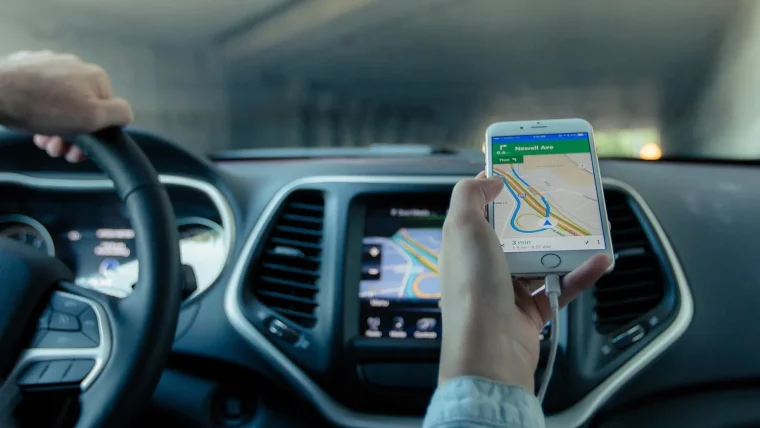
How to Set Your Default Navigation App in CarPlay
Apple never added a single default map switch, so here is the real way to make Google Maps or Waze your go-to on CarPlay.
Read guide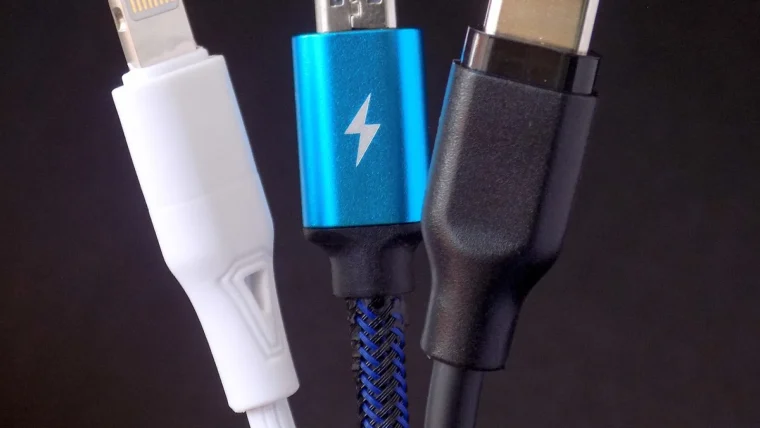
USB-C vs Lightning for CarPlay: Does It Matter?
Your iPhone connector changed, but does that actually affect how CarPlay behaves in the car? Here is the honest answer.
Read guide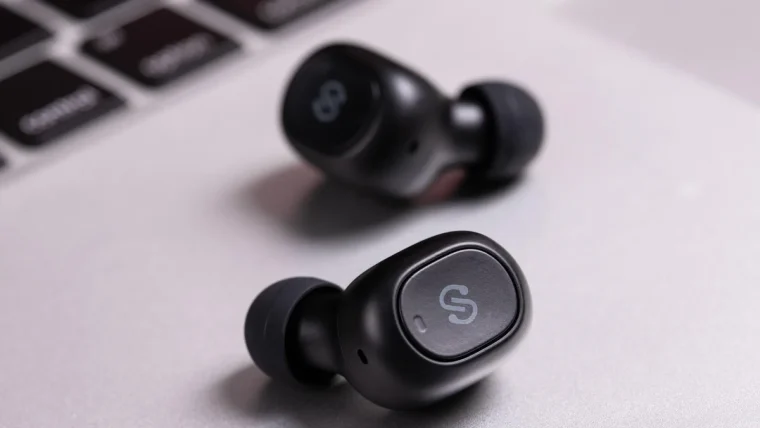
Bluetooth vs USB for CarPlay and Android Auto
A clear look at when a cable beats a wireless link, and when you can happily leave the cord in the glovebox.
Read guide