Android Auto Features Explained for Beginners
A plain-spoken tour of what Android Auto actually does in your car, from maps and music to voice replies and split screens.

Key takeaways
- Android Auto mirrors a simplified version of your phone onto the car screen, tuned for driving and voice control.
- The core features are navigation, audio, calls, messages and Google Assistant, all built to keep your eyes on the road.
- You need a compatible car or head unit, a decent USB cable (or wireless support) and the app already baked into most modern phones.
- The split-screen dashboard is the feature most beginners overlook, and it is the one you will use every single day.
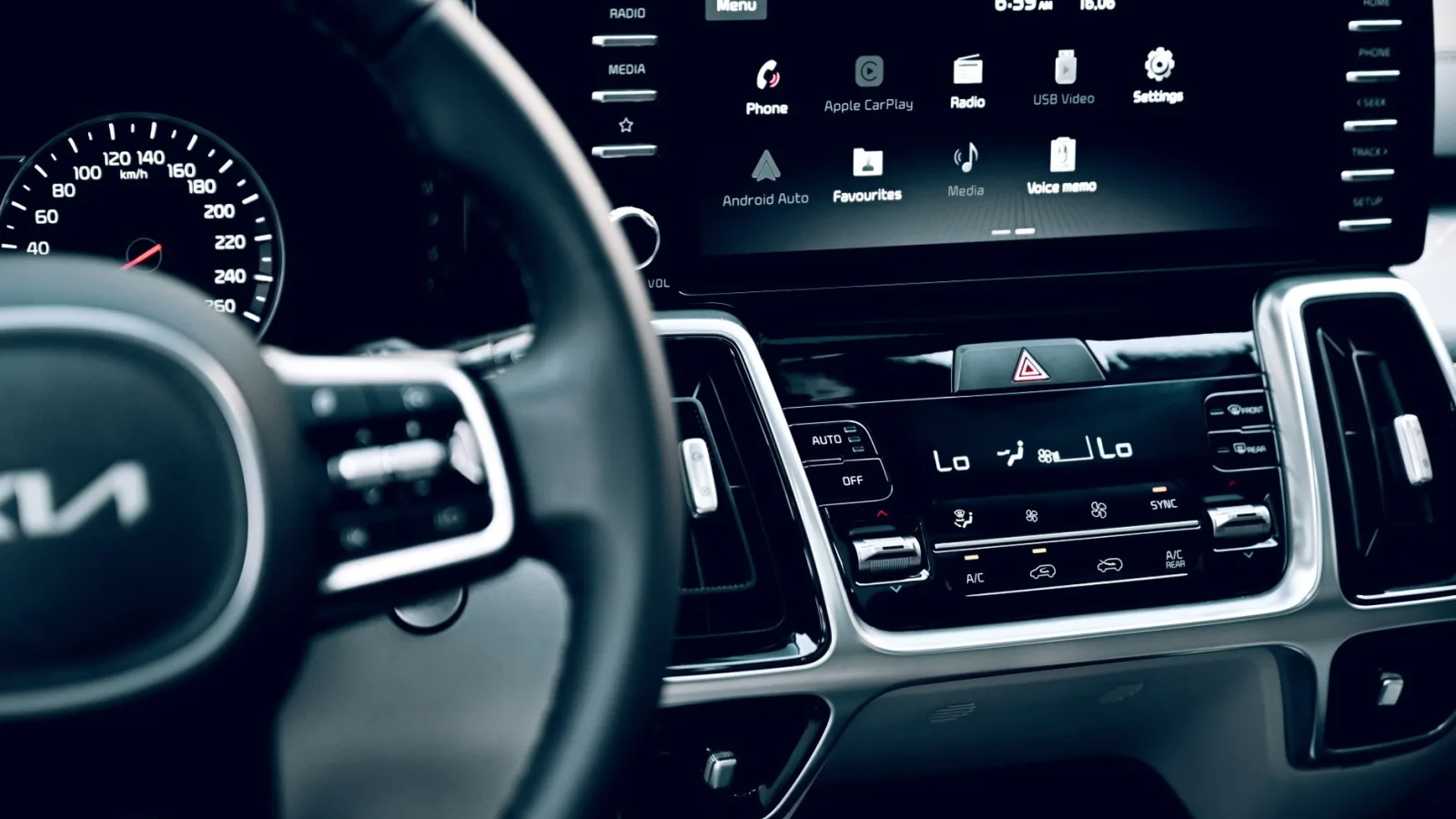
Picture your first drive in a car that has Android Auto. You plug in your phone, the screen blinks, and suddenly there is a version of your maps and music staring back at you from the dashboard. Bigger buttons. Fewer of them. A little voice waiting for you to say something.
If that moment left you wondering what all those icons actually do, you are in good company. Most people poke at two or three features and never touch the rest. That is a shame, because the stuff hiding one tap away is often the best part.
So let me walk you through it the way I would if you were sitting in my passenger seat. No jargon, just what each piece does and when you would actually reach for it.
What Android Auto really is (and what it is not)
Android Auto is not a separate gadget you buy. It is software that lives on your Android phone and projects a stripped-down interface onto your car’s screen. Think of it as your phone putting on its driving clothes.
The car does the displaying and the touch input. Your phone does the actual work: the data connection, the apps, the account you are already signed into. Unplug the phone and the car screen goes back to whatever it showed before.
That distinction trips up a lot of beginners. They assume the features live in the car. They do not. Change phones and your whole setup comes along for the ride, which is honestly one of the nicest things about it.
Good to know
Android Auto and Apple CarPlay are the same idea from two different companies. If your household has both an iPhone and an Android phone, a car that supports both will happily switch between them depending on who is driving.
Navigation that does more than draw a blue line
Maps is the feature almost everyone opens first, and for good reason. Google Maps and Waze both run inside Android Auto, and they look far calmer on a 10-inch dash than they do on a 6-inch phone.
The lane guidance is the part I wish someone had pointed out to me sooner. As you approach a messy interchange, the screen shows exactly which lane to be in, shaded so you cannot miss it. That alone has saved me from a few last-second merges.
Live traffic reroutes you automatically. If a wreck pops up three miles ahead, it quietly sends you around it and tells you how many minutes it saved. You can search by voice too, so “navigate to the nearest Costco” just works without typing a single letter.
Picking your maps app
You are not locked into Google Maps. Waze appeals to people who love crowd-sourced speed traps and hazard alerts. Both are free. Try each for a week and keep the one that annoys you less.
Pro tip
Start your route before you pull out of the driveway. Punching in an address while parked takes five seconds and keeps you from fiddling with the screen at a red light.
Music, podcasts and the audio you actually want
Audio is the other half of why people love this thing. Spotify, YouTube Music, Amazon Music, Pocket Casts, Audible, your local radio apps, they all show up with large album art and controls sized for a thumb doing 60 miles per hour.
The layout is deliberately simple: play, skip, and a browse button. No endless menus. You tap into a playlist, it plays, you get back to the map. That is the whole loop.
Podcasts remember where you left off, which matters on a long commute broken across two trips. And because the audio runs through your car speakers over the same connection, you are not messing with Bluetooth pairing every morning.
The first time I asked out loud for a specific album and it just started playing, I grinned like an idiot. Small thing, but it makes a boring drive feel a little futuristic.
Calls and messages without touching your phone
This is the safety feature dressed up as a convenience feature. Android Auto reads incoming texts out loud and lets you reply by talking. You never look at the phone, never type, never hold anything.
Say “reply, running ten minutes late,” and it sends. It works across a bunch of messaging apps, not just plain SMS, so WhatsApp and Messages and a few others are covered.
Calls are equally hands-off. Your contacts and recent calls sit right there on the screen. Tap a face or say a name and it dials through the car speakers and mic.
Watch out
Voice replies are only as good as the road noise lets them be. On a loud highway with the windows down, double-check what it heard before sending. I once texted a client something gloriously wrong because a truck rolled by mid-sentence.
Google Assistant is the feature you should lean on
The microphone button, or just saying the wake word, is the real heart of Android Auto. Once you get comfortable talking to it, you stop touching the screen almost entirely.
You can ask it to navigate somewhere, play a song, send a text, add a reminder, check the weather at your destination, or answer a random trivia question your kid fired off from the back seat. It pulls from the same Google account your phone uses, so it already knows your home and work addresses.
Here is a short list of commands worth memorizing on day one:
- “Take me home” to start navigation to your saved home address
- “Play something I like” to shuffle from your usual music service
- “Read my messages” to hear anything you missed while driving
- “Call [name] on speaker” to dial a contact hands-free
- “How long until I get there” for a quick ETA without glancing down
The split-screen dashboard nobody tells beginners about
Newer versions of Android Auto default to a split layout. Your map takes most of the screen, and a slim column shows your current audio plus a smart suggestion, like resuming a podcast or a shortcut to a place you drive often.
This is the view you will spend most of your time in, and it is genuinely clever. You see where you are going and what you are listening to at a glance, with no swapping between apps. For most drives, you set it once and never tap the screen again.
If your car came out before roughly 2020, you might see an older, one-app-at-a-time layout. It still works fine, you just tap between maps and music instead of seeing both.
What you need to get it running
The requirements are lighter than people expect. Here is the honest checklist of what makes it work.
| What you need | Details |
|---|---|
| An Android phone | Running a reasonably recent version of Android; the app is built in on most phones from the last several years |
| A compatible car or head unit | Most new cars support it; an aftermarket head unit runs $150 to $600 installed if yours does not |
| A good USB cable | For wired use, a quality data cable matters more than the price; a $10 flaky cable causes most dropouts |
| Wireless support (optional) | Newer cars and some adapters skip the cable entirely so the phone connects the moment you sit down |
Wired is the most reliable path and costs nothing extra if your car already supports the feature. Wireless is lovely once it works, but a $60 to $90 adapter or a car built for it is the price of that convenience. If you want to see the official list of supported apps and phones, Google keeps it current on the Android Auto site.
Quick note
If the screen never lights up, try a different USB port first. Many cars have one port for charging only and another that carries data. Plugging into the wrong one is the single most common beginner snag I see.
Where to point your attention first
You do not have to learn all of this at once. On your first drive, do three things: start a route by voice, play some music, and send one text reply without touching the phone. That covers 90 percent of what you will ever use.
Once those feel natural, poke around the split screen and the Assistant commands above. A week in, the car screen stops feeling like a menu to figure out and starts feeling like it was always supposed to be there.
If you are still deciding between this and the Apple side of the fence, that is a fair question worth its own comparison. For now, plug in, say “take me home,” and let it show you what it can do.
Frequently asked questions
No. The Android Auto software is free and already included on most recent Android phones. You only pay if you need hardware, like an aftermarket head unit or a wireless adapter, for a car that does not support it out of the box.
Yes. Because your apps, maps history and voice settings live in your Google account, a new phone brings your whole setup with it. Sign in on the new device, connect it to the car, and everything looks familiar within seconds.
Partly. Navigation and streaming music need data, but you can pre-download offline maps in Google Maps and save playlists for offline listening. Voice commands that rely on the cloud will be limited, so plan downloads before a trip through dead zones.
Nine times out of ten it is the USB cable or the port. Swap in a known-good data cable and make sure you are using the data port, not a charge-only one. If you are wireless, a quick phone restart usually clears a stuck connection.
Not quite. Built-in systems run the car maker's software, which often ages poorly. Android Auto borrows your phone's apps and account instead, so it stays current and matches what you already use every day on your phone.
Keep reading
Related guides

Is CarPlay Worth It? An Honest Look
A straight answer on who gets real value from CarPlay, who barely notices it, and how to decide before you spend a dime.
Read guide
CarPlay vs a Phone Mount: Which Is Smarter?
A $20 phone mount or a full CarPlay setup? Here is how to pick the one that actually fits your car, your budget, and your daily drive.
Read guide
How Much Data Does CarPlay Use?
A plain-spoken breakdown of what maps, music and calls actually pull through your phone when CarPlay is running.
Read guide