How to Set Up Android Auto Step by Step
Get your phone talking to your car's screen the first time, with the small gotchas that trip most people up.

Key takeaways
- A data-capable USB cable does most of the work on a first-time setup.
- The Android Auto app is baked into modern phones, so you rarely install anything.
- Say yes to every permission prompt or the screen sits blank.
- Wireless needs a car (or adapter) that supports it, plus a phone on Android 11 or newer.
- If the screen stays dark, the cable is the first thing to swap.
You just picked up the car, or maybe you finally got a new phone, and there’s that shiny screen in the dash begging to show you a real map instead of the built-in one from 2016. So you plug in. Nothing happens. Or a message flashes and vanishes before you can read it.
I’ve stood in enough parking lots watching people jab at a USB port to know this trips up more folks than it should. The good news is that the actual setup takes about five minutes once you know the order of operations. The bad news is that one weak cable can make you think your whole car is broken.
Let’s walk through it the way I’d do it sitting in your passenger seat, with the small stuff that the manual skips.
What you need before you touch the car
Android Auto works on most phones running Android 8.0 or higher, and on almost every car sold since about 2017. Before you plug anything in, run through a quick gut check so you’re not troubleshooting a problem that isn’t there.
- A phone on Android 8.0 or newer (Android 11+ if you want wireless).
- A car or aftermarket stereo that lists Android Auto support.
- A USB cable rated for data, not just charging.
- A few minutes parked, not rolling down the highway.
That cable line is the one people skim past. A cheap cord from a gas station will happily charge your phone and refuse to move any data at all. If you already own one that came with a phone, start there.
Watch out
Do the first-ever setup while parked. Your car hides half the setup prompts once it senses you’re moving, and Android Auto itself limits what you can tap at speed. Fighting that in traffic is how a ten-minute job turns into an hour.
The wired setup, one step at a time
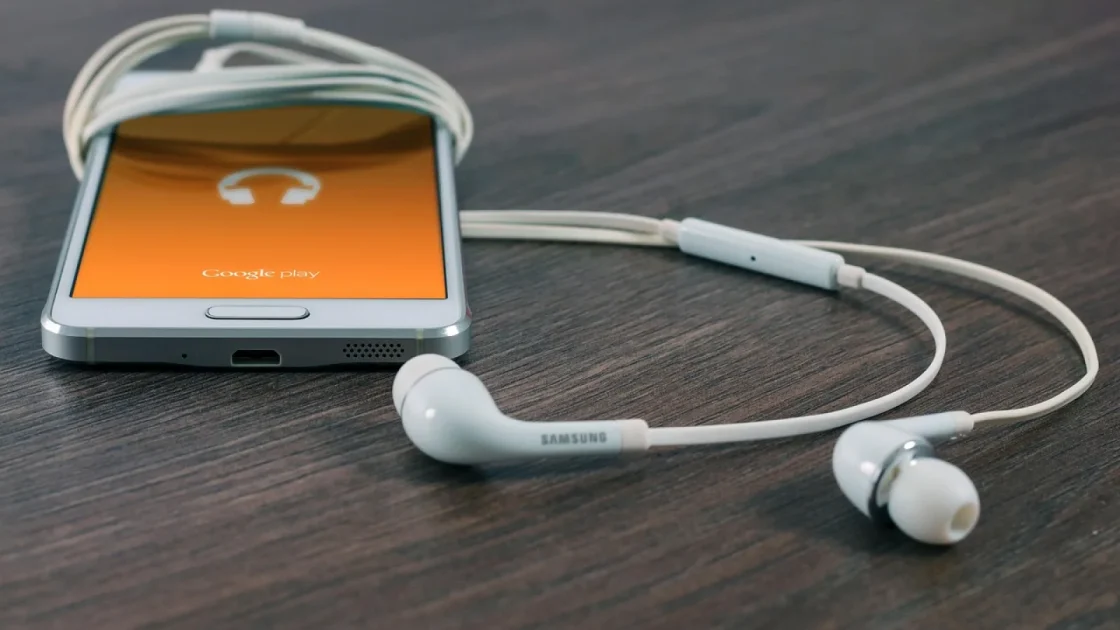
Wired is the setup I’d start with even if your car does wireless, because it’s the most predictable and it rules out a bad connection later. Here’s the sequence that works on nearly every car I’ve touched.
Step 1: Unlock your phone
Keep the screen on and unlocked for the whole first connection. A locked phone can’t grant the permissions the car is about to ask for, and the handshake quietly stalls.
Step 2: Plug into the right port
Find the USB port marked with a little phone-and-arrow icon or the word AUTO. Some cars have three or four ports and only one of them carries data. The others are charge-only, and plugging into those is the single most common reason a first-timer gets a blank screen.
Step 3: Watch your phone, not the dash
The first prompt usually pops up on the phone, not the car screen. You’ll see a request to allow Android Auto and a wall of permission toggles: contacts, messages, phone, notifications. Say yes to all of them. Deny one and you’ll lose a chunk of what makes the whole thing useful, like reading texts aloud.
Step 4: Let the car load
Give it fifteen to thirty seconds. The dash flips over to the Android Auto layout with Maps, your phone, and music across the bottom. That’s it. You’re in.
Pro tip
Route the cable before you get comfortable. A phone tugging on a short cord in a cupholder will pop the connection loose on the first speed bump. I like a cable long enough to reach a tray or a dedicated phone slot with a little slack to spare.
Going wireless, and when it’s worth it
No cable, phone stays in your pocket, and the screen just wakes up when you start the car. When it works, wireless feels like the future finally showed up. It also asks for a little more from your gear.
You need a phone on Android 11 or later (Google’s own Pixel phones and most recent Samsung Galaxy models qualify), and a car that specifically supports wireless Android Auto. Plenty of cars do wired only, which surprises people who assumed newer meant wireless. If yours is wired only, a small adapter that plugs into the USB port can add wireless for around $50 to $70.
The first-time pairing goes over Bluetooth, then hands off to Wi-Fi for the actual screen data. Here’s the short version.
| Step | What you do |
|---|---|
| 1 | Open Bluetooth settings on your phone. |
| 2 | Pair with the car like any normal Bluetooth device. |
| 3 | Accept the Android Auto prompt that appears after pairing. |
| 4 | Wait for the screen to switch over on its own. |
After that first pairing, it should connect by itself every time you get in. If it doesn’t, the fix is almost always in the car’s Bluetooth menu, not the phone.
Good to know
Wireless drains your phone faster because Wi-Fi and GPS are both running hard. On a long drive I still drop a cable in for charging, which gives you the wireless convenience with none of the low-battery panic when you arrive.
Fixing the connection that won’t connect
Most first-time failures come down to three things, and you can check all of them in under two minutes.
Start with the cable. Swap in a different one, ideally the one that came in your phone’s box. I’d say six out of ten “my car won’t do Android Auto” complaints I hear are just a tired cable that lost its data lines.
Next, the port. Move to a different USB slot and look for that data icon. If the phone charges but nothing else happens, you’re probably in a charge-only port.
Last, the permissions. Open the Android Auto settings on your phone (search “Android Auto” in your app list or system settings) and confirm nothing got denied during setup. A single blocked permission can leave the car screen stuck on a loading spinner.
The car almost never fails. It’s the cable, the port, or a permission you tapped past too fast. Check those three before you book a service appointment.
Quick note
Still stuck after all three? A quick restart of the phone clears a surprising number of ghost problems. Turn it fully off, wait ten seconds, turn it back on, and try the plug again.
Getting your apps the way you like them
Once you’re connected, the layout is yours to shape. Tap the app grid on the car screen to see everything Android Auto can show: navigation, messaging, music, podcasts, and audiobooks. Not every phone app appears, only the ones built to run safely while driving.
You can pick your default navigation app so a tap on Maps opens Google Maps or Waze instead of asking every time. Music apps like Spotify and YouTube Music show up automatically once they’re installed on the phone. There’s no separate download for the car version.
If an app you expect is missing, make sure it’s updated on your phone. An old version might not have the Android Auto piece yet, and updating usually makes it appear on the next connection.
A few settings worth changing on day one
The defaults are fine, but two toggles make a real difference. Both live in the Android Auto settings on your phone.
Turn on message previews if you want texts read aloud, or leave them off if you’d rather keep quiet in the car. And check the wallpaper and dark-mode options, because a bright screen at night is genuinely tiring on a long drive.
If you carpool or share the car, know that Android Auto pairs to one phone at a time. The driver’s phone takes the screen, and a second phone can still play audio over plain Bluetooth. It’s the same either-or situation people run into on the Apple side with two phones.
For the official rundown of supported phones and features, Google keeps a plain-language page at the Android Auto site, and the Android Auto help center is the place to look when a specific car acts up.
Your next drive
Here’s the plan for the next time you head out. Plug in with a known-good cable, unlock the phone, and say yes to every prompt. If the screen lights up, spend two minutes setting your default map and message previews so it’s ready before you actually need it.
If it doesn’t light up, work the cable, port, permission list in that order, and you’ll almost certainly land on the culprit. Save the wireless experiment for a day you’re parked at home with time to pair without a schedule breathing down your neck.
Do that once and you’ll never think about setup again. The screen just becomes the thing that’s always there, which is exactly how it should feel.
Frequently asked questions
On most phones running Android 10 or newer, Android Auto is already built into the system, so there is nothing to install. On older phones you may still find it in the Play Store. If your car screen never responds, check for a system update rather than hunting for a missing app.
That almost always means you are plugged into a charge-only USB port or using a charge-only cable. Look for the USB port marked with a phone-and-arrow icon, and try the cable that came in your phone's box. Data has to flow, not just power, for the car screen to react.
Yes, with a small adapter that plugs into the car's USB port and adds wireless support. They run roughly $50 to $70 and work with most phones on Android 11 or later. It is a cheap way to skip the cable without buying a new head unit.
Open the Android Auto settings on your phone and look for the navigation or default apps option. From there you can choose Google Maps, Waze, or another supported app so tapping the map on the car screen opens the one you want. The change takes effect the next time you connect.
The car screen connects to one phone at a time, so only the driver's phone drives the display. A passenger's phone can still stream audio over regular Bluetooth in the background. Switching the active phone means disconnecting the first one, either by unplugging or through the car's Bluetooth menu.
Keep reading
Related guides
Bluetooth vs USB for CarPlay and Android Auto
A clear look at when a cable beats a wireless link, and when you can happily leave the cord in the glovebox.
Read guide
CarPlay and Mobile Data: What Uses Your Allowance
A plain look at where your phone plan actually gets spent while CarPlay is running, and what costs you nothing.
Read guide
How to Update Your Phone for Better CarPlay
A plain-spoken walkthrough for keeping iOS and Android current so your dashboard connection stays quick and reliable.
Read guide